Connect to Google Sheets
Sync your store locations directly from a Google Sheet — create, edit, and import with one click.
Keep your store locations in a Google Sheet and sync them into the Store Locator with a single click. The app creates the sheet for you with pre-set columns and sample data so you can get started right away.
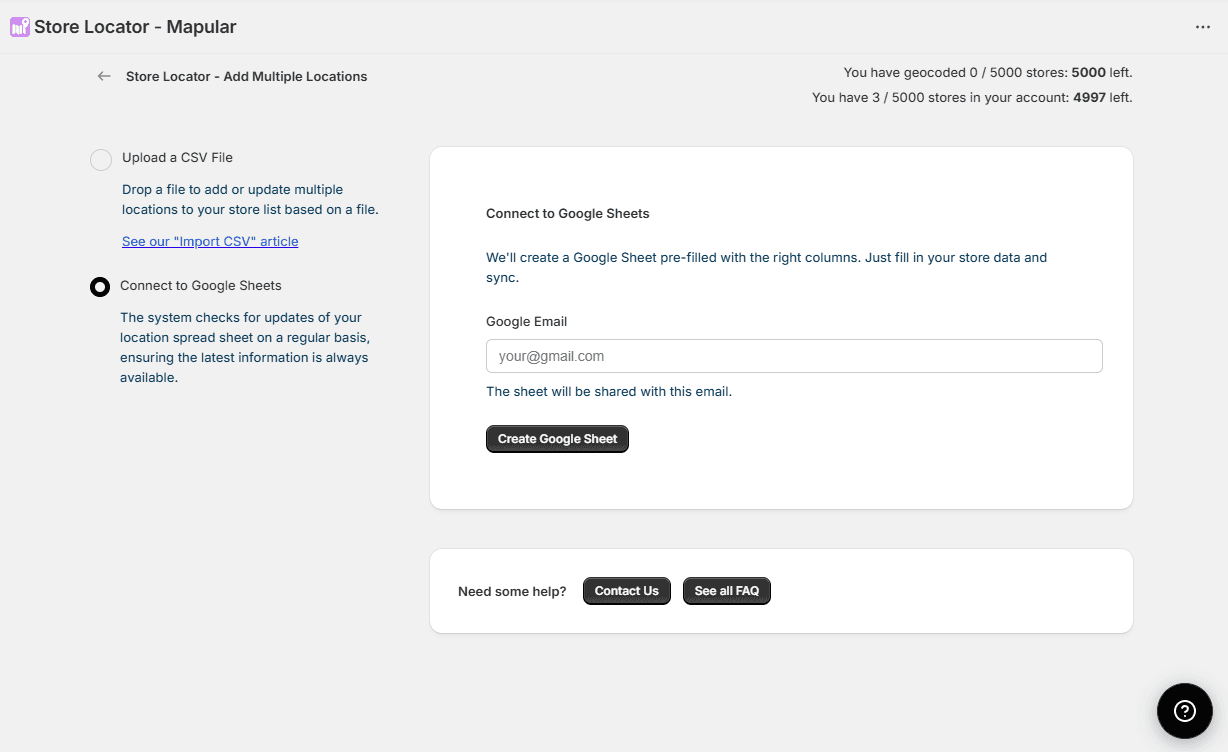
- 1Go to Locations in the left sidebar.
- 2Select Add Multiple Locations.
- 3Select Connect to Google Sheets.
- 4Enter your Google email address.
- 5Click "Create Google Sheet" — a sheet with pre-set columns and sample data is created and shared with you.
- 6Open the sheet and fill in your store locations.
- 7Click "Sync Now" — stores are imported. Rows with addresses but no coordinates are auto-geocoded.
- 8Click "Disconnect" to remove the connection and delete the sheet.
You can re-sync anytime after editing the sheet. Just come back and click "Sync Now" again.
If you prefer to upload a file manually instead, see Import Stores with CSV.
Video Tutorial
Video Tutorial
How to connect and sync stores from Google Sheets
Noch nicht weitergekommen?
Wir helfen Ihnen gerne
Oder senden Sie uns eine E-Mail an support-store-locator@mapular.com