Import Stores with CSV
Upload all your store locations at once using a CSV file instead of adding them manually.
If you have many store locations, you can upload them all at once using a CSV file instead of adding them manually.
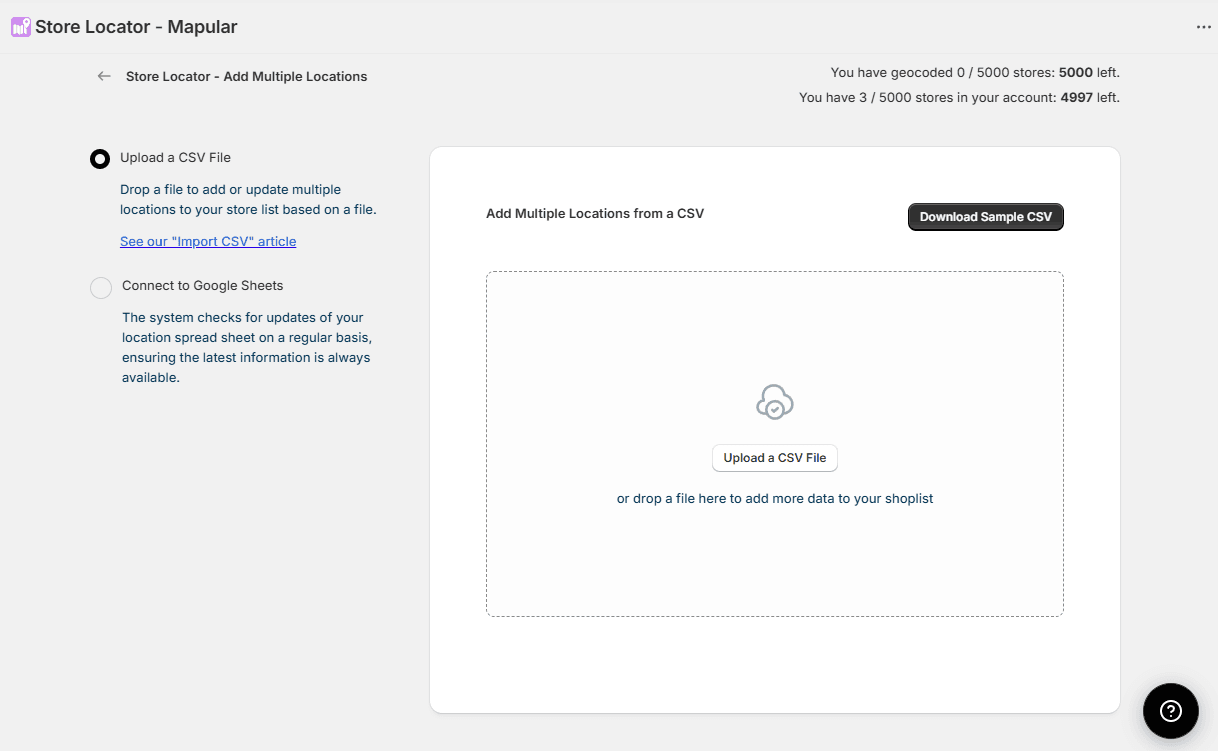
- 1Go to the Locations section in the Store Locator admin panel.
- 2Select Add Multiple Locations
- 3Download one of the provided CSV templates:
- Address-based template
- Latitude/longitude template
- 4Open the file in Google Sheets or Excel to edit it easily.
- 5Fill in your store data (name, address, hours, images, etc.).
- 6Upload the CSV file back into the app.
- 7Match your CSV columns to the correct store fields (address, name, description, hours, etc.).
The app will then automatically:
- Geocode your store addresses (to transform the coordinate/address into a point in the map)
- Add them to your store list
- Display them on the map
This is the fastest way to bulk upload and manage large store networks.
CSV Templates
Choose the template that matches your data format:
| Template | When to use |
|---|---|
| Address column | You have full street addresses |
| Latitude & Longitude columns | You have separate latitude /longitude columns |
Download both templates on the Downloads page.
Required Fields
Every row must include name and at least one location field:
| Field | Required | Notes |
|---|---|---|
name | Yes | Store display name |
address | One of these two | Full street address (the app will geocode it automatically) |
latitude + longitude | One of these two | Decimal coordinates (e.g. 48.8566, 2.3522) |
Each row needs either a valid address or both latitude and longitude. Rows missing both will be skipped.
All Available Fields
| Field | Example |
|---|---|
name | REWE Charlottenburg |
address | 80-82 Otto-Suhr-Allee, Berlin, 10585 |
latitude | 52.5162 |
longitude | 13.3045 |
phoneNumber | 49152000999 |
emailAddress | hello@example.com |
website | https://www.rewe.de |
websiteLabel | Visit website |
description | Open daily, fresh produce available. |
businessHours | {'mon':['09:00-19:30'],'tue':['09:00-19:30']} |
image | https://example.com/store-photo.jpg |
iconLink | https://example.com/custom-pin.png |
hyperlink | https://www.rewe.de/angebote |
hyperlinkLabel | Weekly offers |
prioritized | True |
businessHours uses a JSON-like format with day codes (mon–sun) and one or more time ranges per day. You can have a break mid-day by adding a second range (e.g. ['09:00-12:45','13:00-19:00']).
prioritized pins the store to the top of the results list. Set to True or leave blank.
Video Tutorial
Video Tutorial
How to import store data using CSV
Noch nicht weitergekommen?
Wir helfen Ihnen gerne
Oder senden Sie uns eine E-Mail an support-store-locator@mapular.com