Using a Mapbox Custom Style
Apply your own branded map design using Mapbox Studio or Google Maps cloud-based styling.
The Custom option lets you apply your own branded map design. The setup depends on which map provider you are using.
Mapbox Custom Style
Create a custom style in your Mapbox account and paste the Style URL into the Store Locator settings.
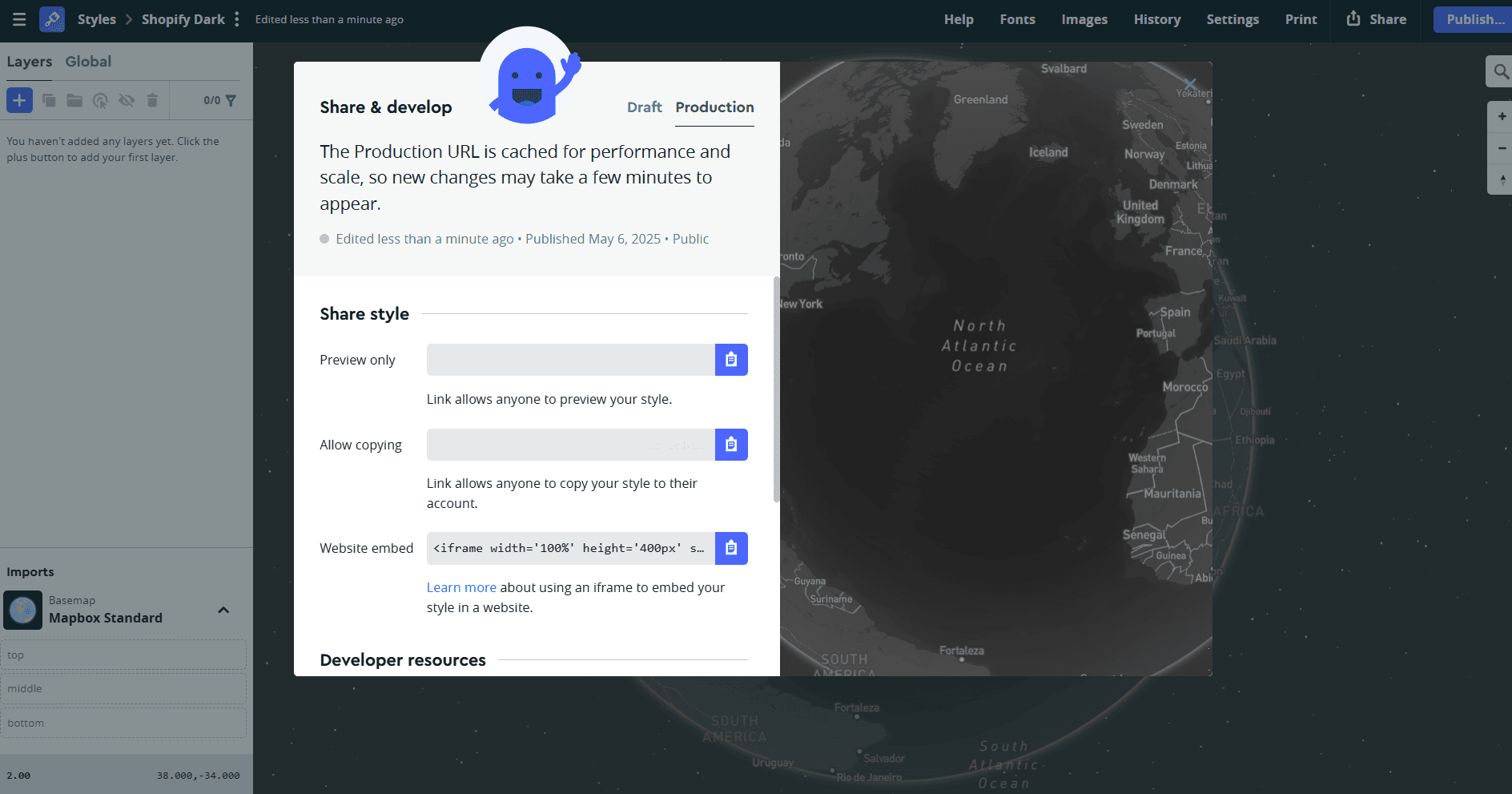
How to get your Style URL
- 1In Mapbox, open Studio
- 2Create or select a style
- 3Copy the Style URL provided by Mapbox
The Style URL usually looks like: mapbox://styles/your-username/your-style-id
Where to add it
- 1Go to Settings > Map
- 2Under Mapbox Settings, find the field Custom Mapbox Style URL
- 3Paste your style link there
Once added, select Custom as your map style.
You need a Mapbox API key connected before custom styles will work. See Set Up Your Mapbox Key if you haven't done this yet.
Google Maps Custom Style
Create a custom style in the Google Maps Cloud Console and use your Map ID in the Store Locator settings.
How to get your Map ID
- 1Open the Maps Studio in Google Cloud Console
- 2Create a new map style and customize colors, labels, and features
- 3Save the style and copy the Map ID
Where to add it
- 1Go to Settings > Map
- 2Under Google Maps Settings, find the field Google Maps Map ID
- 3Paste your Map ID there
Once added, select Custom as your map style.
You need a Google Maps API key connected before custom styles will work. See Set Up Your Google Maps Key if you haven't done this yet.
Noch nicht weitergekommen?
Wir helfen Ihnen gerne
Oder senden Sie uns eine E-Mail an support-store-locator@mapular.com