Review & Submit
Final step: confirm your information is truthful, agree to privacy terms, sign with your finger, and submit the report.
You're almost done. This final step asks you to confirm your information, agree to the privacy terms, and sign the report before submitting.
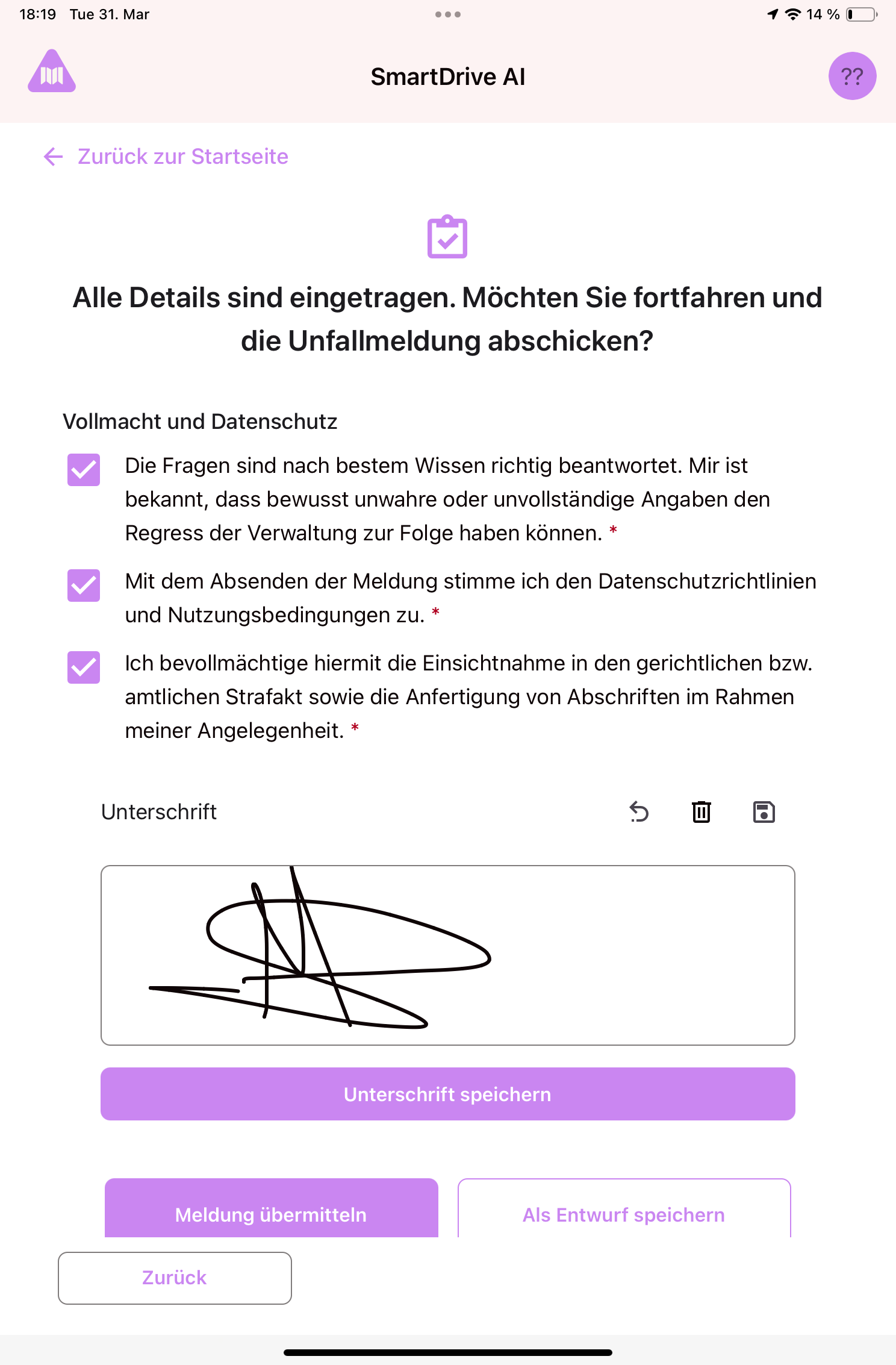
Confirmation checkboxes
You must check all three boxes before submitting:
- Declaration: "The questions have been answered truthfully to the best of my knowledge. I am aware that deliberately false or incomplete information may result in recourse by the administration." Tap the checkbox to confirm.
- Privacy agreement: "By submitting this report, I agree to the privacy policy and terms of use." Tap to agree.
- Authorization: "I hereby authorize the inspection of court or official records and the making of copies in connection with my case." Tap to authorize.
Signature
- In the signature area, sign with your finger directly on the screen. Write your signature as you normally would.
- If you're not happy with it, tap the undo icon to remove the last stroke, or the trash icon to clear and start over.
- Tap the save icon to confirm your signature.
Submitting
- Once all three checkboxes are checked and you've signed, tap "Submit".
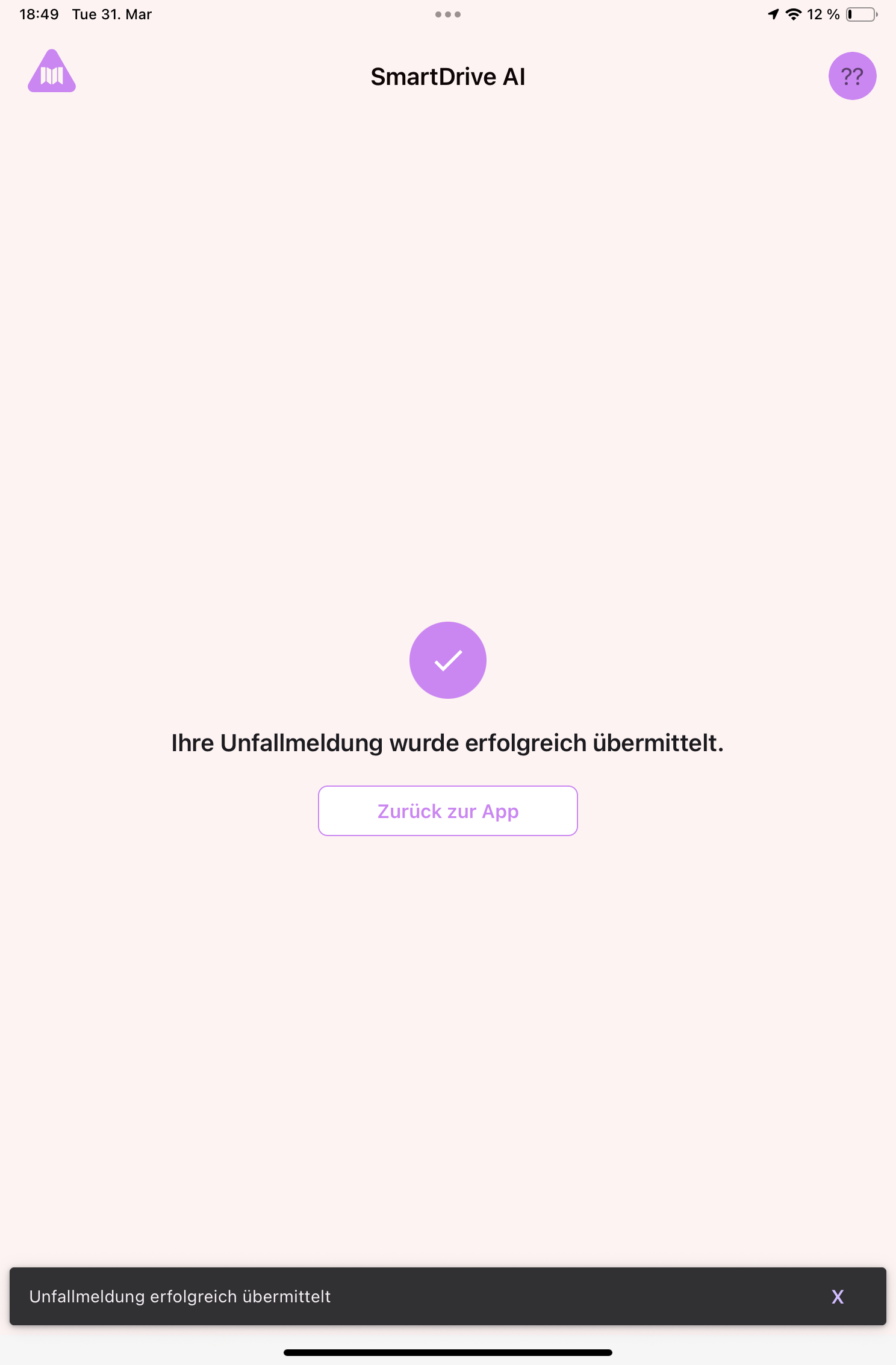
- You'll see a confirmation screen with a green checkmark and the message: "Your accident report has been successfully submitted."
- Tap "Back to App" to return to the home screen.
What if you're not ready?
If you're not ready to submit yet, tap "Save" instead. This saves the report as a draft. You can return to it later from the home screen by tapping "Create Accident Report". Your draft will be loaded automatically.
Still need help?
Get in touch with the SmartDrive AI team
Or email us at support-smartdriveai@mapular.com