Connect to Google Sheets
Sync your store locations directly from a Google Sheet — create, edit, and import with one click.
Keep your store locations in a Google Sheet and sync them into the Store Locator with a single click. The app creates the sheet for you with pre-set columns and sample data so you can get started right away.
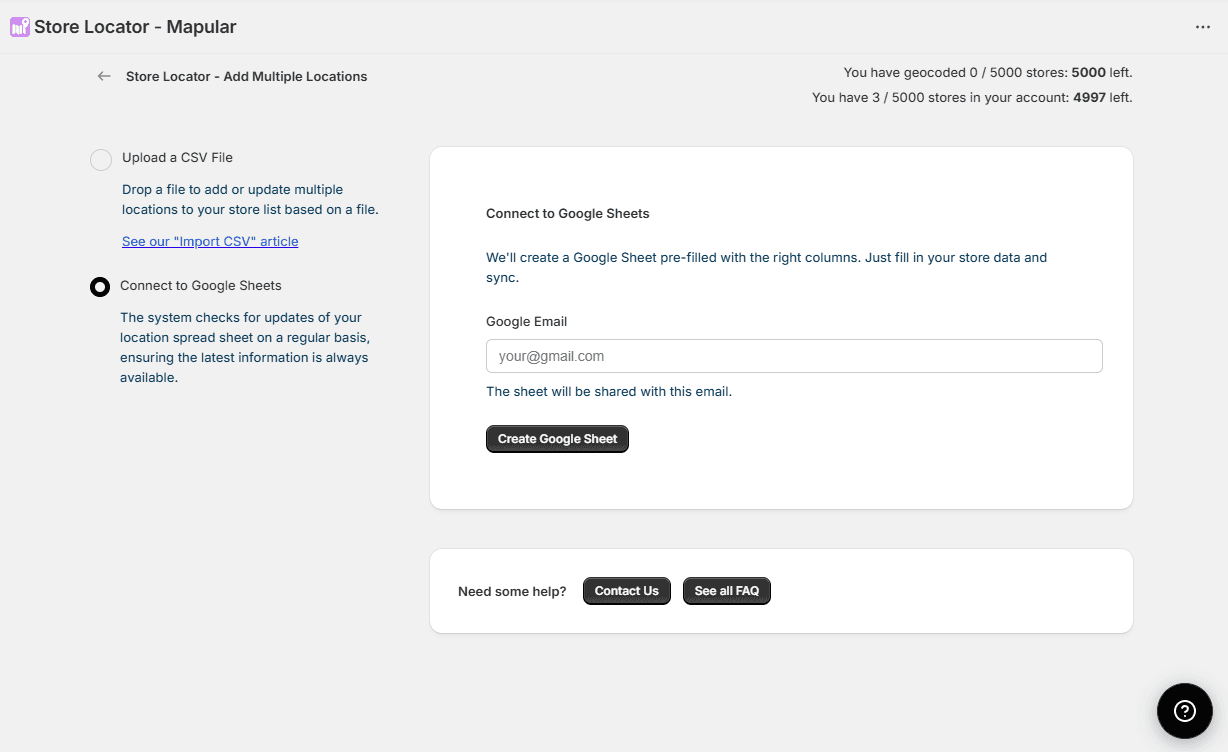
- 1Go to Locations in the left sidebar.
- 2Select Add Multiple Locations.
- 3Select Connect to Google Sheets.
- 4Enter your Google email address.
- 5Click "Create Google Sheet" — a sheet with pre-set columns and sample data is created and shared with you.
- 6Open the sheet and fill in your store locations.
- 7Click "Sync Now" — stores are imported. Rows with addresses but no coordinates are auto-geocoded.
- 8Click "Disconnect" to remove the connection and delete the sheet.
You can re-sync anytime after editing the sheet. Just come back and click "Sync Now" again.
If you prefer to upload a file manually instead, see Import Stores with CSV.
Video Tutorial
Video Tutorial
How to connect and sync stores from Google Sheets