Organize Mapbooks with Folders
How to create folders, move Mapbooks into them, and set folder access levels to keep your workspace organized.
Folders let you group related Mapbooks together on the homepage. You might create a folder per country, per client, or per expansion wave.
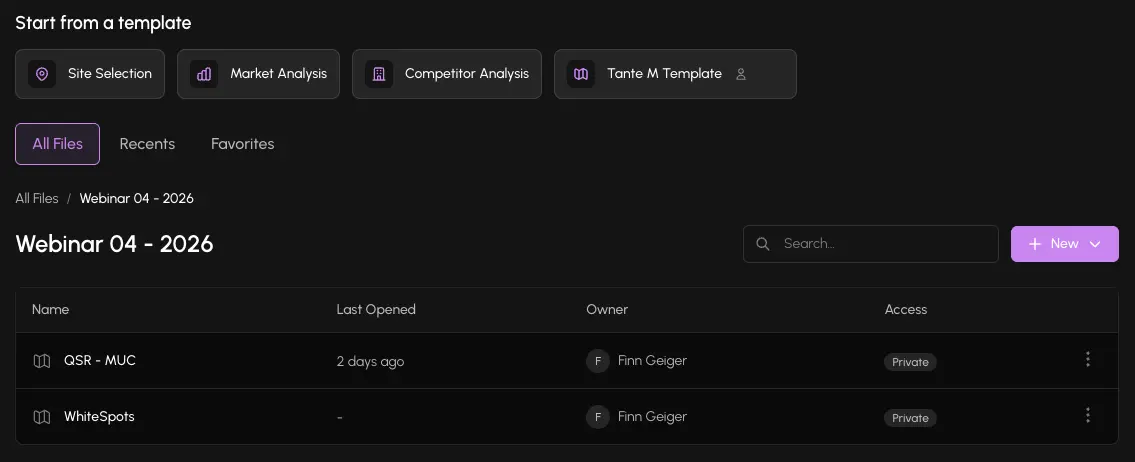
Create a folder
- 1On the homepage, click + New folder (or the folder icon in the toolbar).
- 2Give the folder a name and choose its access level.
- 3Click Create. The folder appears in the list, ready to receive Mapbooks.
Move a Mapbook into a folder
- 1Hover over the Mapbook you want to move.
- 2Click the ... actions menu on the right.
- 3Select Move to folder.
- 4Choose the destination folder and confirm.
You can also move a Mapbook out of a folder by selecting Move to folder and choosing No folder.
Folder access levels
Folders have their own access level, independent of the Mapbooks inside them.
| Level | Who can see the folder |
|---|---|
| Private | Owner only |
| Shared | All members of your organization |
A folder's access level controls who can see the folder itself. The access level of each Mapbook inside still applies to that Mapbook independently.
The platform validates tree coherence: a Shared Mapbook cannot be placed inside a Private folder, because that would make it invisible to the people who should have access.
Rename or delete a folder
- 1Hover over the folder on the homepage.
- 2Click the ... actions menu.
- 3Select Rename to change the folder name, or Delete to remove the folder.
Deleting a folder does not delete the Mapbooks inside it. They move back to the root level of your homepage.