What Is a Mapbook?
Understand the core concept behind Mapular's workspace: what a Mapbook is, what it contains, and how to create one.
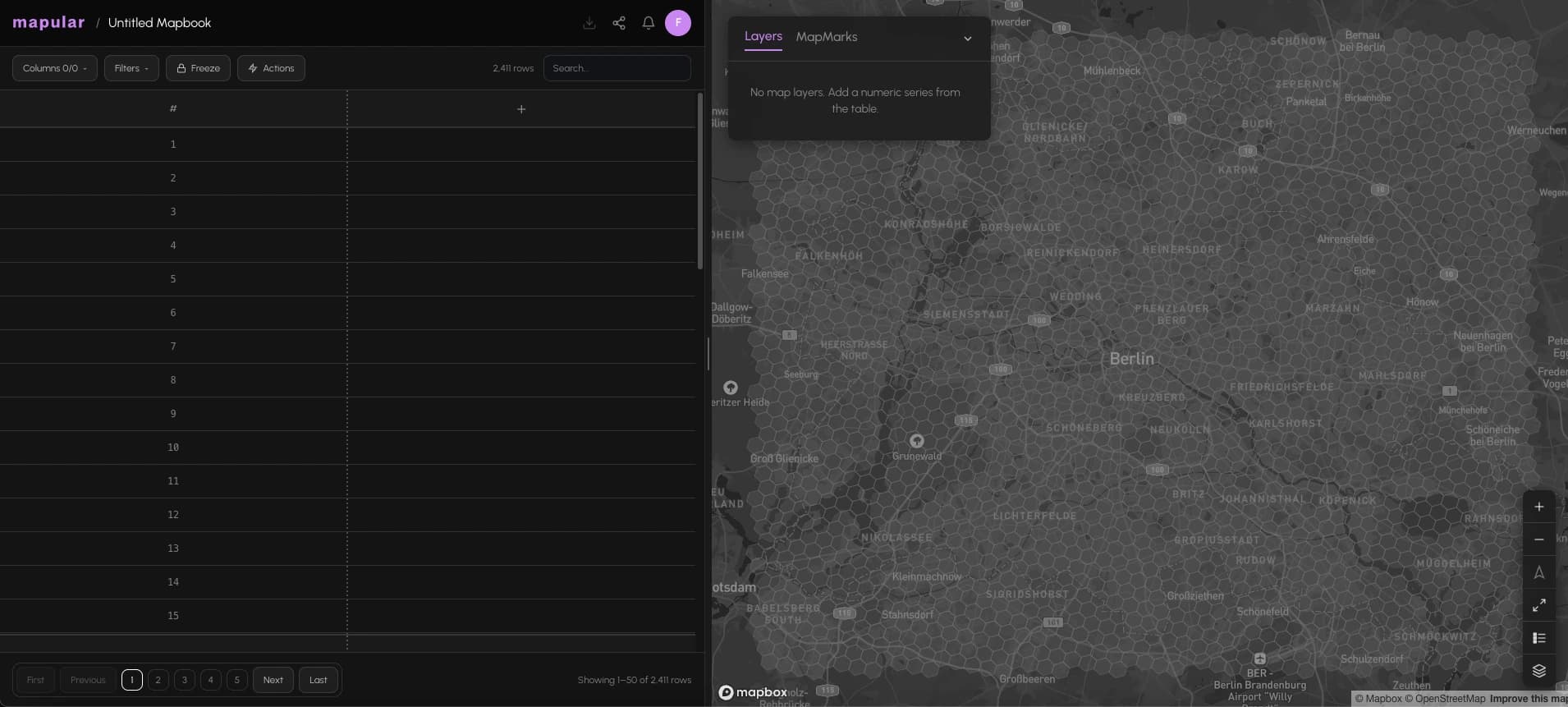
Think of a Mapbook the way you think of a spreadsheet. A spreadsheet holds your data in rows and columns. A Mapbook holds your location data in a map and a table, side by side.
Every analysis you run in Mapular lives inside a Mapbook. You can have as many Mapbooks as you need.
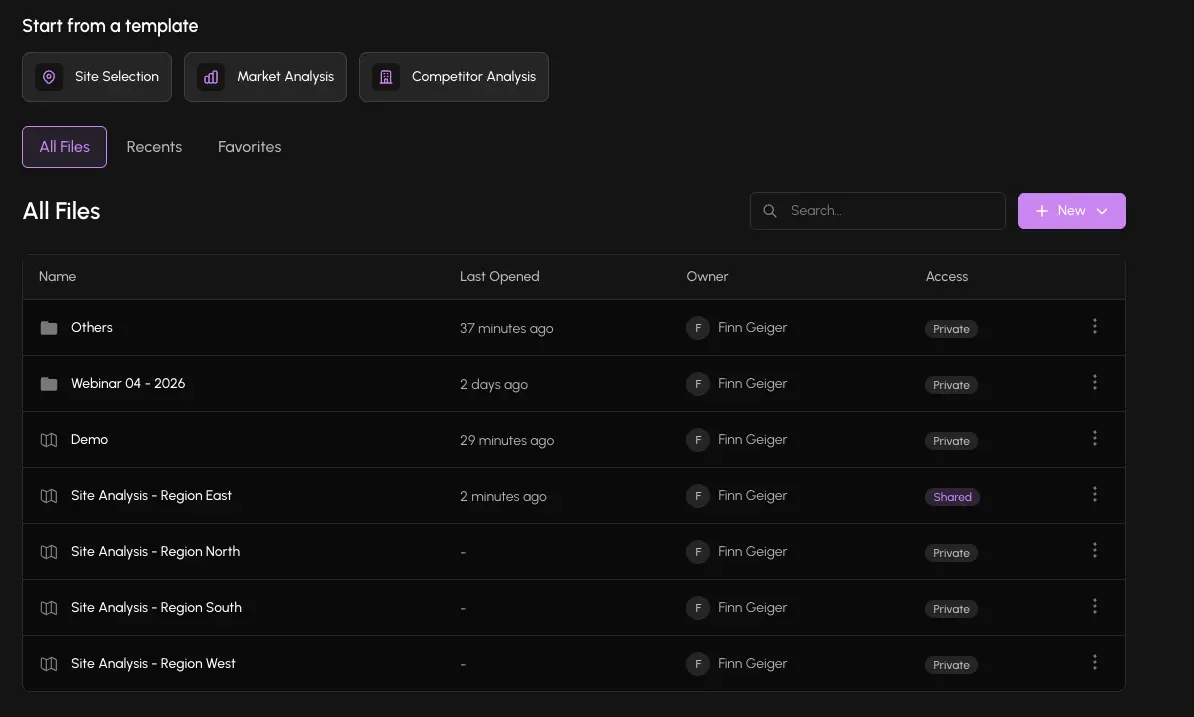
Core concepts
Mapbook
A Mapbook is your workspace for a specific analysis. It has a name, an access level, and a set of data layers called series.
Examples of how teams use individual Mapbooks:
- One Mapbook per country or region
- One Mapbook per expansion project
- One Mapbook per client
Multiple Mapbooks can coexist in your account. There is no limit. You might keep one for Germany and a separate one for the Netherlands, or one per franchise expansion wave.
Series
A series is a data layer inside a Mapbook. It can be bundled data (demographics, points of interest) or data you upload yourself (your store network, leads, sales data).
Each series adds a column to the table and a visualization to the map.
Map view and Table view
Every Mapbook shows two panes side by side:
- Map view: A hexagonal grid of your data. The color (and optional height) of each cell shows the value for that area.
- Table view: The same data as rows and columns. You can sort, filter, and search here. Clicking a row highlights the matching hex on the map.
The two views stay in sync. If you click a hex on the map, that row gets highlighted in the table.
How to create a Mapbook
- 1From the homepage, click + New Mapbook.
- 2The platform creates a new Mapbook immediately and opens it.
- 3Rename it by clicking the title in the header.
- 4Add your first data layer using the Add column button or the sidebar.
Mapbook management
From the homepage you can:
- Rename a Mapbook by selecting Rename from the row menu
- Duplicate a Mapbook to reuse its configuration as a starting point for a new analysis
- Delete a Mapbook (owner only, with confirmation)
- Change access level to control who can see it (Private, Shared, or Public)
The homepage shows all Mapbooks you have access to, including ones shared by your team.