Logging In
How to log in to SmartDrive AI for the first time, including credentials, camera and location permissions, and what to do when the app shows "Offline".
The first time you open the app, you'll need to log in with your company credentials. This section shows you how to get from the login screen to the home screen.
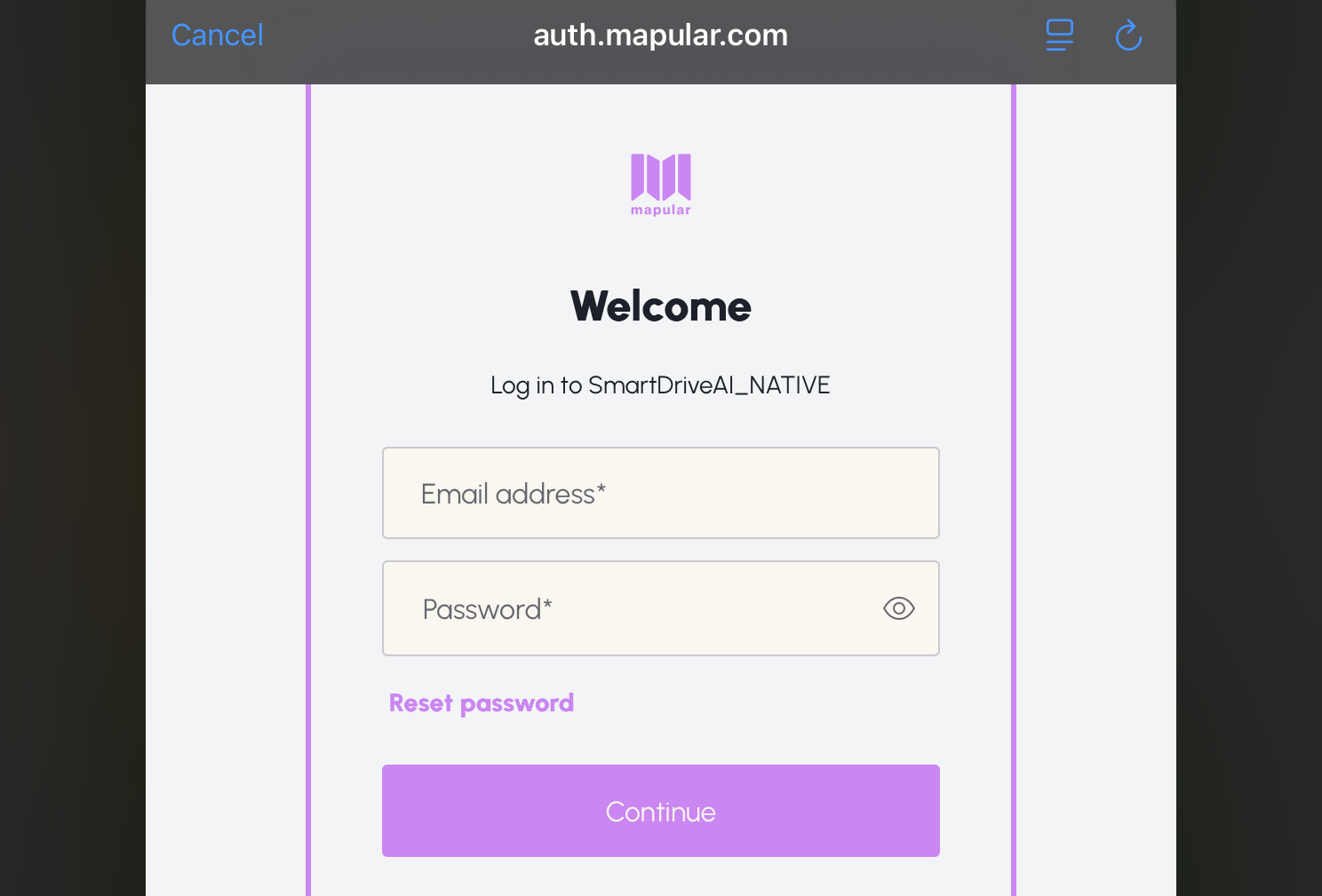
Instructions
- Open the SmartDrive AI app on your iPad. You will see the login screen with the SmartDrive AI logo.
- Tap the "Einloggen" button. A login window will appear.
- Enter your company email and password (the same credentials you use for other company systems). Then tap "Log in".
- If the app asks for camera permission, tap "Allow". The app needs this to photograph accident damage.
- If the app asks for location permission, tap "Allow". The app uses your location to automatically fill in the accident address.
Important
You need an internet connection the very first time you log in. After that, the app remembers your credentials and you can use it even without internet. If you see an "Offline" message on the login screen, connect to Wi-Fi or mobile data and try again.
Still need help?
Get in touch with the SmartDrive AI team
Or email us at support-smartdriveai@mapular.com