Using a Mapbox Custom Style
Apply your own branded map design using Mapbox Studio or Google Maps cloud-based styling.
The Custom option lets you apply your own branded map design. The setup depends on which map provider you are using.
Mapbox Custom Style
Create a custom style in your Mapbox account and paste the Style URL into the Store Locator settings.
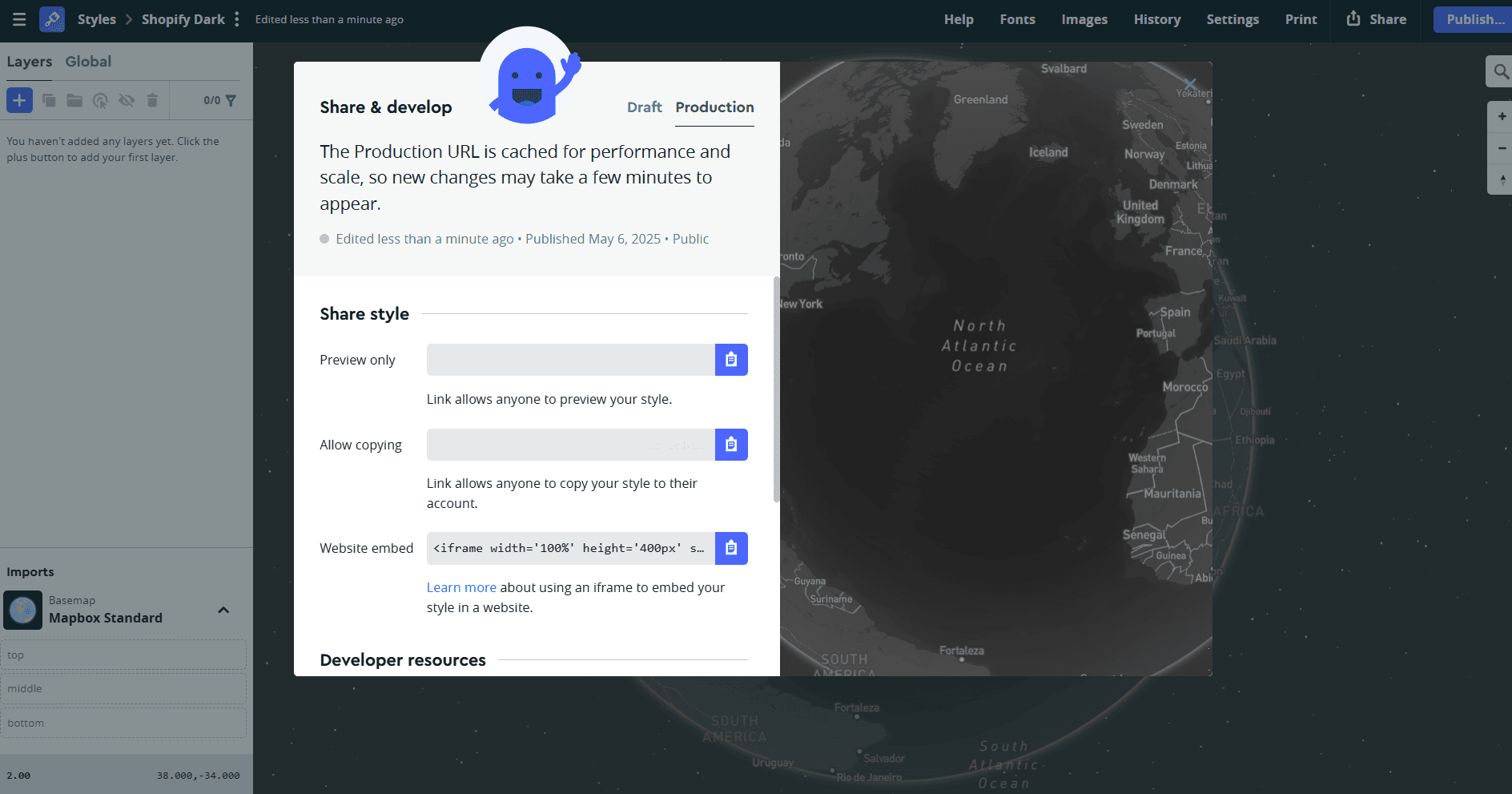
How to get your Style URL
- 1In Mapbox, open Studio
- 2Create or select a style
- 3Copy the Style URL provided by Mapbox
The Style URL usually looks like: mapbox://styles/your-username/your-style-id
Where to add it
- 1Go to Settings > Map
- 2Under Mapbox Settings, find the field Custom Mapbox Style URL
- 3Paste your style link there
Once added, select Custom as your map style.
You need a Mapbox API key connected before custom styles will work. See Set Up Your Mapbox Key if you haven't done this yet.
Google Maps Custom Style
Create a custom style in the Google Maps Cloud Console and use your Map ID in the Store Locator settings.
How to get your Map ID
- 1Open the Maps Studio in Google Cloud Console
- 2Create a new map style and customize colors, labels, and features
- 3Save the style and copy the Map ID
Where to add it
- 1Go to Settings > Map
- 2Under Google Maps Settings, find the field Google Maps Map ID
- 3Paste your Map ID there
Once added, select Custom as your map style.
You need a Google Maps API key connected before custom styles will work. See Set Up Your Google Maps Key if you haven't done this yet.