Der Unfallbuch-Workflow
Überblick über den Unfallbuch-Workflow: wie Berichte von der Unfallmeldung ins Unfallbuch überführt werden und was in jeder Phase passiert.
Diese Anleitung beschreibt den Workflow im Unfallbuch und zeigt, wie Meldungen von der Einreichung bis zum geschlossenen Vorgang durchlaufen.
So gelangen Meldungen aus den Unfallmeldungen ins Unfallbuch
- Ein Fahrer oder Manager legt in Unfallmeldungen eine neue Meldung an.
- Sobald die Meldung geprüft und zur Bearbeitung freigegeben wurde, wird sie ins Unfallbuch übernommen.
- Im Unfallbuch stehen neben den ursprünglichen Unfalldaten zusätzliche verwaltungs- und versicherungsrelevante Felder zur Bearbeitung bereit.
Verwaltungsfelder bearbeiten
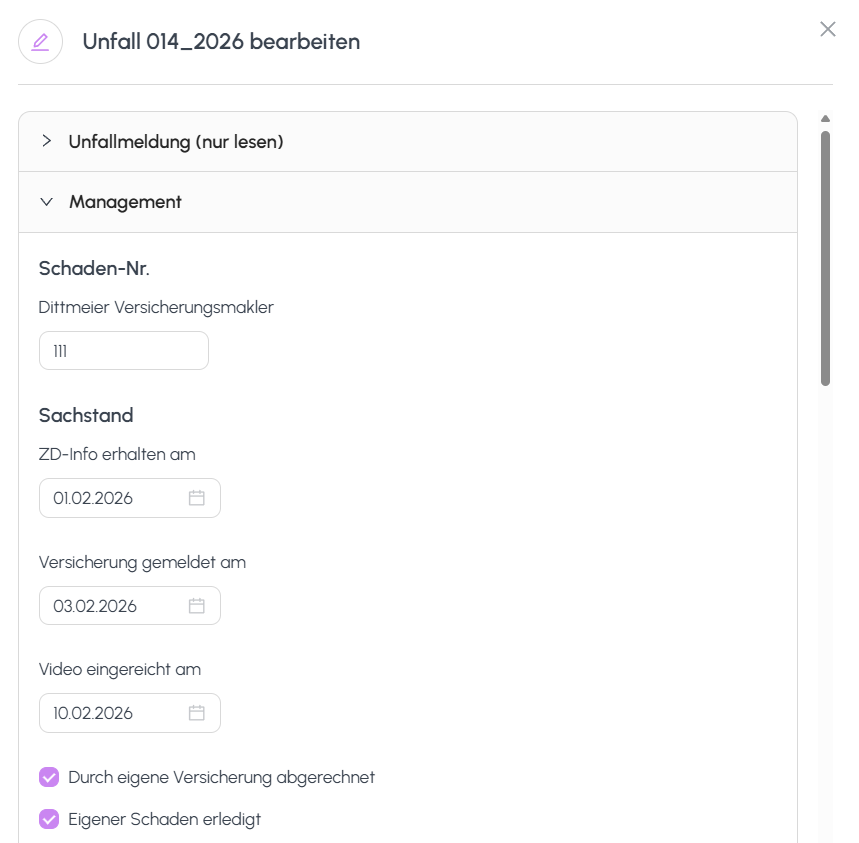
Innerhalb einer Meldung im Unfallbuch können Sie folgende Verwaltungsfelder pflegen:
- ZD-Info: interne Referenz- und Zentraldispositions-Informationen.
- Versicherungsmeldung: ob und wann der Unfall an die Versicherung gemeldet wurde.
- Videoeinreichung: ob Dashcam-/Videomaterial eingereicht wurde, inkl. Einreichungsdatum.
Diese Felder werden in der Detailansicht der Meldung bearbeitet und mit der Schaltfläche Speichern gesichert.
Fortschritt mit Checkboxen verfolgen
Verwenden Sie die Status-Checkboxen, um den Fortschritt des Vorgangs nachzuverfolgen:
- Durch eigene Versicherung: Der Vorgang wird über die eigene Versicherung abgewickelt.
- Eigener Schaden erledigt: Der eigene Schaden ist reguliert.
- Akte geschlossen: Die gesamte Akte ist abgeschlossen.
Sobald Akte geschlossen gesetzt ist, wechselt der Datensatz aus In Bearbeitung in die Ansicht Erledigt.
Verlauf anzeigen
- Öffnen Sie die gewünschte Meldung.
- Klicken Sie auf Verlauf anzeigen.
- Eine chronologische Liste aller Feldänderungen wird angezeigt, inklusive:
- welches Feld geändert wurde,
- alter und neuer Wert,
- der Benutzer, der die Änderung vorgenommen hat,
- Zeitstempel der Änderung.
Der Verlauf unterstützt Audits und Compliance-Prüfungen.
So wechseln Datensätze von "In Bearbeitung" zu "Erledigt"
- Solange die Checkbox Akte geschlossen nicht gesetzt ist, verbleibt der Datensatz in In Bearbeitung.
- Sobald Akte geschlossen aktiviert wird, wird der Datensatz automatisch in den Reiter Erledigt verschoben.
- Geschlossene Datensätze bleiben vollständig zugänglich. Durch Entfernen des Häkchens bei Akte geschlossen können Sie sie wieder öffnen.
Noch Fragen?
Kontaktieren Sie das SmartDrive AI Team
Oder schreiben Sie uns an support-smartdriveai@mapular.com