Creating an Accident Report
Step-by-step guide to creating a new accident report, including opening the form, filling required fields, adding opponents/witnesses, and uploading photos and sketches.
This guide walks you through creating a new accident report in SmartDrive AI.
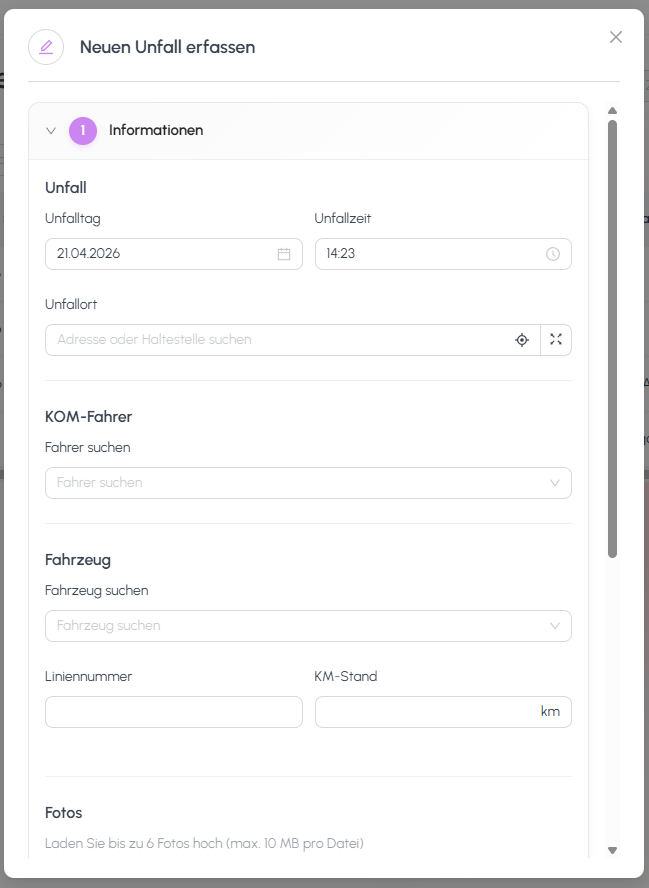
Opening the "New Accident Report" form
- From the main navigation, open the Accident Reports section.
- Click the New Accident Report button at the top right of the page.
- A new form opens where you can enter all accident details.
Filling in required fields
The following fields are required for every accident report:
- Date: the date the accident occurred.
- Time: the time of the accident.
- Location: the address or geographic location where the accident happened.
- Driver: the driver involved. You can select from existing master data or enter a new driver.
- Vehicle: the vehicle involved, selected from your fleet master data.
Fields marked with an asterisk (*) must be completed before the report can be saved.
Adding opponents, witnesses, and injured persons
Opponents
- Scroll to the Opponents section.
- Click Add Opponent.
- Enter the opponent's details: name, address, vehicle license plate, insurance, and contact information.
- You can add multiple opponents if more than one other party was involved.
Witnesses
- Open the Witnesses section.
- Click Add Witness.
- Enter the witness's name, address, and contact details.
Injured persons
- Open the Injured Persons section.
- Click Add Injured Person.
- Record each injured person's name, injury description, and any required medical/insurance details.
Uploading damage photos and hand sketches
Damage photos
- In the Damage Photos section, click the upload area or drag and drop image files.
- Supported formats: JPG, PNG.
- You can upload multiple photos at once.
Hand sketch
- In the Accident Sketch section, upload a hand-drawn or digital sketch of the accident scene.
- This is typically a photo of a paper sketch or an image exported from a drawing app.
Property damage photos
- If property other than vehicles was damaged, use the Property Damage section to upload relevant photos.
Submitting the report
- Review all entered data.
- Click Save to save the report.
- The report appears in the Accident Reports list and is ready to be processed further.
Still need help?
Get in touch with the SmartDrive AI team
Or email us at support-smartdriveai@mapular.com