Configuring Email Templates
Set up and edit the email templates SmartDrive AI uses for claim correspondence, internal notifications, and party communications.
This guide explains how to create and maintain email templates used for outgoing correspondence, and how placeholders are automatically replaced with claim data.
Navigating to Master Data > Email Templates
- Open Master Data from the main navigation.
- Select the Email Templates tab.
- You see a list of all existing templates, grouped by purpose (e.g., claim letter, initial insurance notification, payment reminder).
Creating and editing templates
Creating a new template
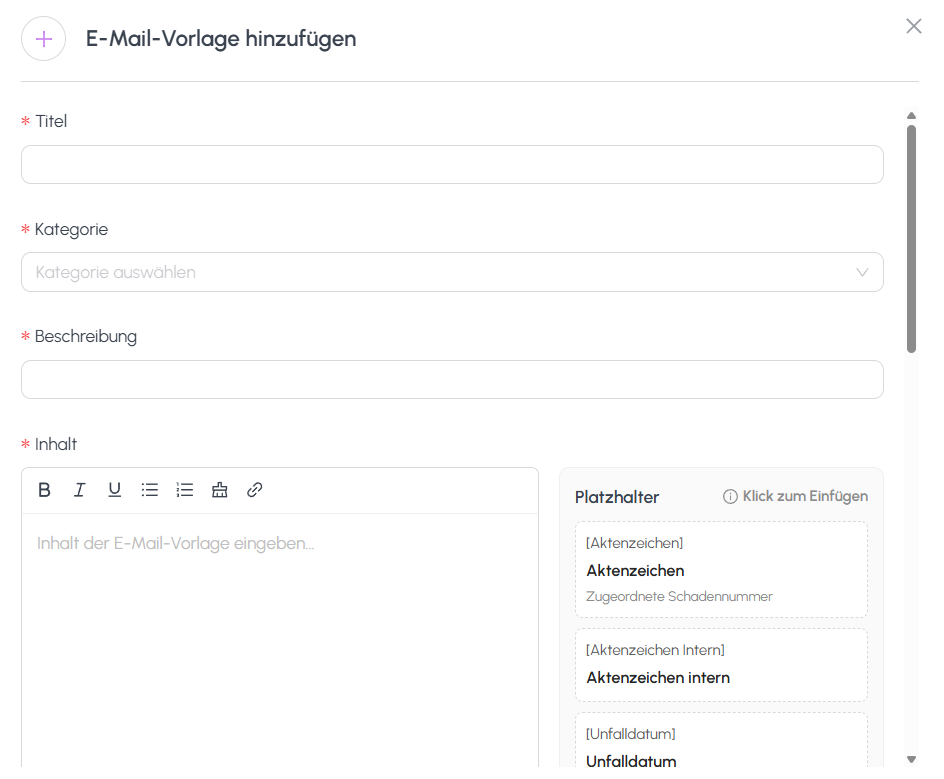
- Click New Template.
- Enter a template name (for internal identification).
- Set the subject line.
- Use the rich-text editor to compose the body. You can apply formatting, lists, and links as needed.
- Insert placeholders wherever claim data should appear dynamically (see the list below).
- Click Save.
Editing an existing template
- Click the template in the list.
- Adjust the name, subject, or body.
- Click Save. Changes take effect on the next letter that uses this template.
Available placeholders
You can insert the following placeholders into subject lines or the body. They are replaced with real data at send time.
[Aktenzeichen]: official file reference number.[Aktenzeichen Intern]: internal file reference number.[Unfalldatum]: accident date.[Kennzeichen]: license plate.[Kennzeichen intern]: internal license plate / fleet identifier.[Kennzeichen extern]: external (public) license plate.[Unfallgegner Vorname]: opponent's first name.[Unfallgegner Nachname]: opponent's last name.[Unfallgegner Name]: opponent's full name.[Fahrer Vorname]: driver's first name.[Fahrer Nachname]: driver's last name.[Fahrer Name]: driver's full name.[Kosten]: total cost figure for the claim.[Quote]: liability quote (percentage).
How placeholders are replaced with real data on send
- When you trigger a send action (for example, Send to Insurance), each placeholder in the selected template is looked up in the current claim.
- The placeholder text is replaced inline with the actual field value.
- This happens on the server, so the recipient only sees the final, substituted text, never the raw placeholder syntax.
What happens when a placeholder has no value
- If a referenced field is empty for the current claim, the placeholder is replaced with an empty string.
- The surrounding text is kept as-is, so no error is raised and no placeholder remains visible in the final letter.
- For this reason, craft sentences that read naturally even if an optional value is missing (e.g., avoid wording that only makes sense when a specific field is present).
Still need help?
Get in touch with the SmartDrive AI team
Or email us at support-smartdriveai@mapular.com