Change Map Style
Change the look of your Store Locator map anytime from the Map tab in your settings.
You can change the look of your Store Locator map anytime from the Map tab in your settings.
Choose Your Map Provider
In the Map Provider section, you can select between:
- OpenStreetMap: default style, no API key needed
- Mapbox: additional map styles and customization (requires API key)
- Google Maps: familiar Google basemap with preset and custom styles (requires API key)
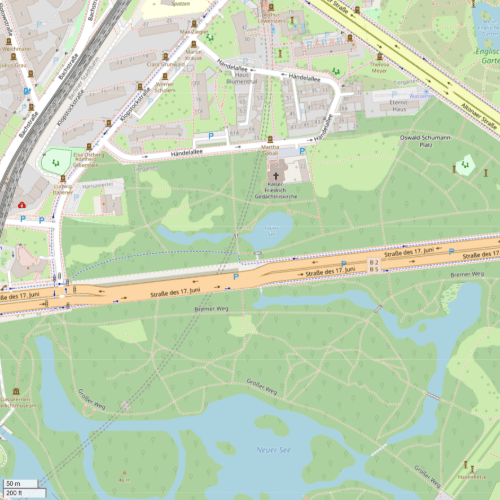
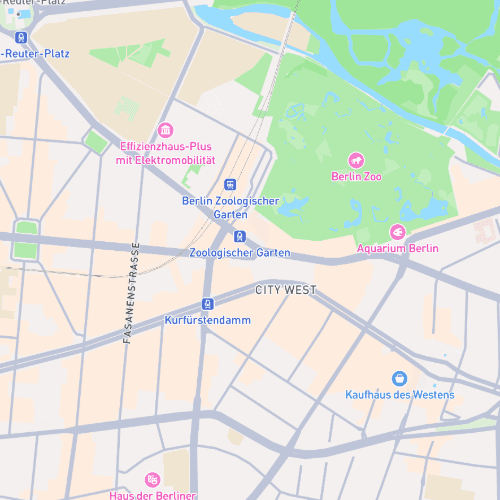
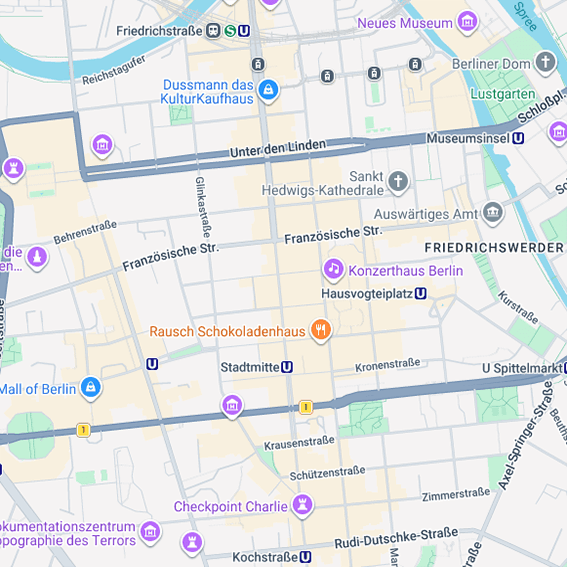
Mapbox and Google Maps both require an API key. See Set Up Your Mapbox Key or Set Up Your Google Maps Key for step-by-step setup.
Mapbox Styles
When using Mapbox, you can choose from several map designs:
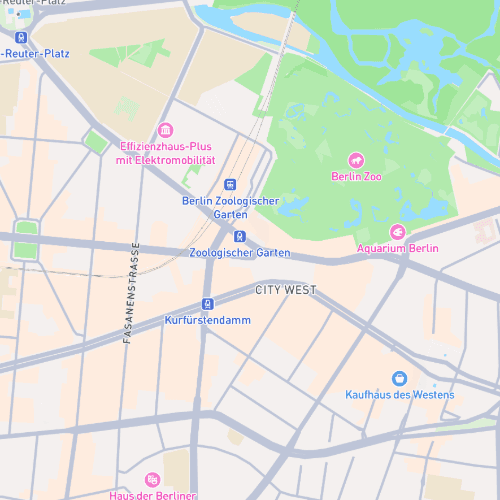
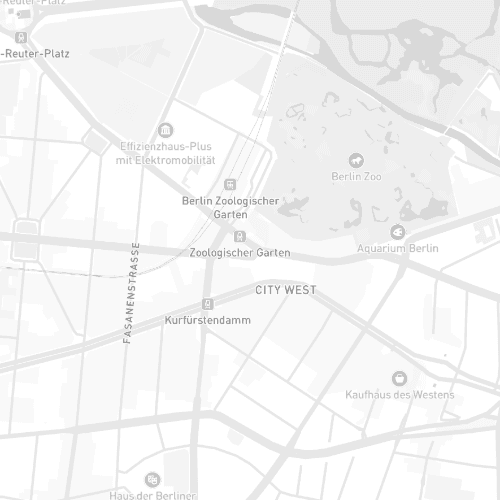
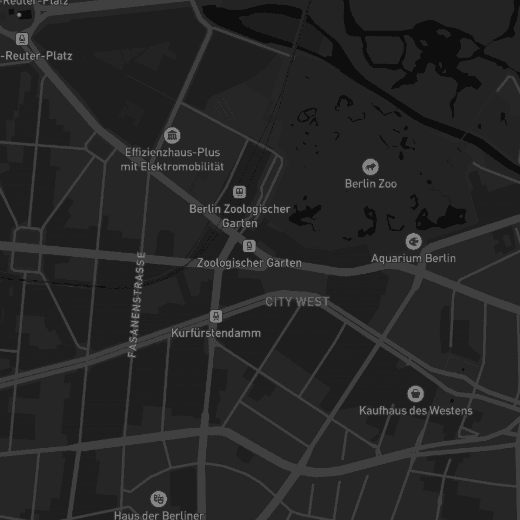
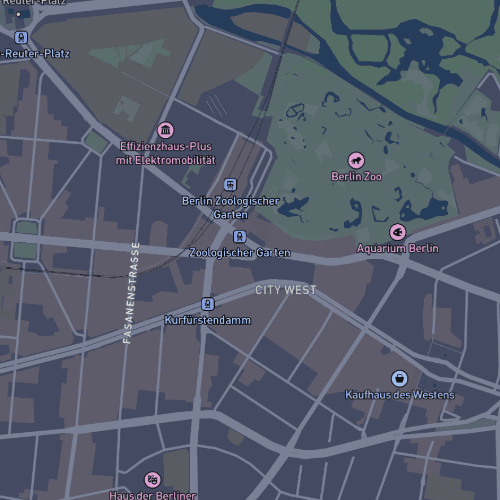
You can also use a fully custom Mapbox style. See Using a Mapbox Custom Style for details.