Key Takeaways
- Google My Maps works for sharing directions, but it was never built for ecommerce or customer analytics
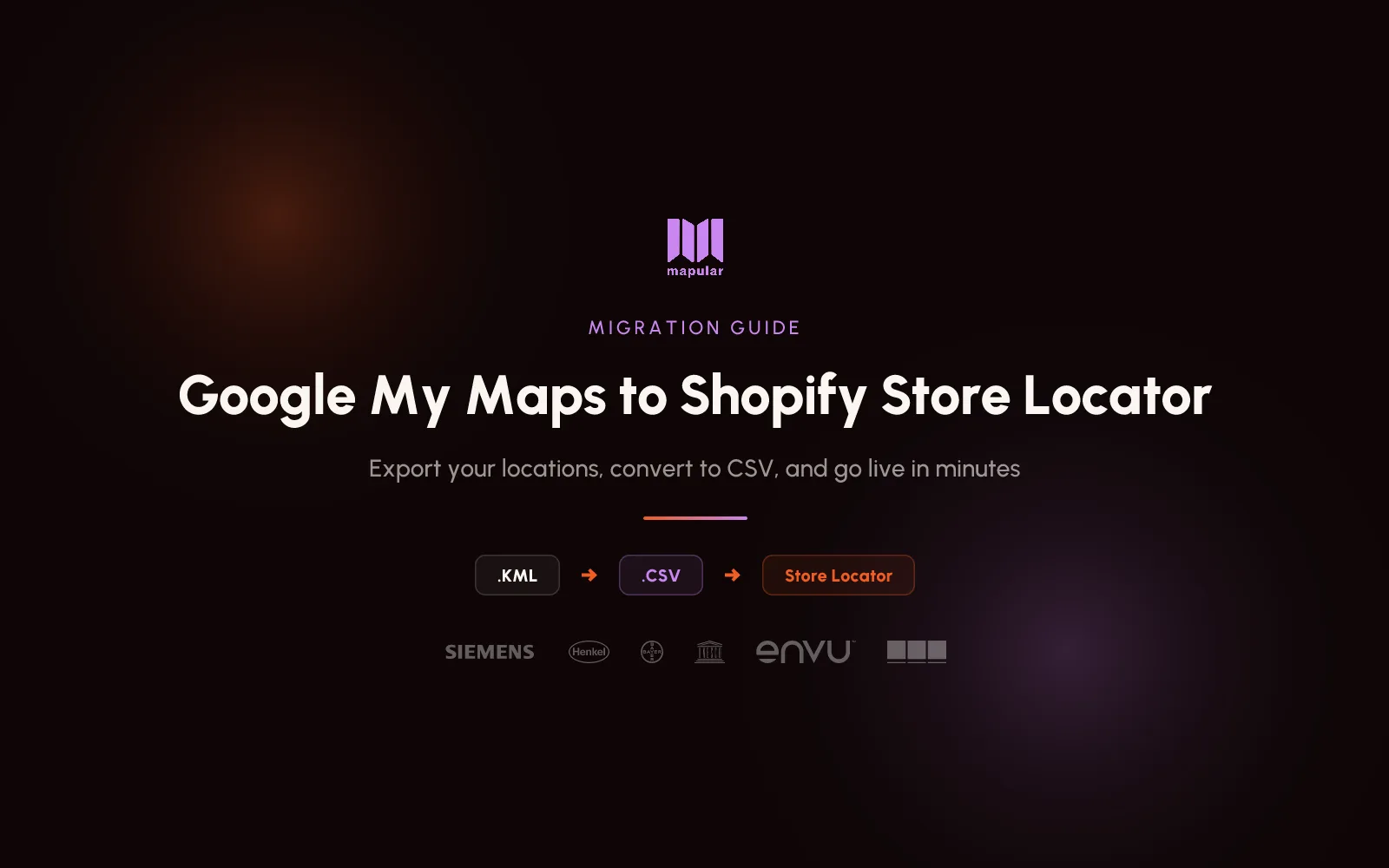
- Migrating takes about 10 minutes: export your KML file, convert it to CSV, and import into a store locator app
- Our free converter tool handles the KML-to-CSV conversion instantly in your browser
- After switching, you gain search analytics, brand customization, smart filtering, and native Shopify integration
- No data is lost during migration. Coordinates, names, and custom fields all transfer
Why Merchants Outgrow Google My Maps
Google My Maps is a solid tool for what it was designed to do: share a custom map with pins. Many Shopify merchants start there because it is free and familiar. But as your store grows, the limitations become hard to ignore.
No search functionality. Customers cannot type a zip code or city to find the nearest location. They get a zoomed-out map with every pin visible and have to scroll and click manually. For a brand with 30+ locations, that is a frustrating experience.
Zero analytics. Google My Maps cannot tell you where customers are searching, what products they are looking for, or which locations get the most attention. You are flying blind on demand data.
No brand customization. The map looks like Google, not like your store. You cannot match your brand colors, fonts, or map style. It sits inside an iframe that screams "third-party widget."
No filtering. Customers cannot narrow results by hours, services, or product availability. Every pin looks the same regardless of what that location offers.
Manual updates only. Every time you add, change, or remove a location, you do it by hand inside Google My Maps. There is no API, no bulk edit, no sync with your Shopify admin.
Poor mobile experience. The embedded iframe does not adapt well to mobile screens. Pinch-to-zoom on a crowded map is not the experience your customers expect from a modern Shopify store.
If any of this sounds familiar, the good news is that migrating to a proper store locator is straightforward. You will not lose any data, and the entire process takes about 10 minutes.
What You Need Before You Start
- Access to your Google My Maps project (the account that created the map)
- A Shopify store on any plan
- About 10 minutes
Step 1: Export Your Locations from Google My Maps
- Go to mymaps.google.com and open the map that contains your store locations
- Click the three-dot menu next to the map title
- Select Export to KML/KMZ
- When prompted, check "Export as KML instead of KMZ" if the option is available (both formats work, but KML is simpler)
- Save the file to your computer
The exported file contains all your location names, coordinates, descriptions, and any custom columns you added to your map.
Step 2: Convert KML to CSV
KML is an XML format that store locators cannot import directly. You need to convert it to CSV first.
Option A: Use our free converter (recommended)
We built a free Google My Maps converter specifically for this. Upload your KML file, preview the extracted locations, and download a CSV that matches the Mapular import format. The tool runs entirely in your browser, so no data leaves your device.
Option B: Manual conversion
If you prefer to do it yourself:
- Open the KML file in a text editor
- Each
<Placemark>block contains one location with<name>,<coordinates>, and<description>fields - The coordinates are in
longitude,latitudeorder (reversed from what most spreadsheets expect) - Copy the data into a spreadsheet with columns: name, address, latitude, longitude, phoneNumber, emailAddress, website, description
The converter handles all of this automatically, including extracting custom columns that Google My Maps stores as HTML tables inside the description field.
Step 3: Import Into Your Shopify Store Locator
- Install Mapular Store Locator from the Shopify App Store
- In your Shopify admin, go to the Store Locator app and navigate to Locations
- Select Add Multiple Locations and choose CSV import
- Upload the CSV you downloaded from the converter
- The column headers match our import format, so mapping is automatic
- Click import, and your locations appear on the map
For a detailed walkthrough of the CSV import process, see our CSV import guide.
For a broader look at all the ways to add a store locator to Shopify, including app-based, embed, and custom-coded options, see our complete guide to adding a store locator.
What You Gain After Switching
The difference between Google My Maps and a dedicated store locator is not just cosmetic. Here is what changes:
Search analytics. Every customer search becomes a data point. You will see where people are looking for your products, what they search for, and which locations get the most clicks. This is first-party demand data you can use for expansion planning, marketing allocation, and inventory decisions. Read more about how to use store locator analytics for retail expansion.
Full brand control. Customize colors, fonts, map styles, pin icons, and layout modes so the locator feels like part of your store, not a third-party widget. For inspiration, see our roundup of store locator designs that actually convert.
Smart filtering. Customers can filter locations by hours, services, product availability, and custom attributes. They find the right store faster.
Native Shopify integration. Manage locations from your Shopify admin. Sync via Google Sheets or CSV. No switching between separate tools.
Mobile-first experience. The locator is responsive and built for mobile. Geolocation, tap-to-call, and one-click directions work out of the box.
Google My Maps vs. Dedicated Store Locator
| Feature | Google My Maps | Mapular Store Locator |
|---|---|---|
| Customer search (zip/city) | No | Yes |
| Search analytics | No | Yes (where, what, who) |
| Brand customization | Pin color only | Colors, fonts, map styles, icons, layouts |
| Filtering (hours, products) | No | Yes |
| Mobile optimization | Basic iframe | Responsive, geolocation, tap-to-call |
| Bulk location management | Manual only | CSV, Google Sheets sync |
| Shopify integration | None | Native app, theme block embed |
| Individual store pages (SEO) | No | Coming soon |
| Cost | Free | Free for up to 5 locations, paid plans from $9.99/mo |
FAQ
Will I lose any data during migration?
No. The KML export from Google My Maps contains all your location data: names, coordinates, descriptions, and any custom columns. Our converter extracts everything and maps it to the correct CSV fields.
Can I keep using Google My Maps alongside a store locator?
Yes. Installing a store locator does not affect your Google My Maps project. You can run both until you are confident the new locator covers everything. Most merchants remove the My Maps embed within a week.
How long does the migration take?
About 10 minutes from export to live locator. The KML export takes a few seconds, the conversion is instant, and the CSV import processes in under a minute for most location counts.
Does the converter tool store my data?
No. The converter runs entirely in your browser using JavaScript. Your file is parsed locally. Nothing is uploaded to any server.
I have custom columns in Google My Maps. Will they transfer?
Google My Maps stores custom columns as an HTML table inside each location's description field. Our converter automatically extracts these key-value pairs. Common fields like address, phone, and website are mapped to the correct CSV columns. Other custom data appears in the description column.