Most store locator examples you find online look the same: a generic Google Maps embed, a list of addresses, and zero brand identity. The brands that treat their store locator as a real product page -- not an afterthought -- see measurably higher engagement, more direction clicks, and better conversion from online search to in-store visit.
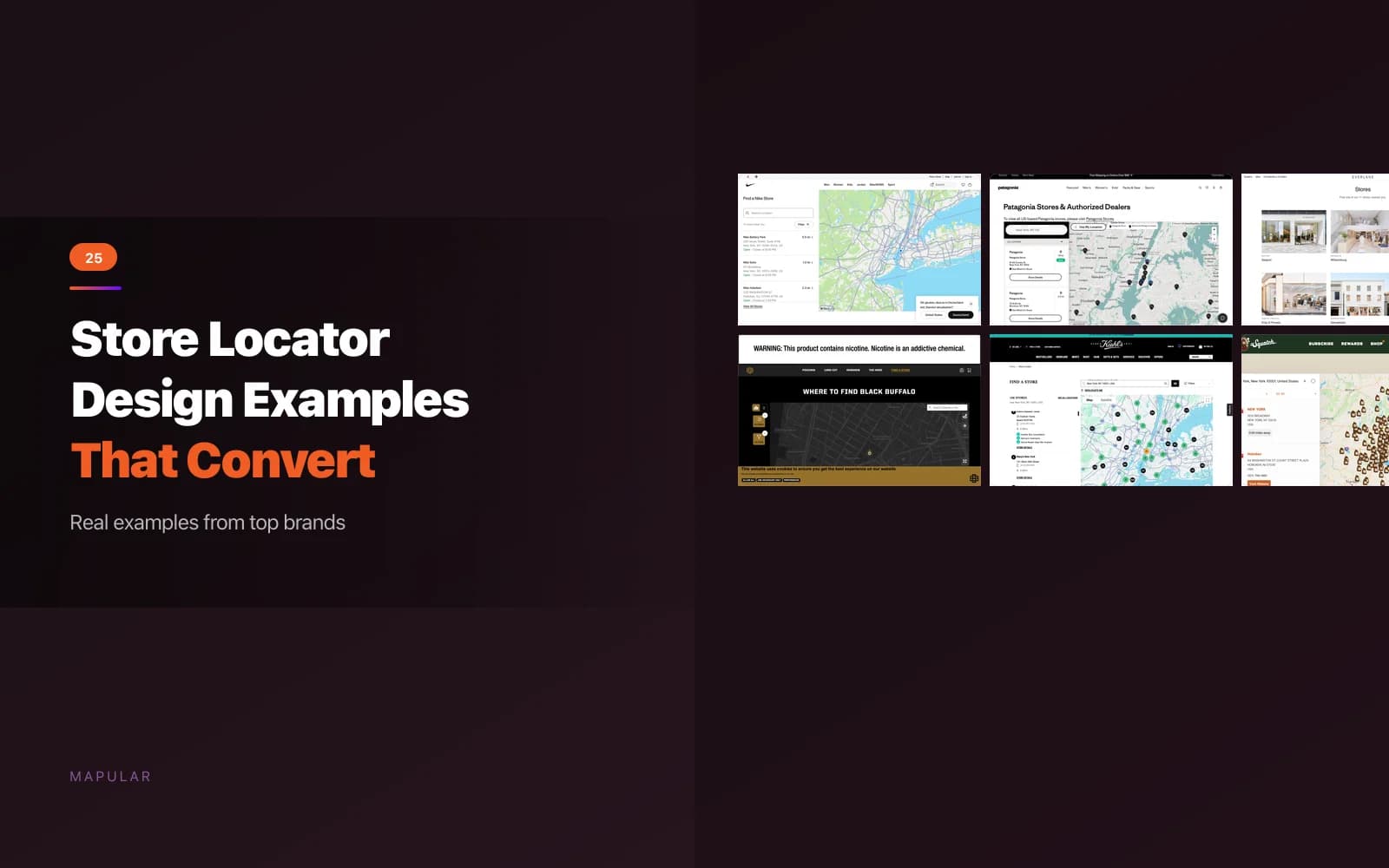
We reviewed store locator designs from 25 well-known brands and organized them by layout pattern. For each, we show the actual locator and note what works and what could improve.
Key Takeaways
- The best store locator designs share a few traits: a prominent search bar above the fold, brand-consistent styling, smart filters, and clear calls to action like "Get Directions" or "Call Store."
- There is no single best store locator layout. Sidebar-plus-map works for large retail networks. Grid layouts suit fewer, curated locations. Full-width maps emphasize geographic coverage. "Where to Buy" pages bridge online and offline for CPG brands.
- Brand integration is what separates a good store locator from a generic widget. Colors, typography, map styles, and pin icons should all reflect your brand.
- Mobile optimization is not optional. More than 60% of store locator traffic comes from phones.
- Every store locator example in this post could be replicated on Shopify with the right app and layout configuration.
Why Store Locator Design Matters
Your store locator is often the last page a customer visits before they walk into a store. It is the conversion point between online intent and offline action. Most brands spend weeks on their homepage design and minutes on their locator.
A well-designed store locator reinforces brand trust. A poorly designed one -- with broken search, outdated addresses, or a generic map widget -- signals the opposite. Store locator design also affects SEO: pages with structured location data, fast load times, and clear content rank better for "where to buy" and "near me" queries. For more on why this matters, see our post on the power of a high-performing store locator for consumer brands.
Store locator design is not decoration. It is a conversion lever.
Sidebar List + Map: 7 Store Locator Examples
The sidebar-plus-map layout is the most common store locator design pattern. A scrollable list of locations sits alongside an interactive map. Users scan the list, click a location, and see it highlighted on the map. Familiar, scannable, and effective for brands with dozens to thousands of locations.
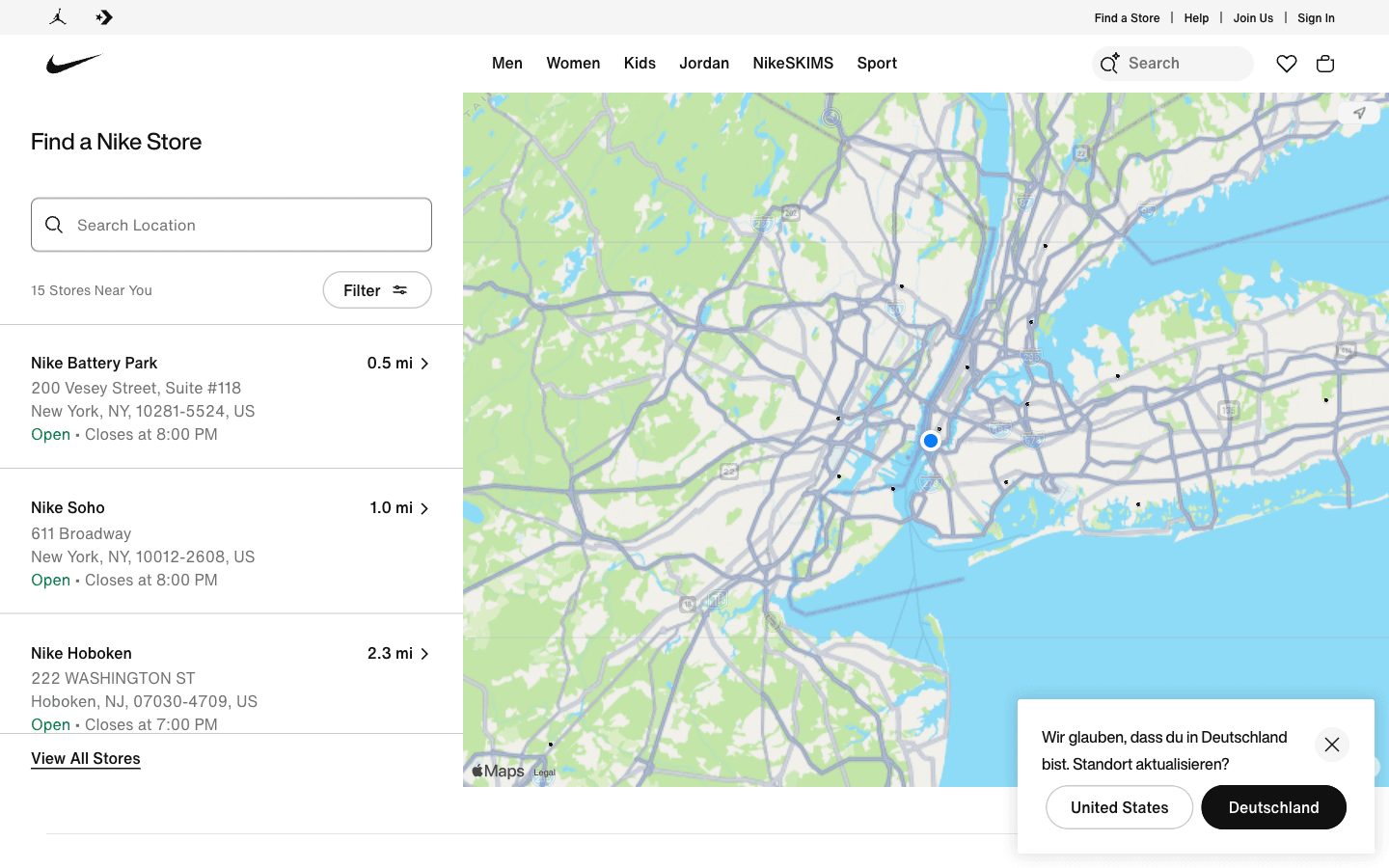
1. Nike. Clean search bar at the top of a left sidebar. Location cards show store name, address, hours, and "Get Directions." The map uses a desaturated style that keeps Nike-branded pins prominent. Standout feature: filters by store type (Factory Store, Unite, Rise) let customers find the right experience. Could improve: on mobile, the list takes over and the map becomes secondary -- a toggle would help.
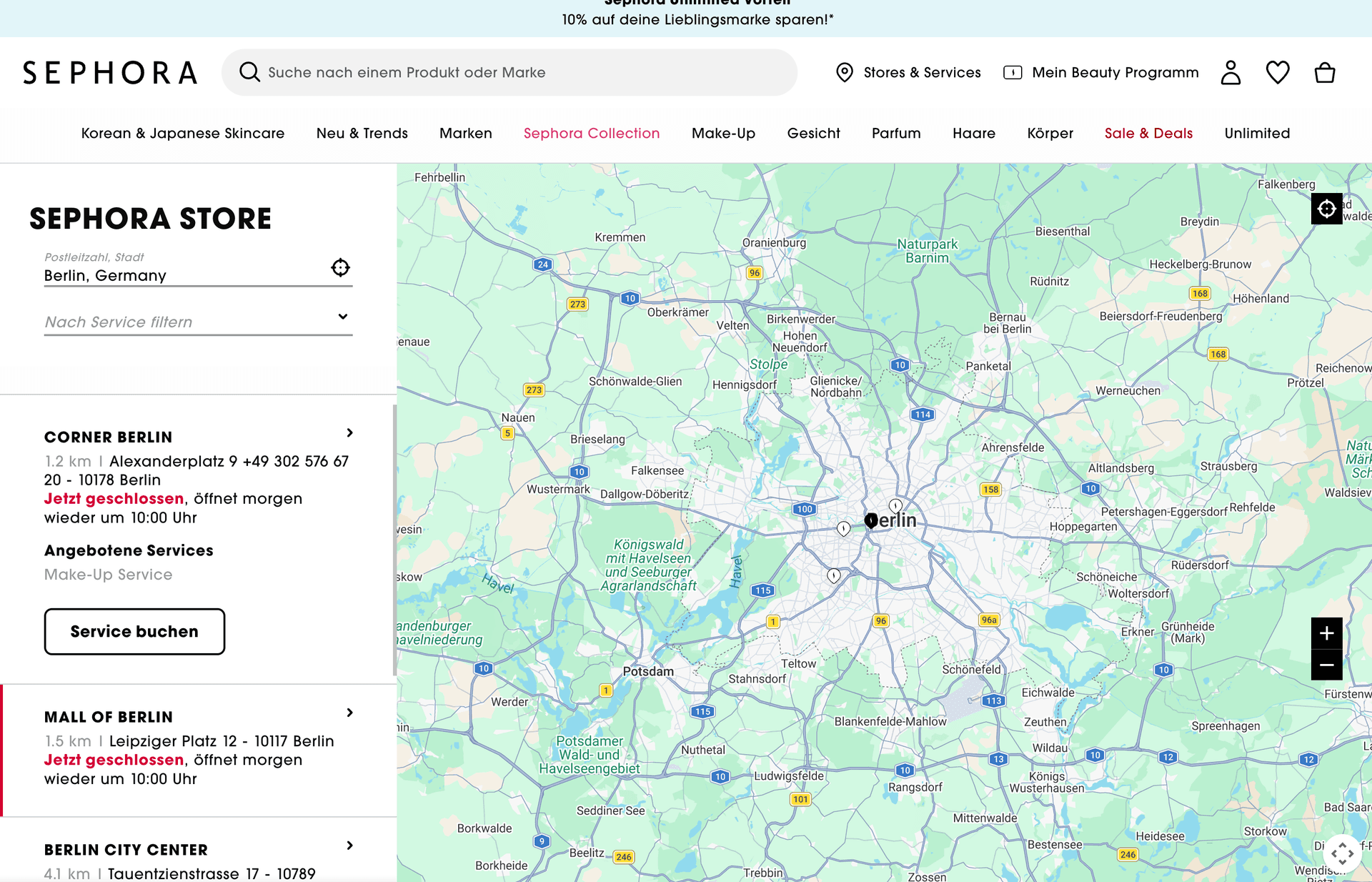
2. Sephora. Left sidebar with bold search input and a service filter dropdown. Location cards include quick-action buttons and service details like "Service buchen" (Book a Service). The map uses Google Maps with brand-colored pins. Standout feature: each location card shows distance and direct contact info. Could improve: a custom map theme would better match Sephora's polished brand identity.
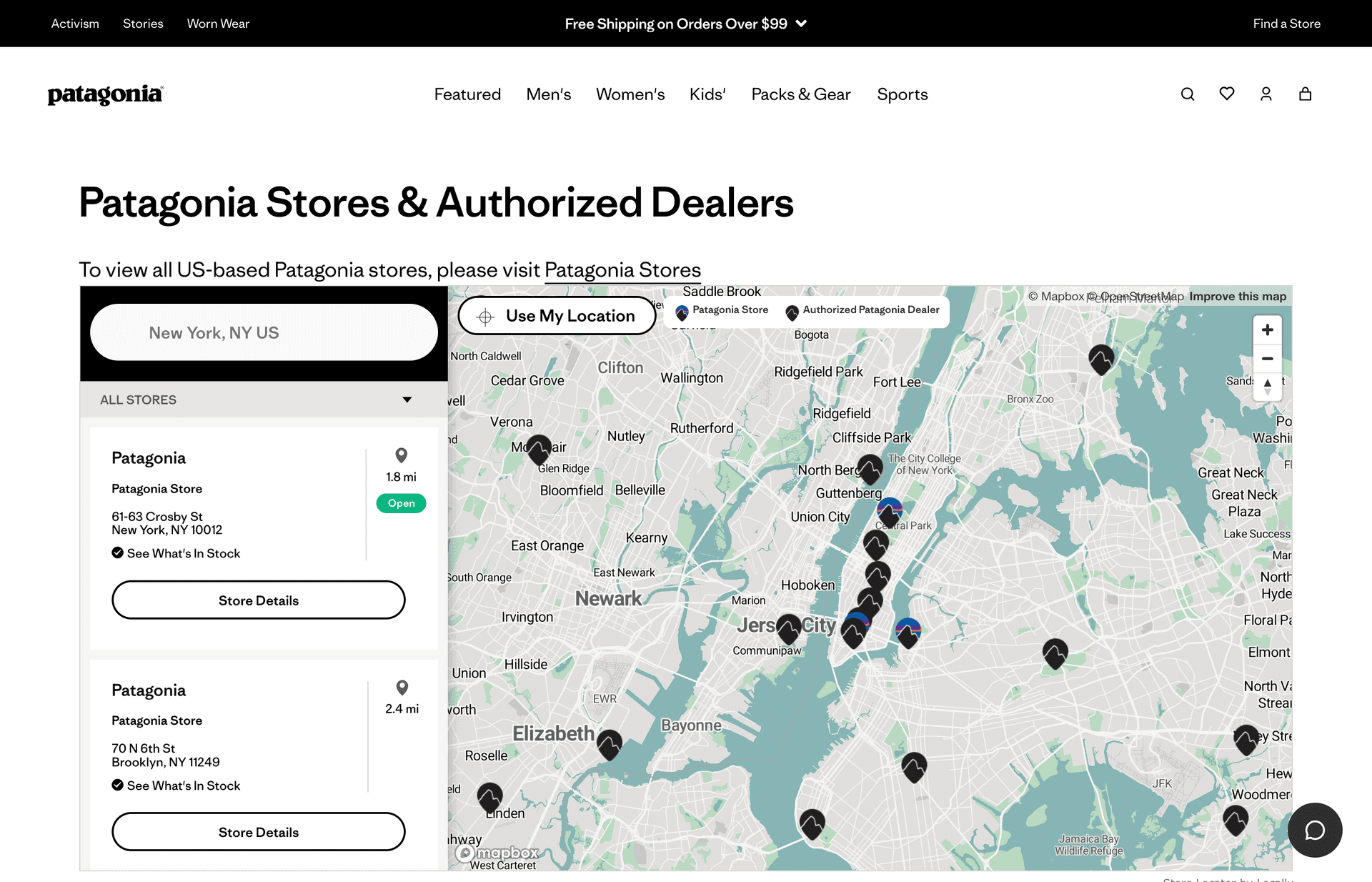
3. Patagonia. The sidebar includes sustainability-related tags like "Worn Wear" and "Repair Services" on each location card alongside a detailed Mapbox map. "See What's in Stock" links on each card connect the locator directly to inventory. These features reinforce brand values and help customers plan visits. Could improve: the sidebar could benefit from more visual hierarchy between store types.
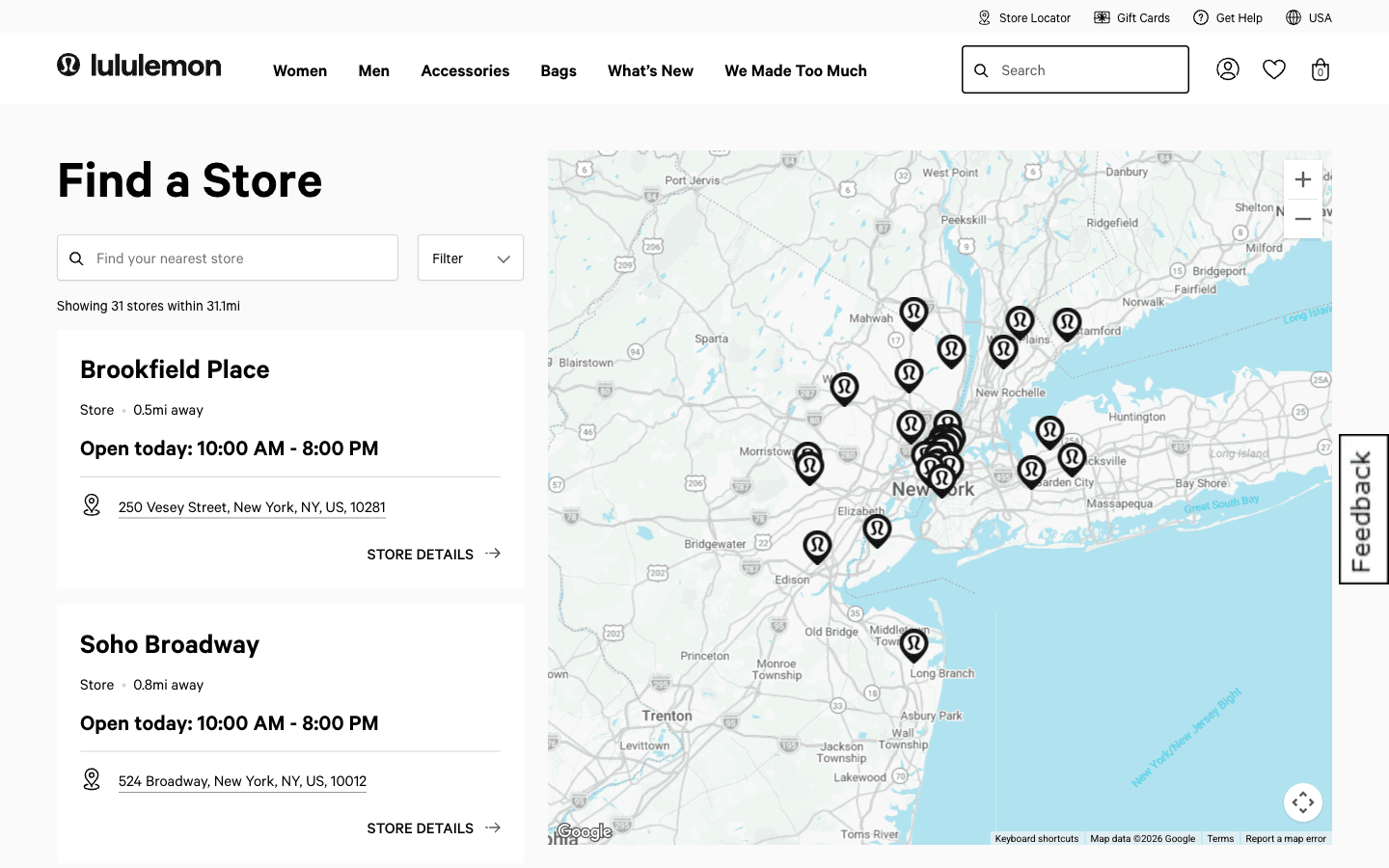
4. Lululemon. Narrow left sidebar, large map. Location cards show in-store services and today's hours prominently. Dark map pins match the brand's minimal aesthetic. Auto-suggest on search reduces typos and speeds up the experience. Could improve: narrow sidebar truncates long addresses on some screens.
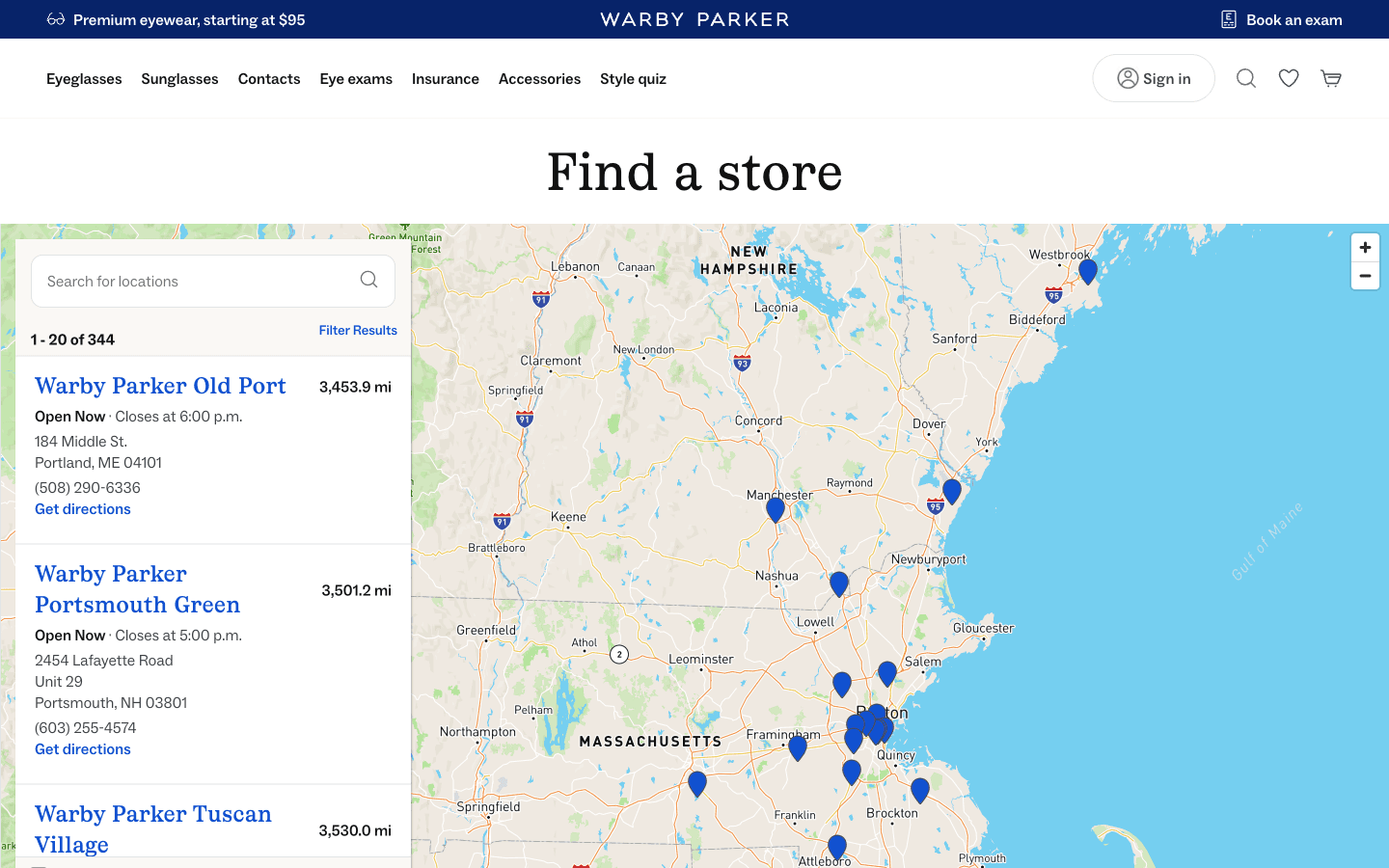
5. Warby Parker. Clean, warm sidebar design with a prominent "Find a store" heading. Blue map pins match the brand accent. The sidebar includes star ratings, full addresses, and direct links to store details and directions. Could improve: service-level filtering would make multi-purpose visits easier to plan.
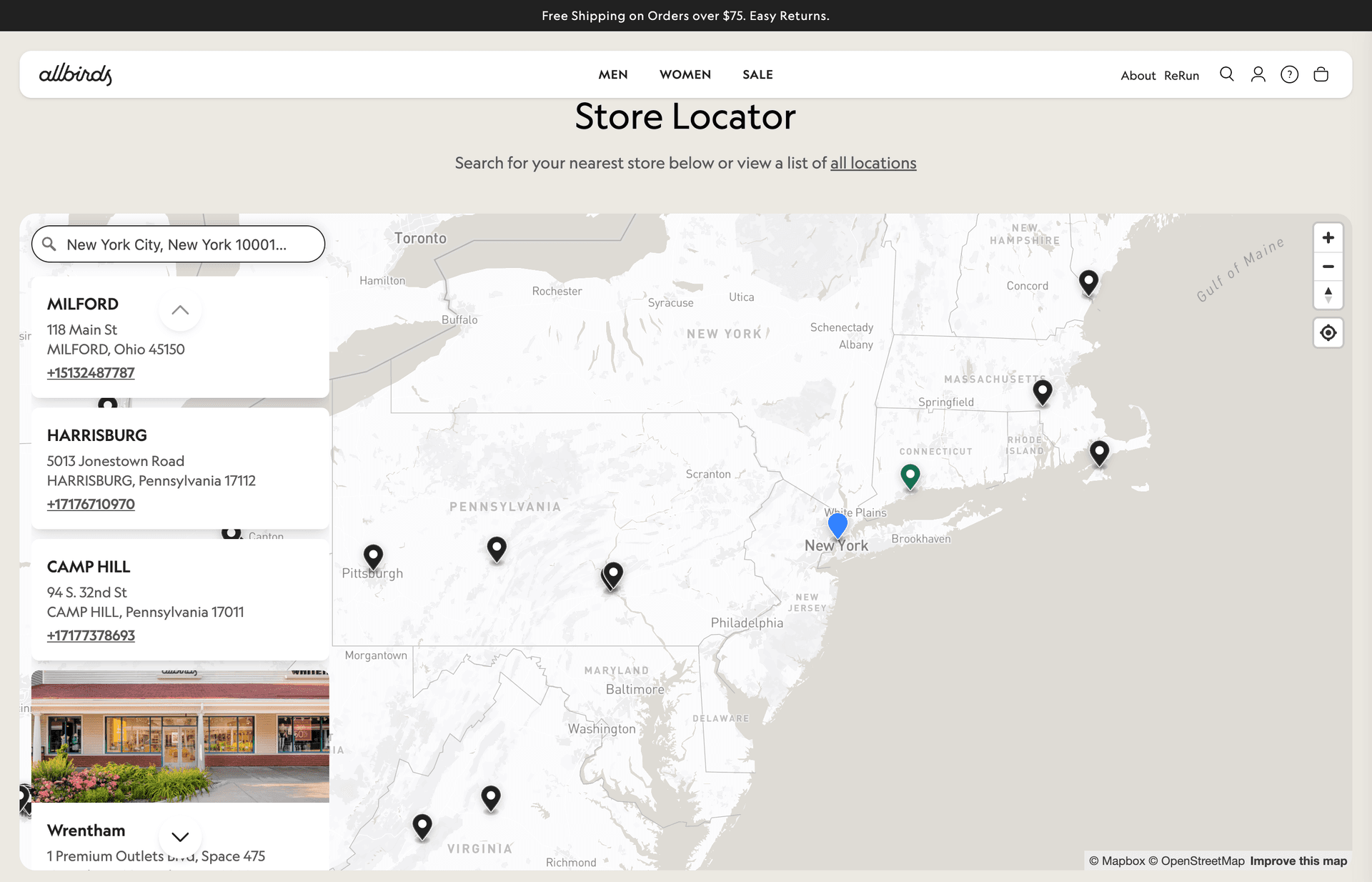
6. Allbirds. Simple, brand-forward design. A prominent "Store Locator" heading with search bar leads to a Mapbox map with Allbirds' signature dot pins. Location cards show storefront photos alongside addresses. The simplicity matches the brand -- no visual clutter. Could improve: with fewer locations, showing all stores on the map by default would better communicate physical presence.
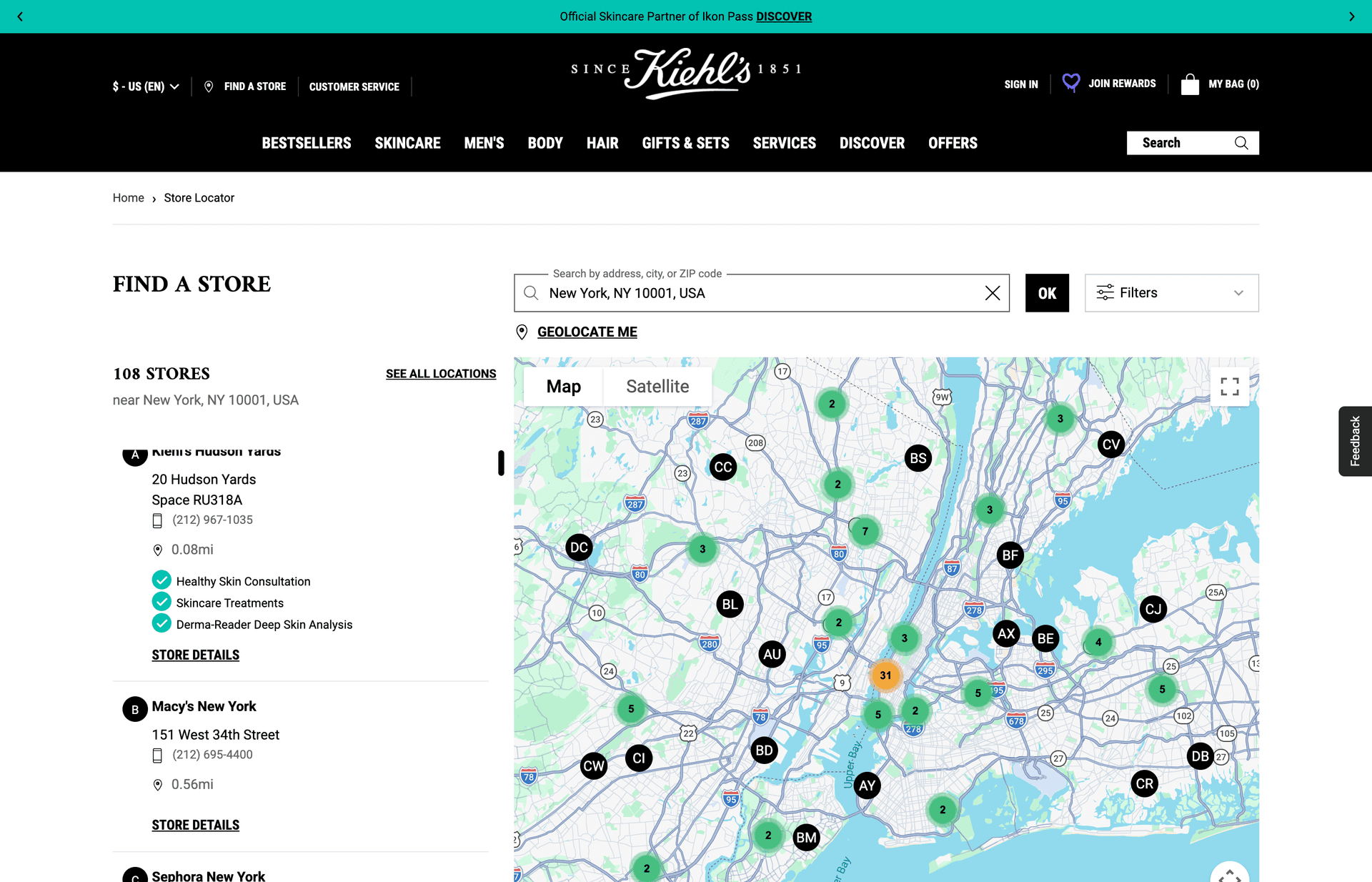
7. Kiehl's. Sidebar with detailed location cards that include service badges -- "Healthy Skin Consultation," "Skincare Treatments," "Derma-Reader Deep Skin Analysis." Color-coded map pins differentiate between store types (own stores, department store counters, partners). The "108 stores" count and "See All Locations" link give users a sense of scale. Could improve: the map is visually dense; clustering at wider zoom levels would help.
Full-Width Map with Overlay: 6 Store Locator Examples
Full-width map layouts make the map the hero. The entire viewport is a map, with details appearing as overlays or popups. This pattern works for brands with extensive geographic coverage where pin density itself communicates reach.
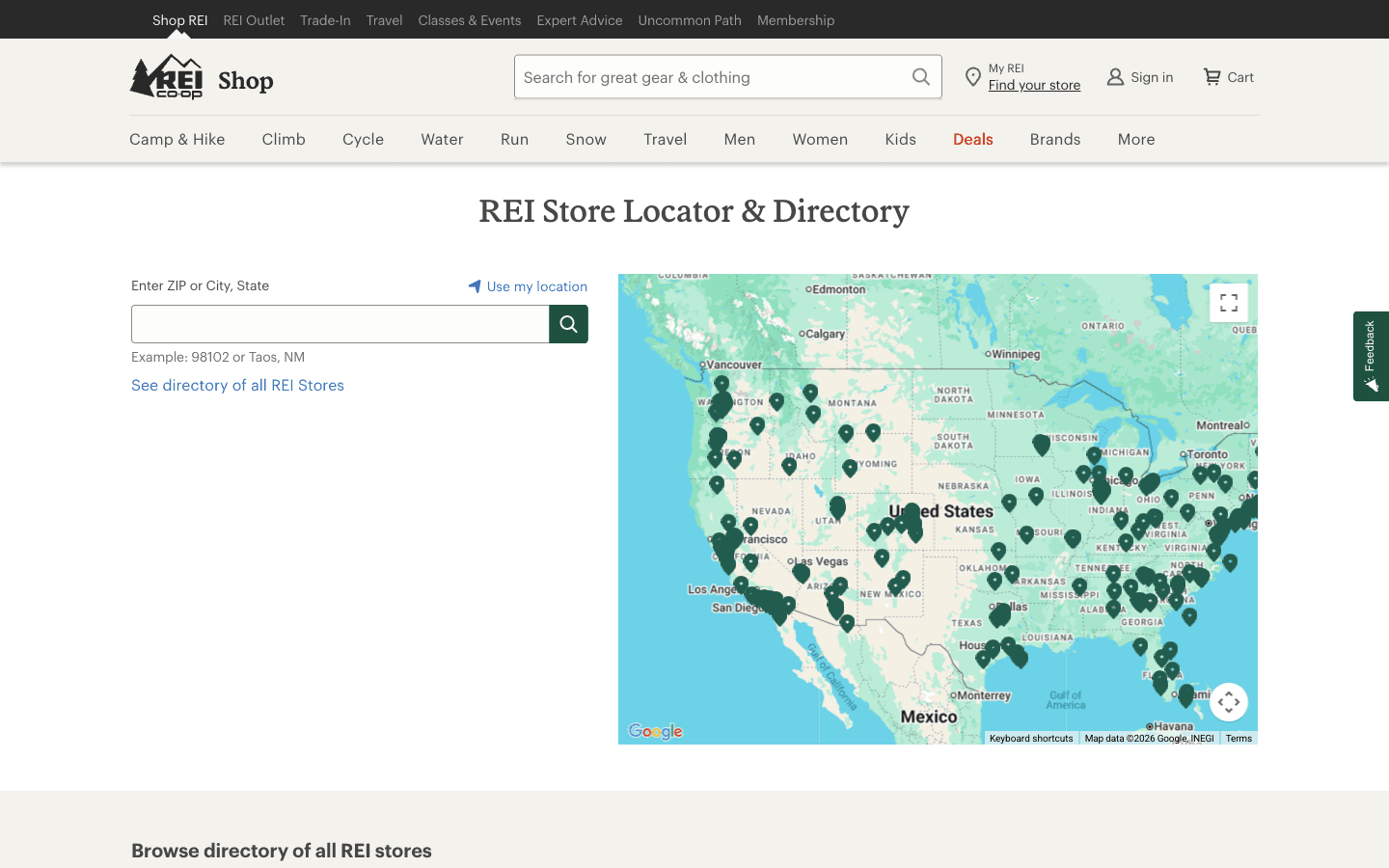
8. REI. Full-width map with a terrain styling -- a subtle but effective brand signal that says "outdoor company" without copy. Green pins match the brand. The search bar and "Use My Location" button sit above the map. Browsable directory below gives an alternative path. Could improve: all-US zoom level causes heavy pin overlap; clustering would help.
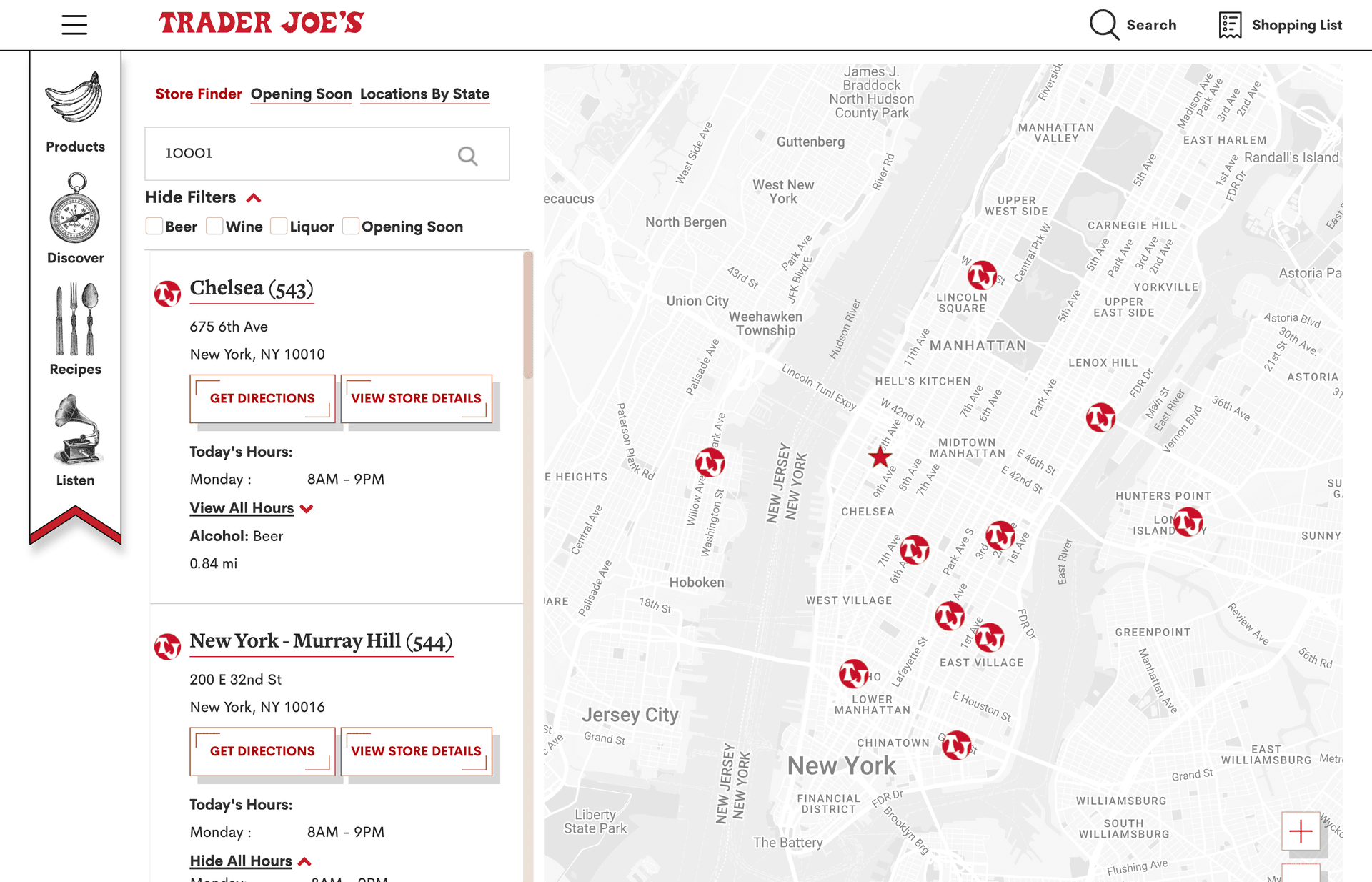
9. Trader Joe's. Sidebar with branded red circular pins on the map, plus category icons (Products, Discover, Recipes, Listen) in a vertical left nav. Location cards include "Get Directions" and "View Store Details" buttons with filters for beer, wine, and liquor. The hand-drawn pin style is instantly recognizable. Could improve: the sidebar nav icons take up valuable horizontal space on smaller screens.
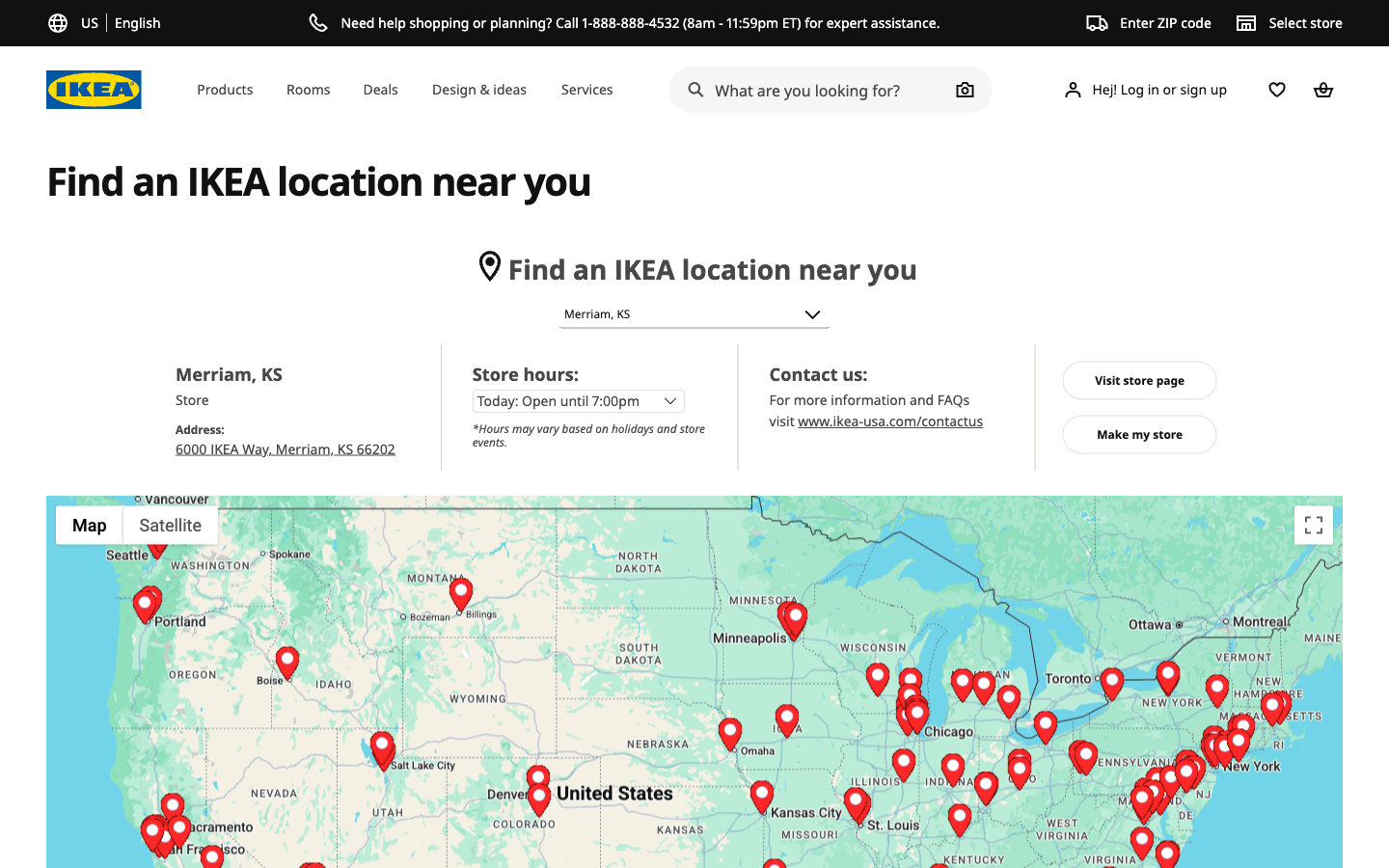
10. IKEA. Full-width map with blue-and-yellow branded pins that are unmistakably IKEA. A top search bar auto-completes locations. Individual store pages are among the most content-rich in retail -- departments, services, restaurant menus, family activities. Excellent for local SEO. Could improve: navigating to a store page leaves the map entirely; an inline preview would keep users engaged.
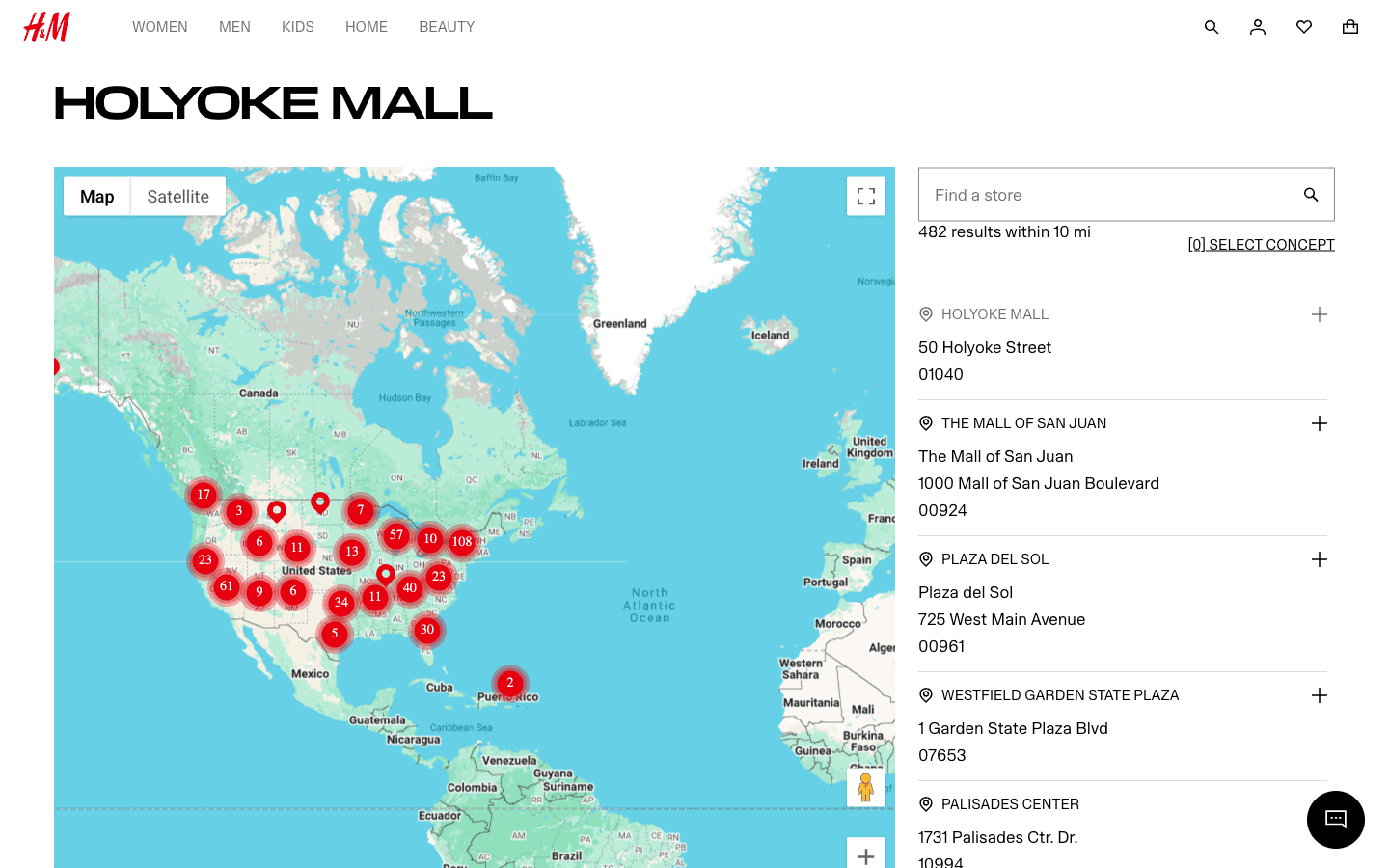
11. H&M. Full-width map with clustered red pins that expand as you zoom -- handles their massive location count (482 results) well. A right sidebar lists stores with "To Select Concept" filtering. The cluster-to-individual transition gives a clear sense of store density. Could improve: no service filters and no differentiation between flagship and small-format locations.
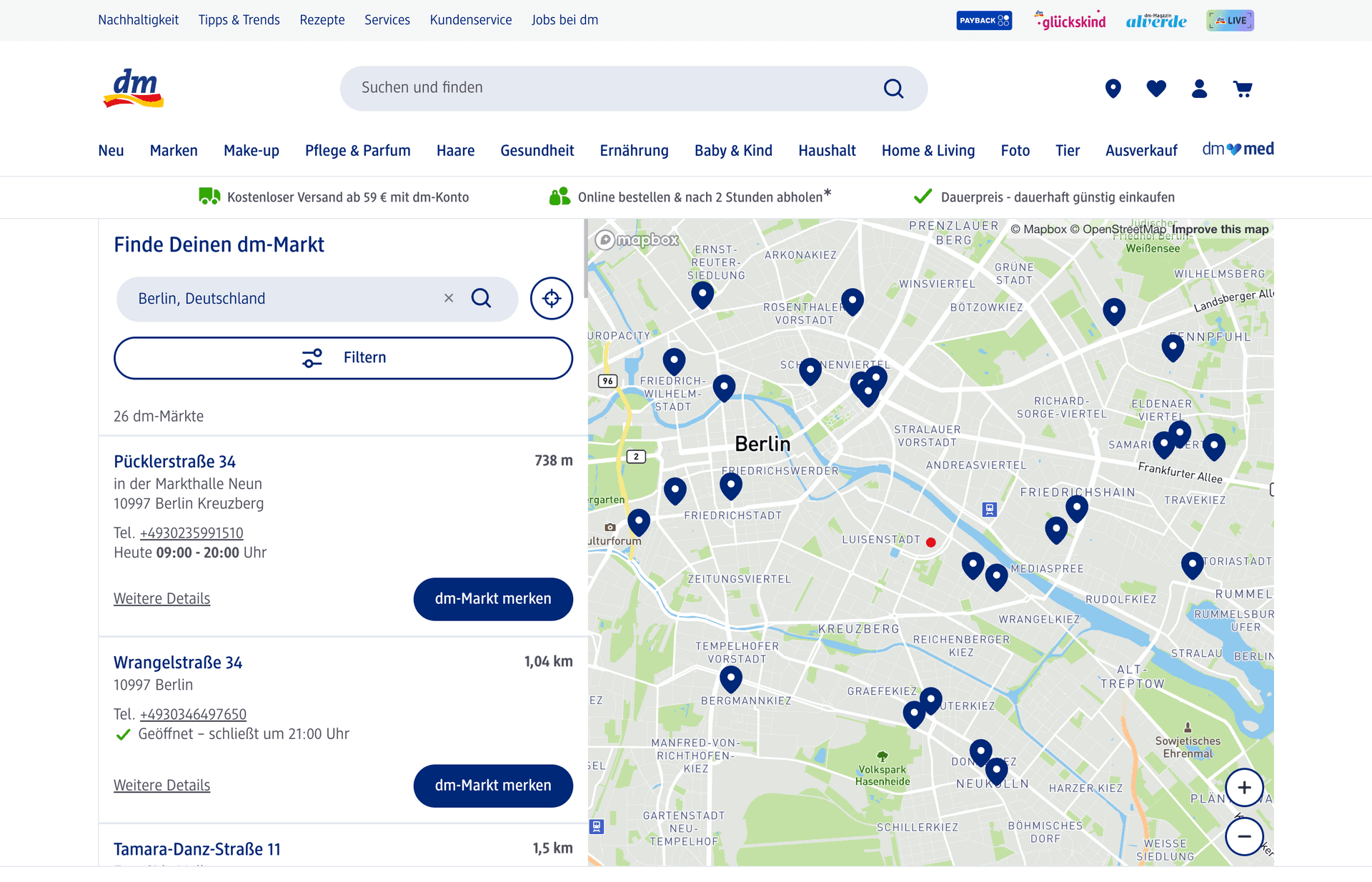
12. DM (Germany). "Finde Deinen dm-Markt" -- a clean, functional sidebar-plus-map layout with dark blue pins on a Mapbox map. Filter button, geolocation icon, and clear search bar. Location cards show distance, hours, phone, and a "dm-Markt merken" (save store) CTA. Excellent example of how European retailers handle multi-city density. Could improve: the filter UI is collapsed by default, hiding useful options.
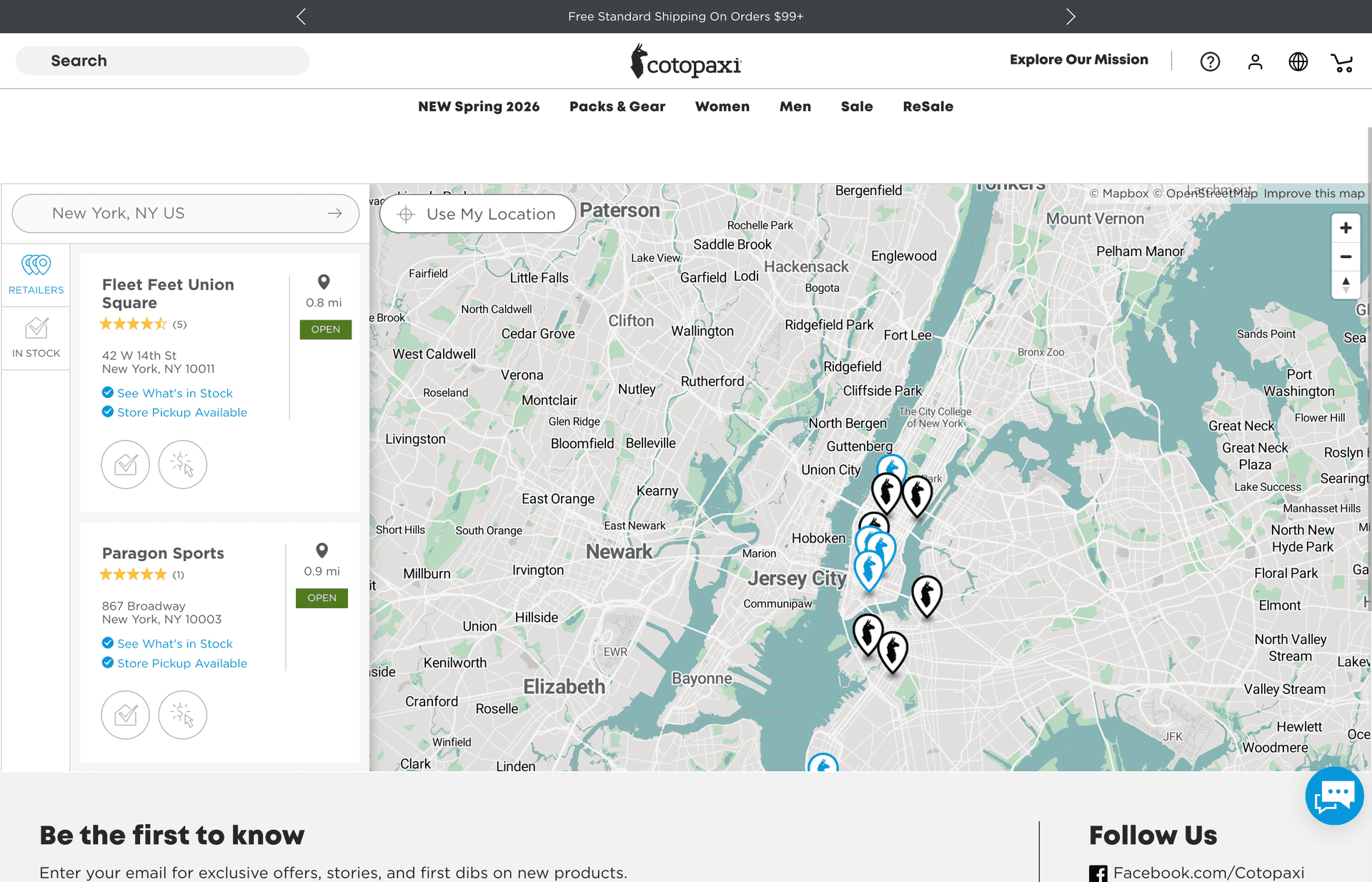
13. Cotopaxi. Sidebar-plus-map with a clean white sidebar and branded teal pins. Location cards include star ratings, "See What's in Stock" and "Curbside Pickup Available" badges. The "Use My Location" button is prominent. The in-stock and pickup badges are genuinely useful for planning visits. Could improve: the footer creeps into the viewport, reducing map space.
Compact Grid / Card View: 4 Store Locator Examples
Grid and card-based designs trade the map-sidebar split for a content-first approach. Locations appear as cards in a grid with photos and rich detail. Best for brands with a curated set of locations where each store has a distinct identity.
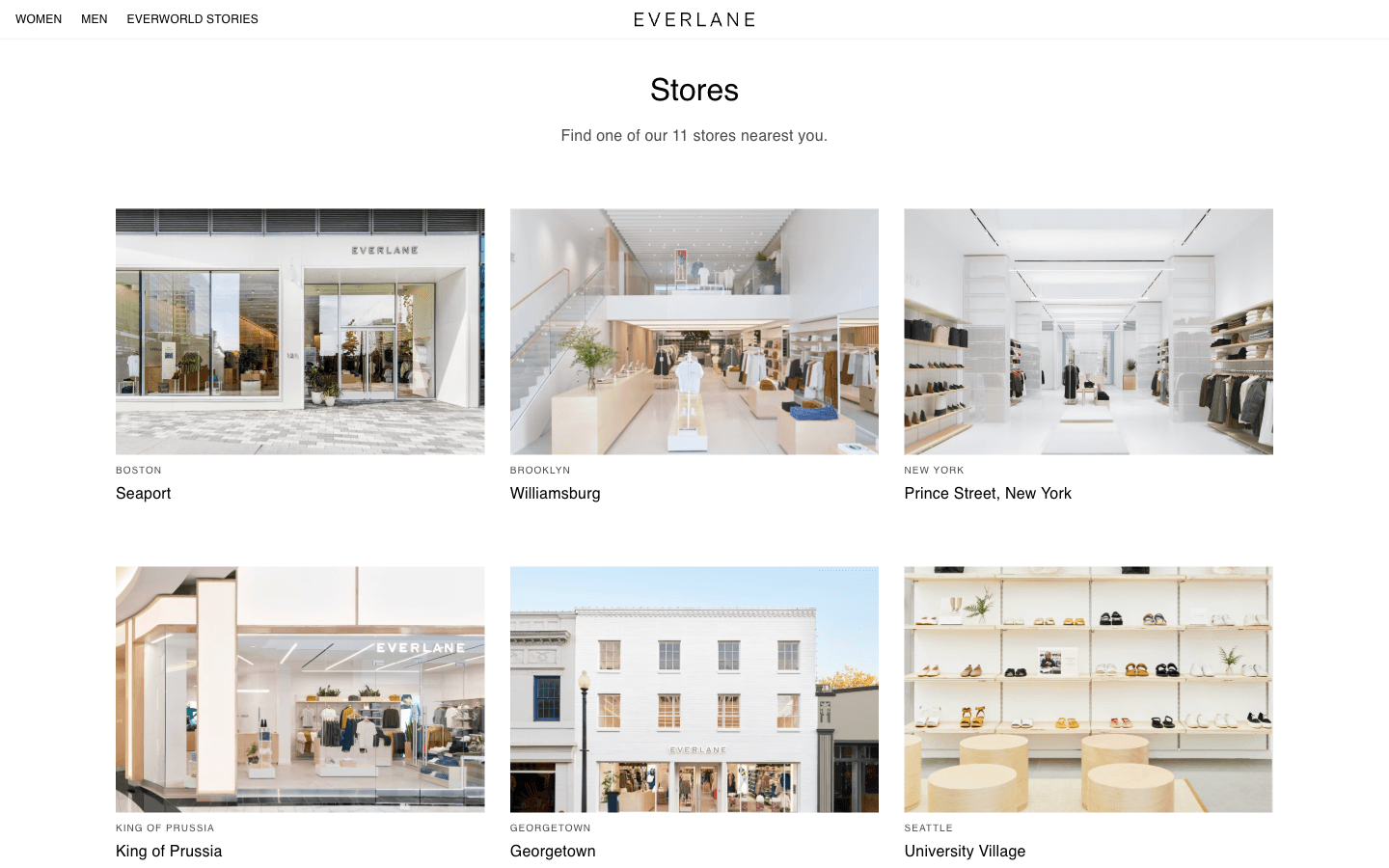
14. Everlane. Clean grid with trademark minimalism. Large storefront photos for each location with city name and neighborhood. Sans-serif typography, generous spacing. The photography-forward approach makes the locator feel like a lifestyle page. Could improve: no search or filter function -- users scan the full grid visually, which stops scaling at 15+ locations.
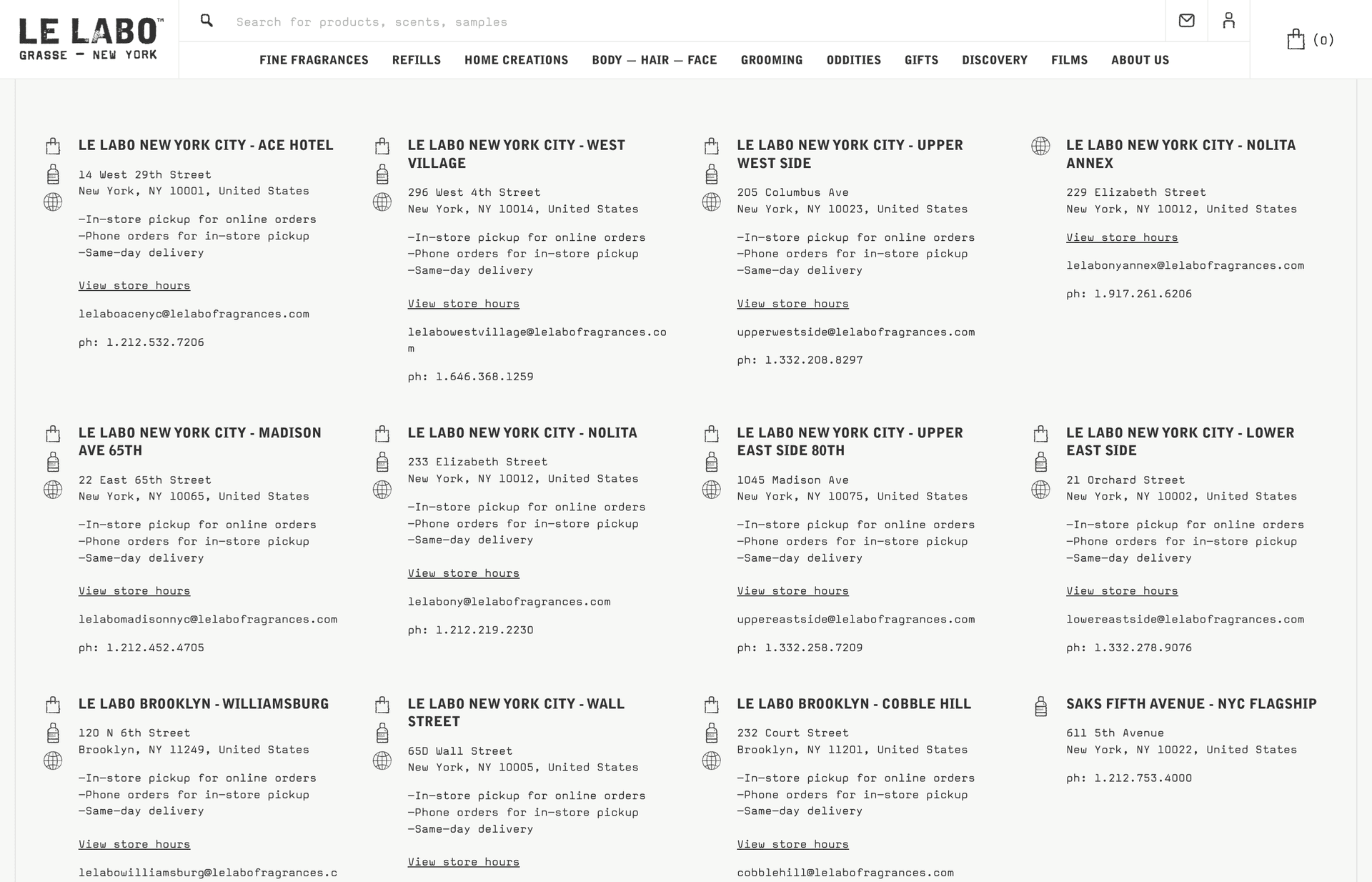
15. Le Labo. A dense card grid with serif typography -- city name, full address, services (in-store pickup, phone orders, same-day delivery), phone number, and a "View store hours" link. No photos, no map -- just information. The density works because it serves a customer who already knows they want Le Labo and just needs the nearest location. Could improve: a map or distance sort would help new customers discover nearby stores.
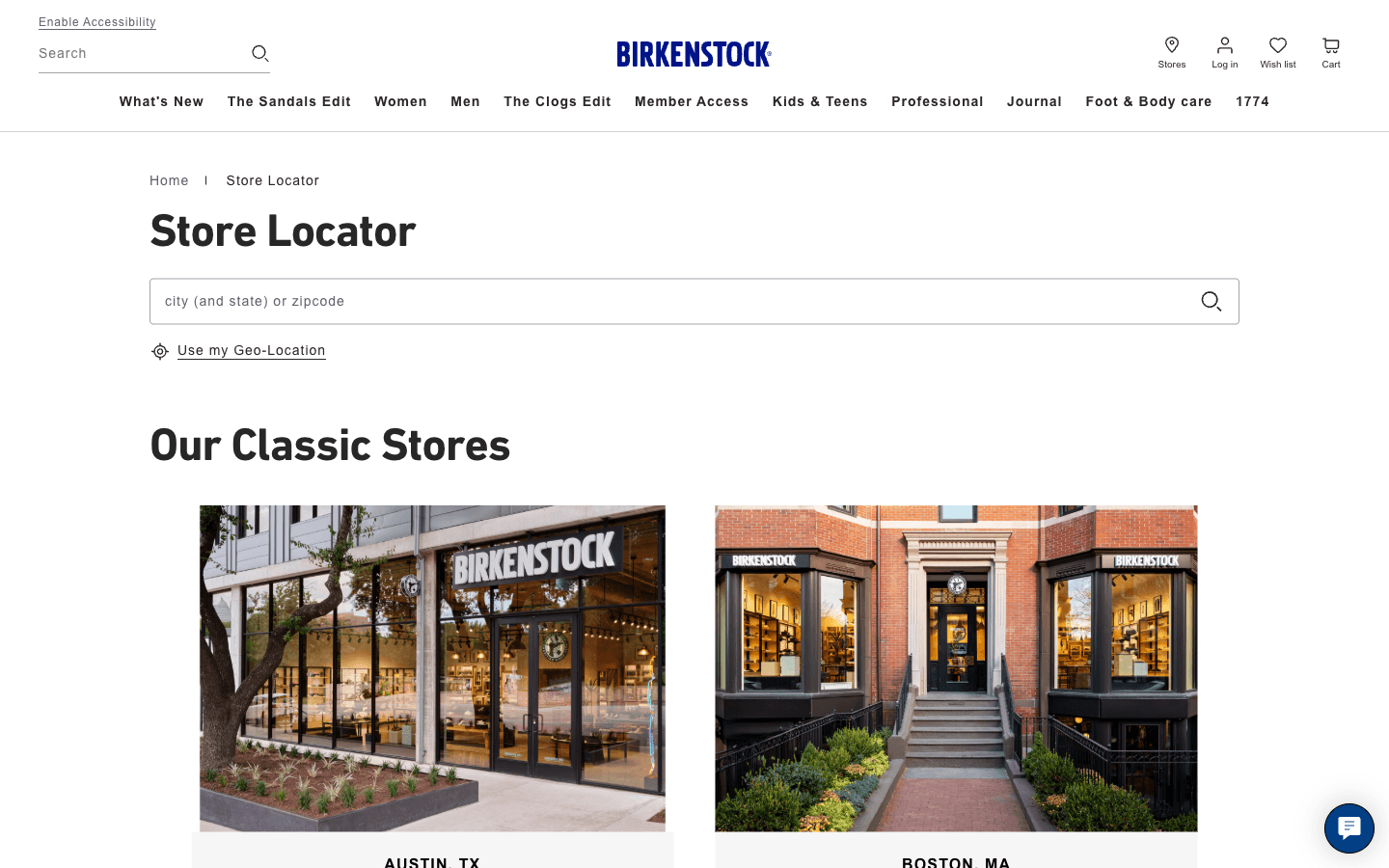
16. Birkenstock. Hybrid approach: a search bar and geolocation option at the top, followed by a curated grid of "Our Classic Stores" with large storefront photos. The photography emphasizes the brand's premium retail experience. Could improve: the search-to-results transition could be smoother -- the grid and the search feel like two separate pages.
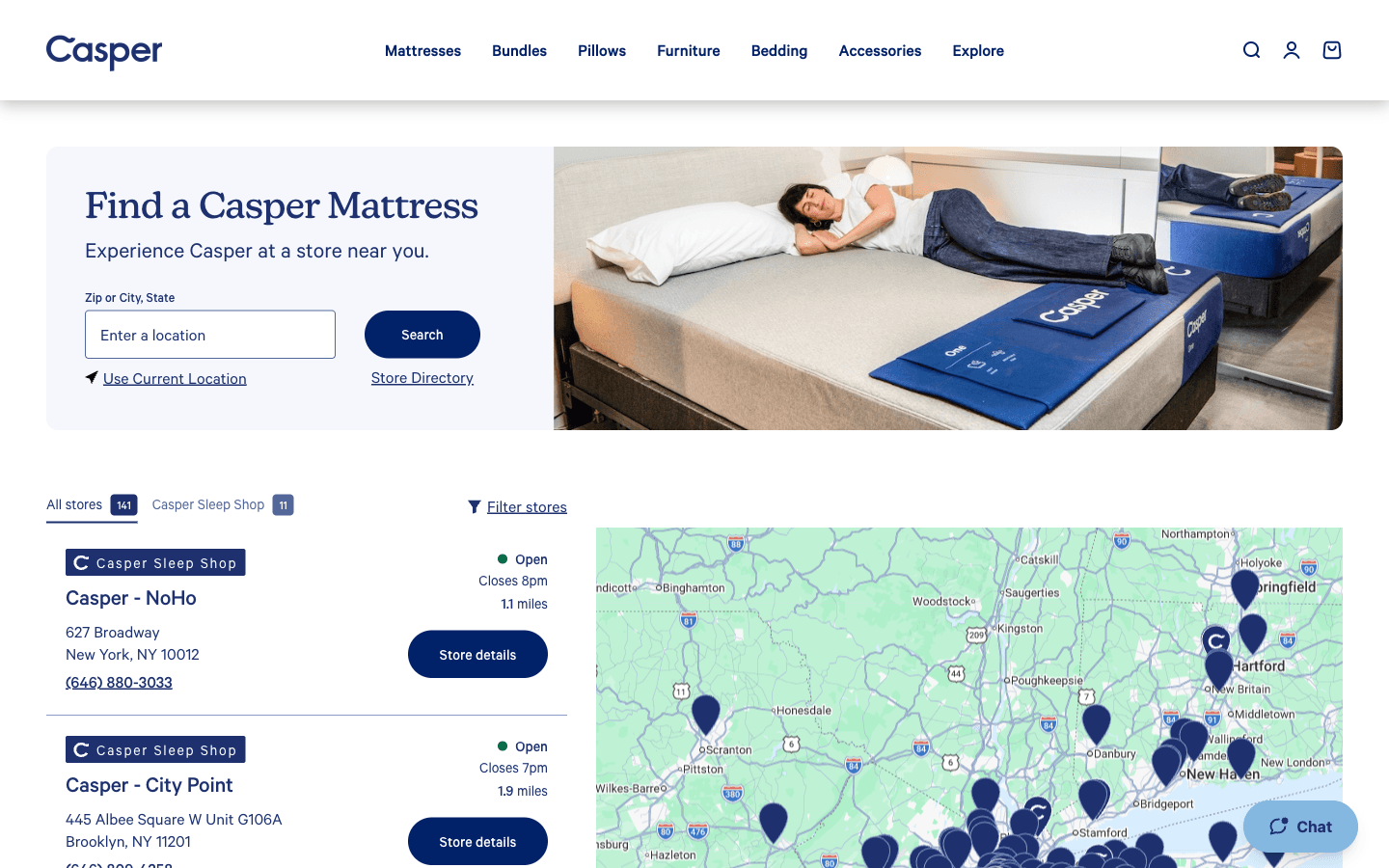
17. Casper. Sidebar-plus-map with a prominent search bar and "Use Current Location" toggle. Location cards include brand-styled badges ("Casper Sleep Shop" vs partner locations), "Store details" links, and phone numbers. A banner image of the Casper mattress experience adds lifestyle context. Could improve: the badge system could be more visually distinct to separate owned stores from retail partners.
"Where to Buy" Pages: 6 Store Locator Examples
"Where to Buy" pages are the CPG brand's version of a store locator. Instead of finding brand-owned stores, customers find which retailers carry the product. Product imagery, retailer logos, and buy-online links are common. This pattern is essential for brands that sell through third-party retail.
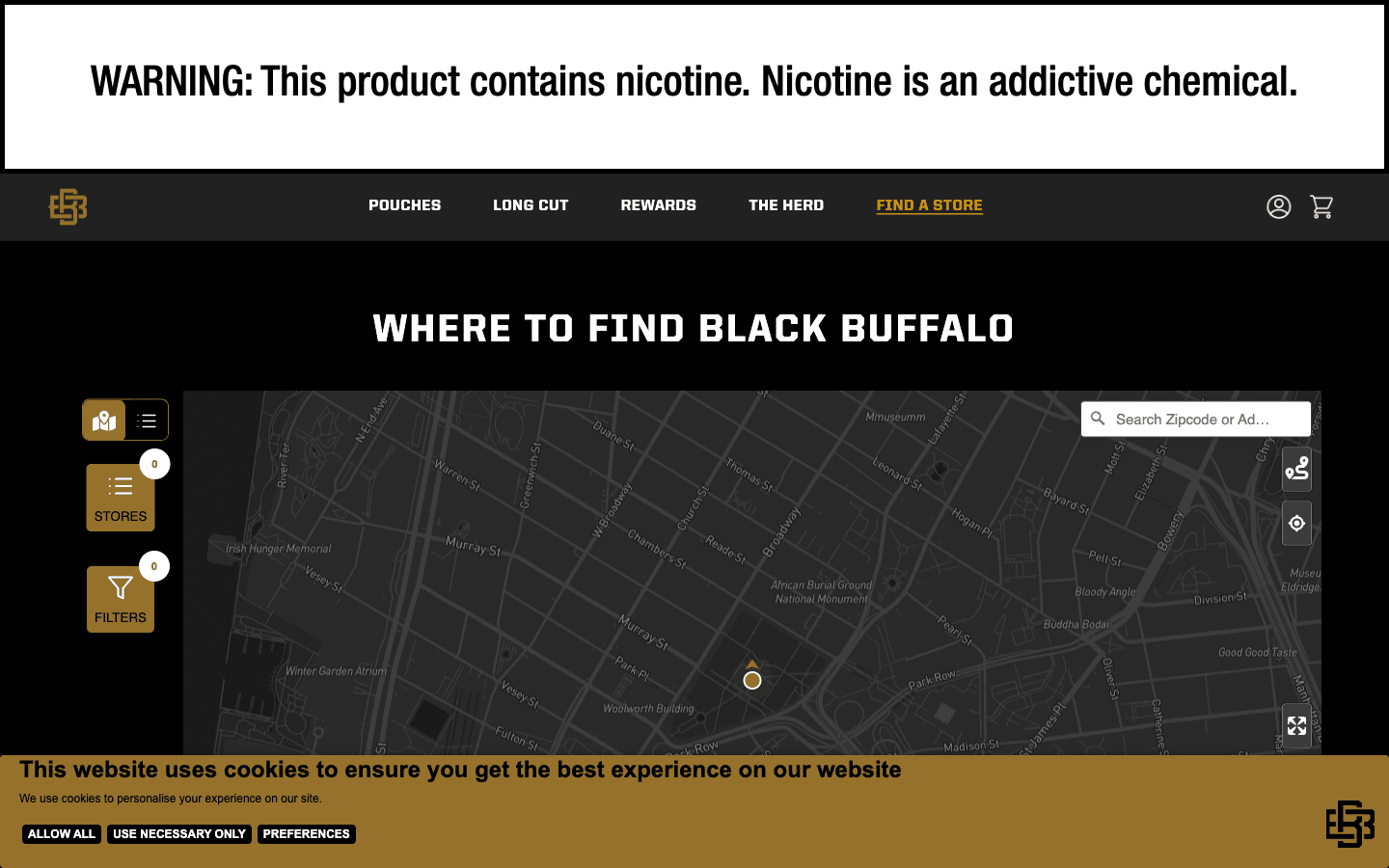
18. Black Buffalo. Dark, premium design matching the brand's identity. "Where to Find Black Buffalo" heading over a dark-themed map with gold pins. The search bar integrates cleanly into the dark UI. The locator covers 12,000+ retail locations -- the map density itself communicates availability. Could improve: retailer filtering (gas stations vs tobacco shops) would help customers find the right store type.
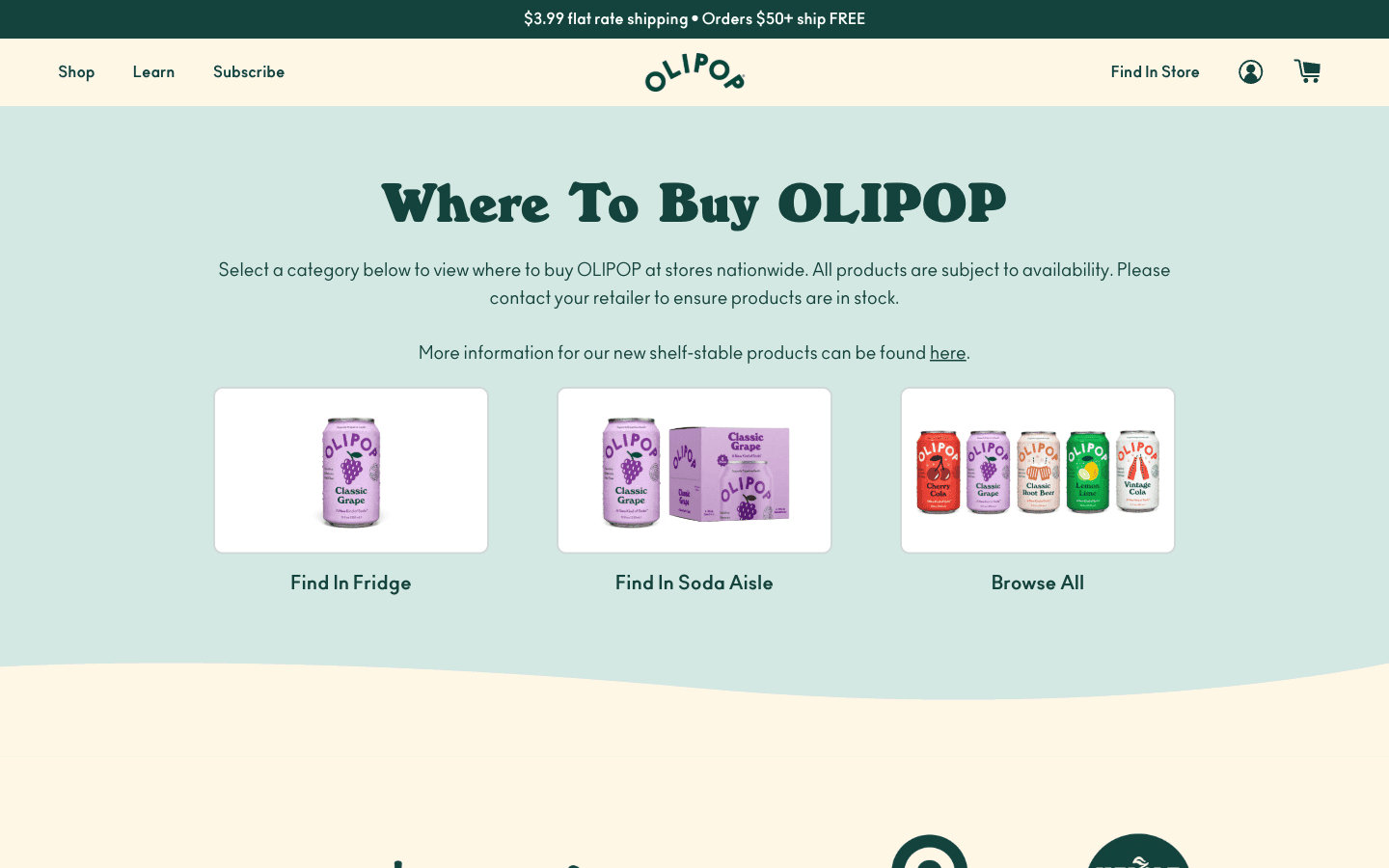
19. Olipop. "Where To Buy OLIPOP" leads with product imagery -- customers first select a category ("Find In Fridge," "Find In Soda Aisle," "Browse All") before seeing retailers. This product-first approach acknowledges that Olipop sits in different store sections depending on format. Smart UX that reduces wasted trips. Could improve: a map view after product selection would help geographically oriented users.
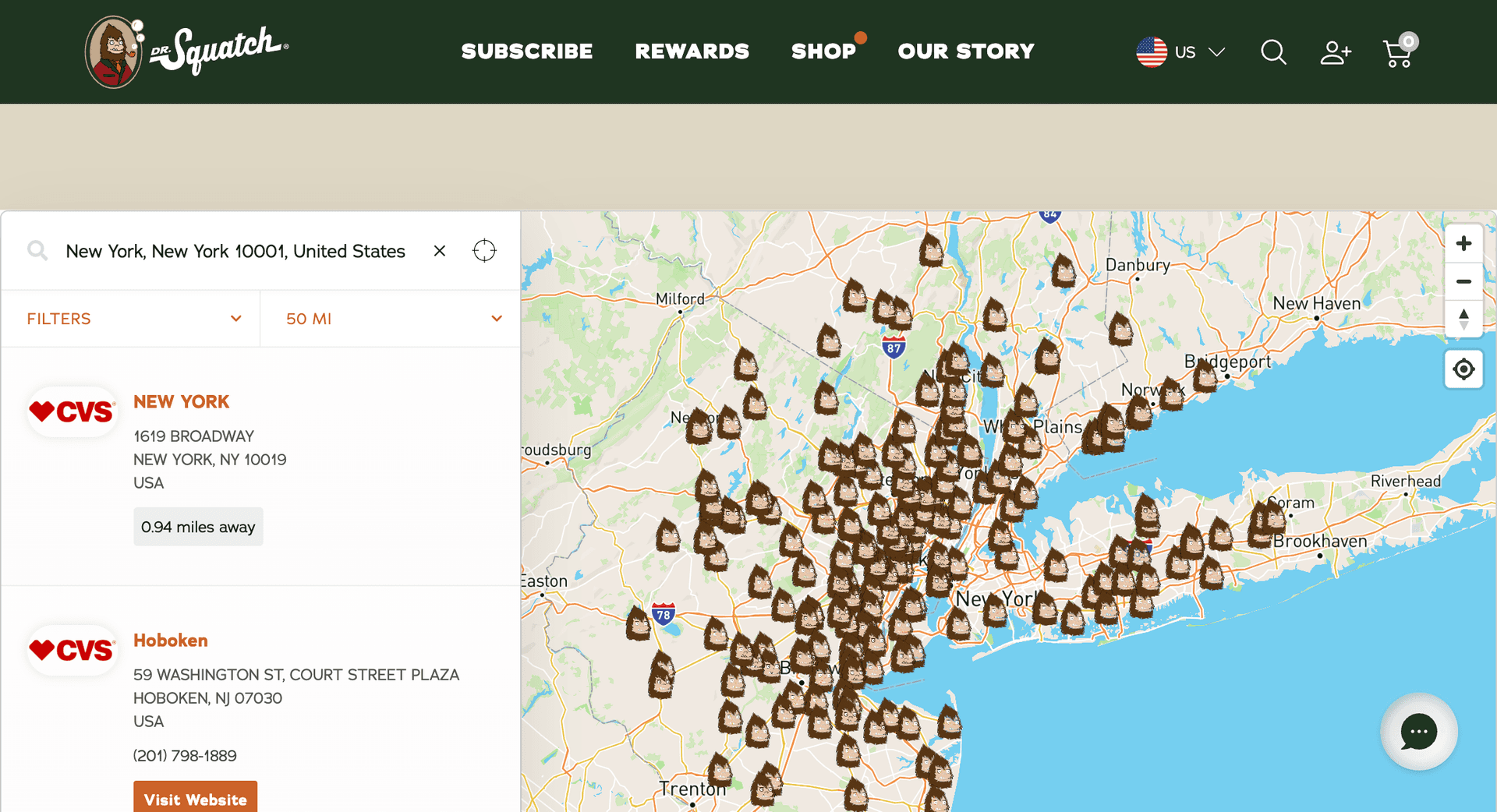
20. Dr. Squatch. "Find In Store" page with a bold hero section showing product imagery, then a sidebar-plus-map layout below. Custom poop-emoji-style map pins are playful and instantly recognizable -- they match the brand's humor. Location cards show retailer name and brand (CVS, Walmart). Standout feature: the pin density across the eastern US communicates massive retail distribution at a glance. Could improve: product-level filtering would help customers find specific items.
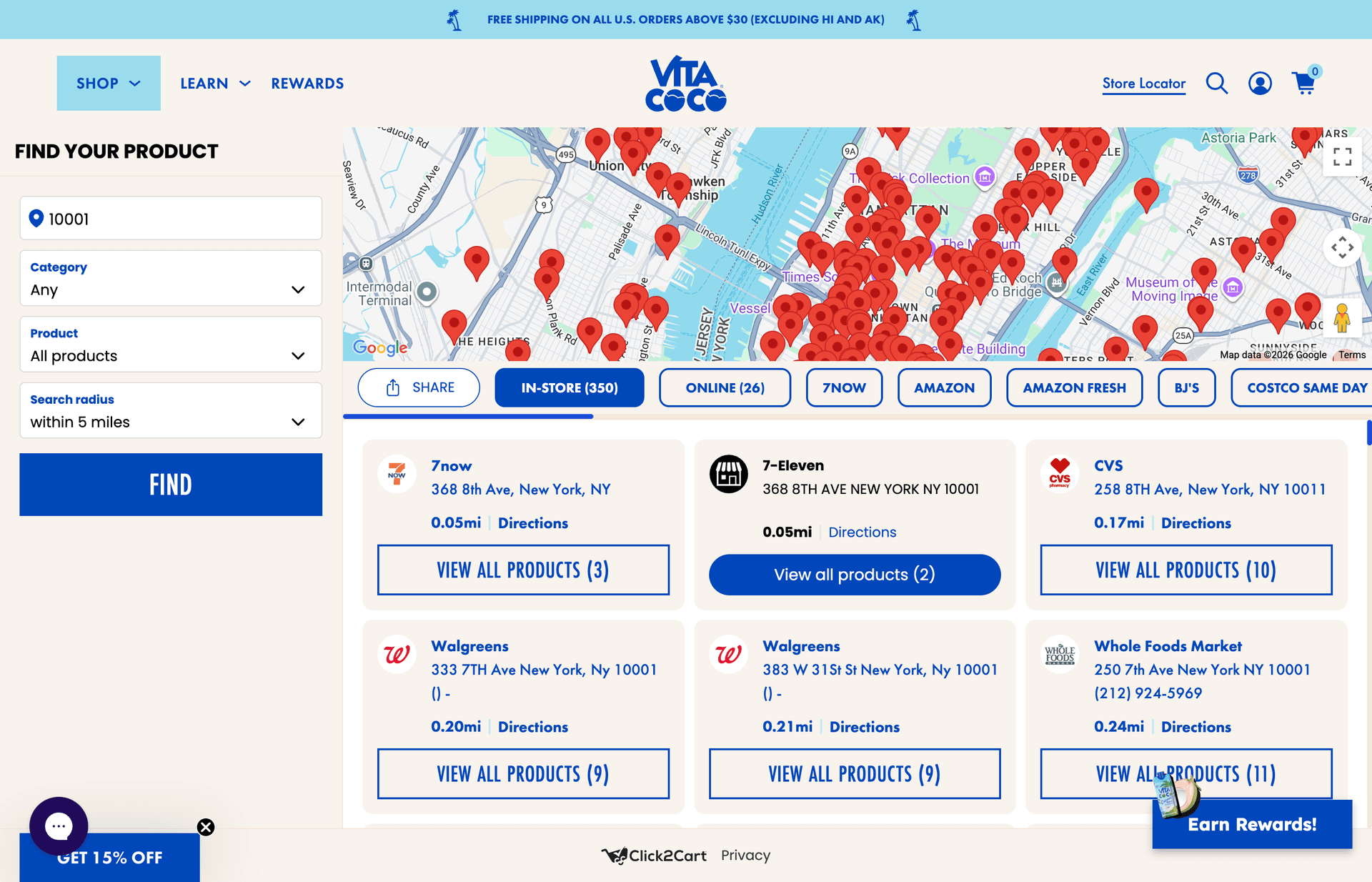
21. Vita Coco. Feature-rich "Find Your Product" page with category, product, and radius filters in a left sidebar. Tabs for "In-Store," "Online," "7Now," "Amazon," and specific retailers (Amazon Fresh, BJ's, Costco). Location cards show retailer name, distance, and "View All Products" links. The multi-channel approach (in-store + online + delivery) covers every purchase path. Could improve: the visual density is high -- progressive disclosure would reduce cognitive load.
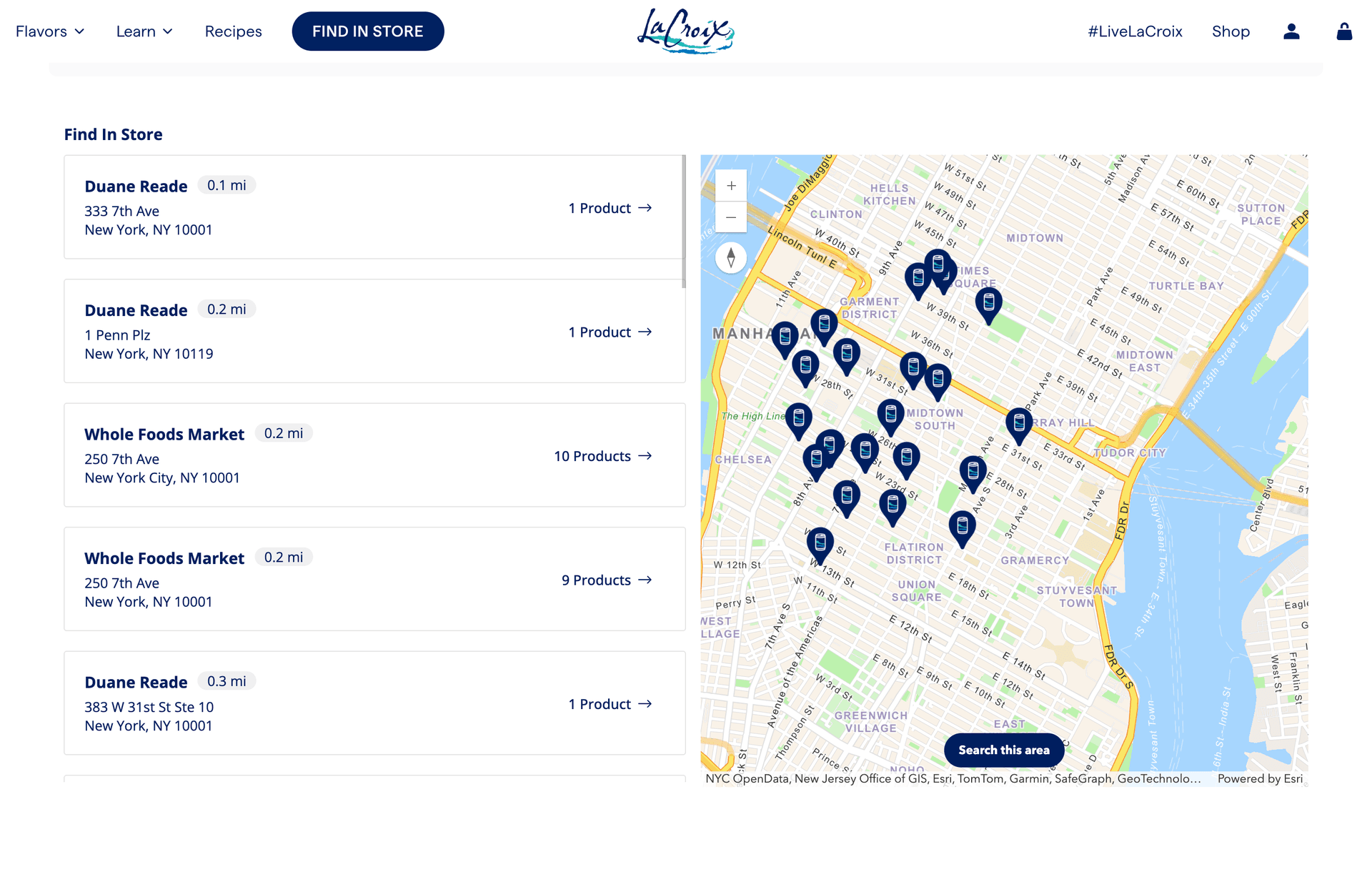
22. LaCroix. Clean "Find In Store" layout with a left sidebar listing retailers (Duane Reade, Whole Foods) with distance and product count. The map uses blue pins on a Manhattan view. The "Product →" links on each retailer show exactly which flavors are available at that location. Minimal, elegant, and functional. Could improve: no retailer-type filtering and no online purchase option.
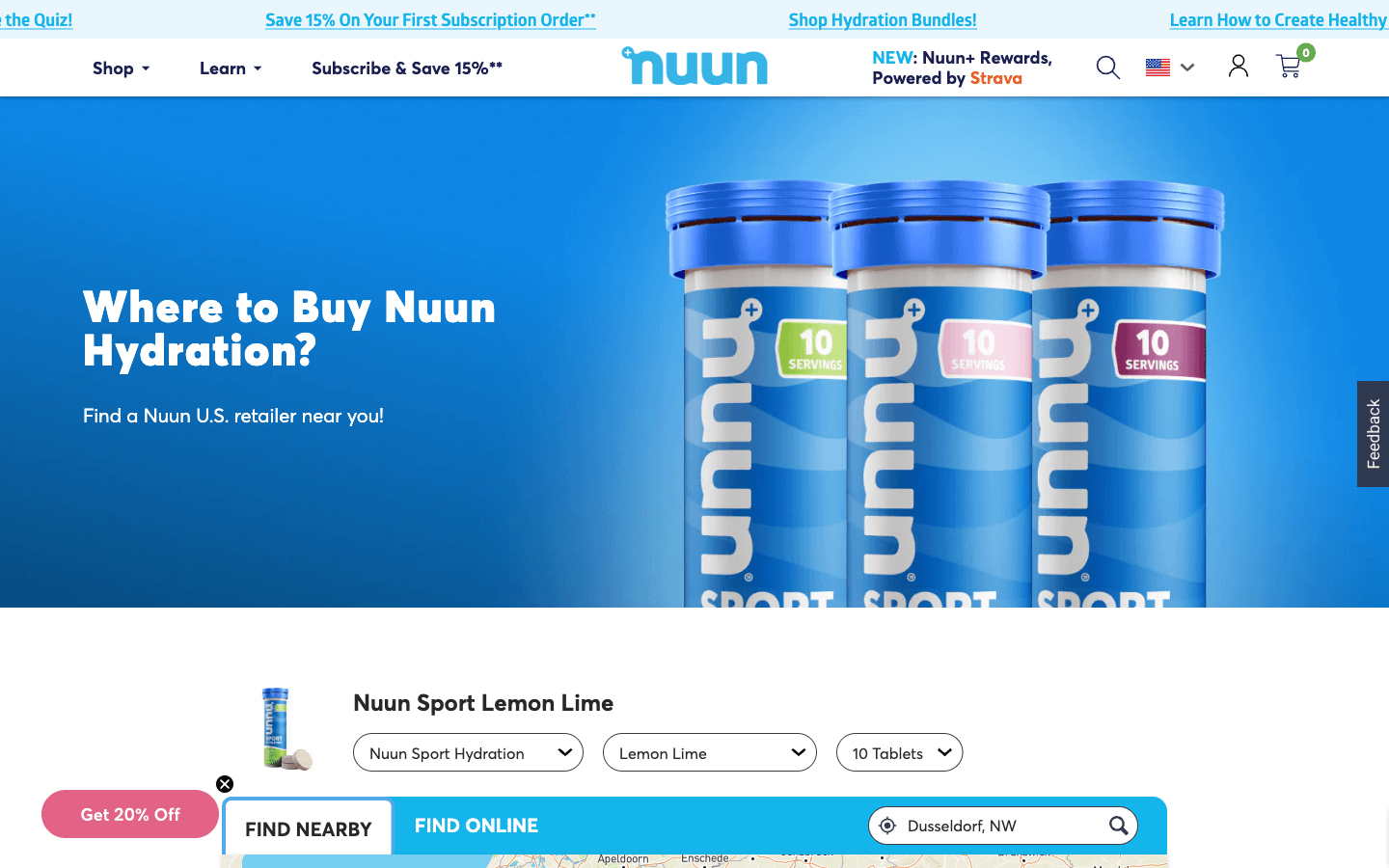
23. Nuun. "Where to Buy Nuun Hydration?" with a large product hero image, then a product picker (Sport, Sport Hydration, Lemon Lime, etc.) followed by "Find Nearby" and "Find Online" tabs. The product-first flow ensures customers search for the right SKU. The visual design is vibrant and on-brand. Could improve: the map and results are below the fold -- a more compact hero would get users to results faster.
Mobile-First / "Near Me" Designs: 2 Store Locator Examples
Mobile-first store locator designs assume the user is on a phone, probably walking, and wants the nearest location now. Geolocation, one-tap directions, minimal friction.
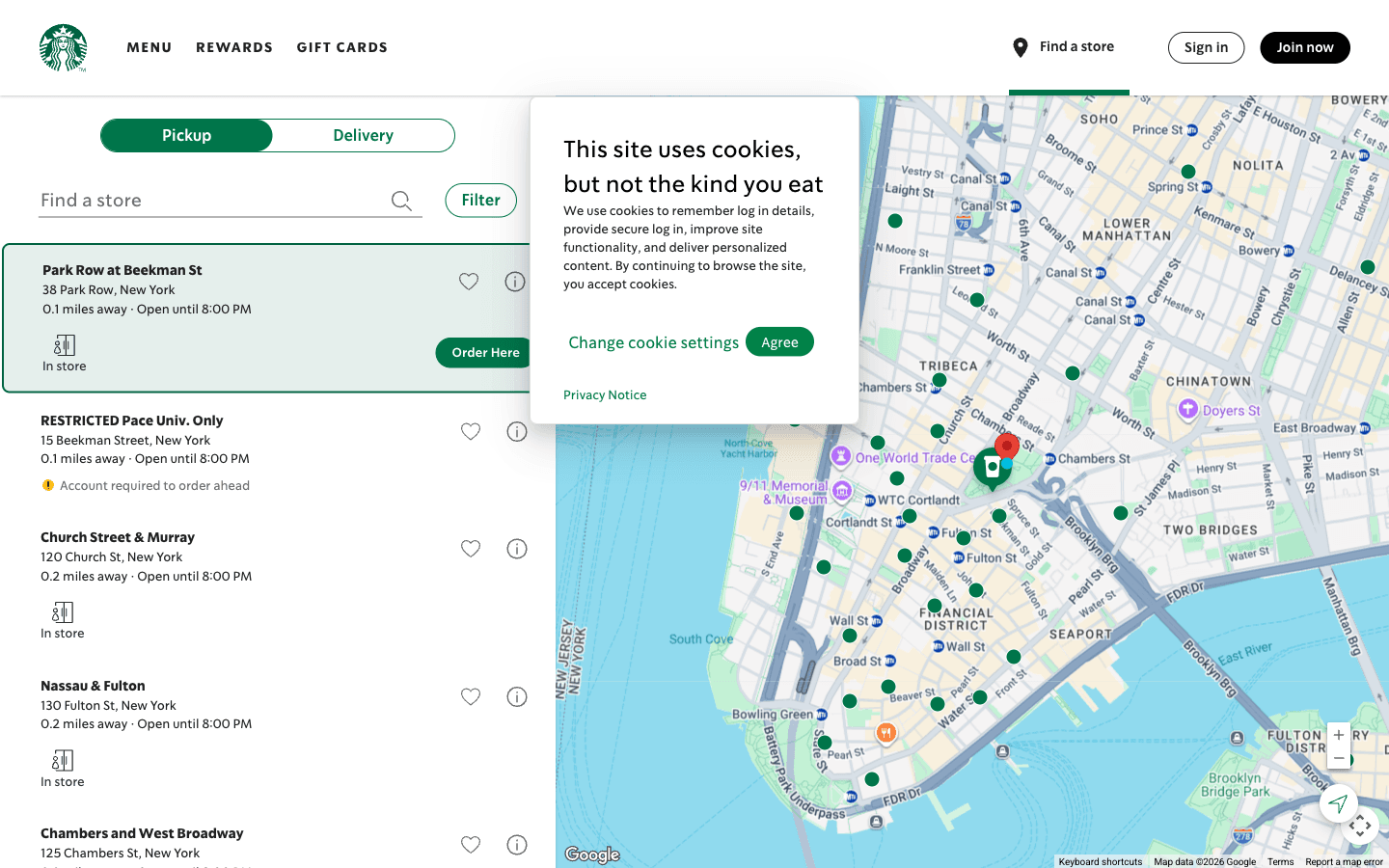
24. Starbucks. Immediate geolocation, then a map with nearest locations. Sidebar shows distance, hours, pickup/delivery toggles, and a one-tap "Order" button. Amenity filters (drive-through, mobile order, Wi-Fi) solve real problems. Zero friction -- nearest store within three seconds. Could improve: too many pins in urban areas create a sea of green dots.
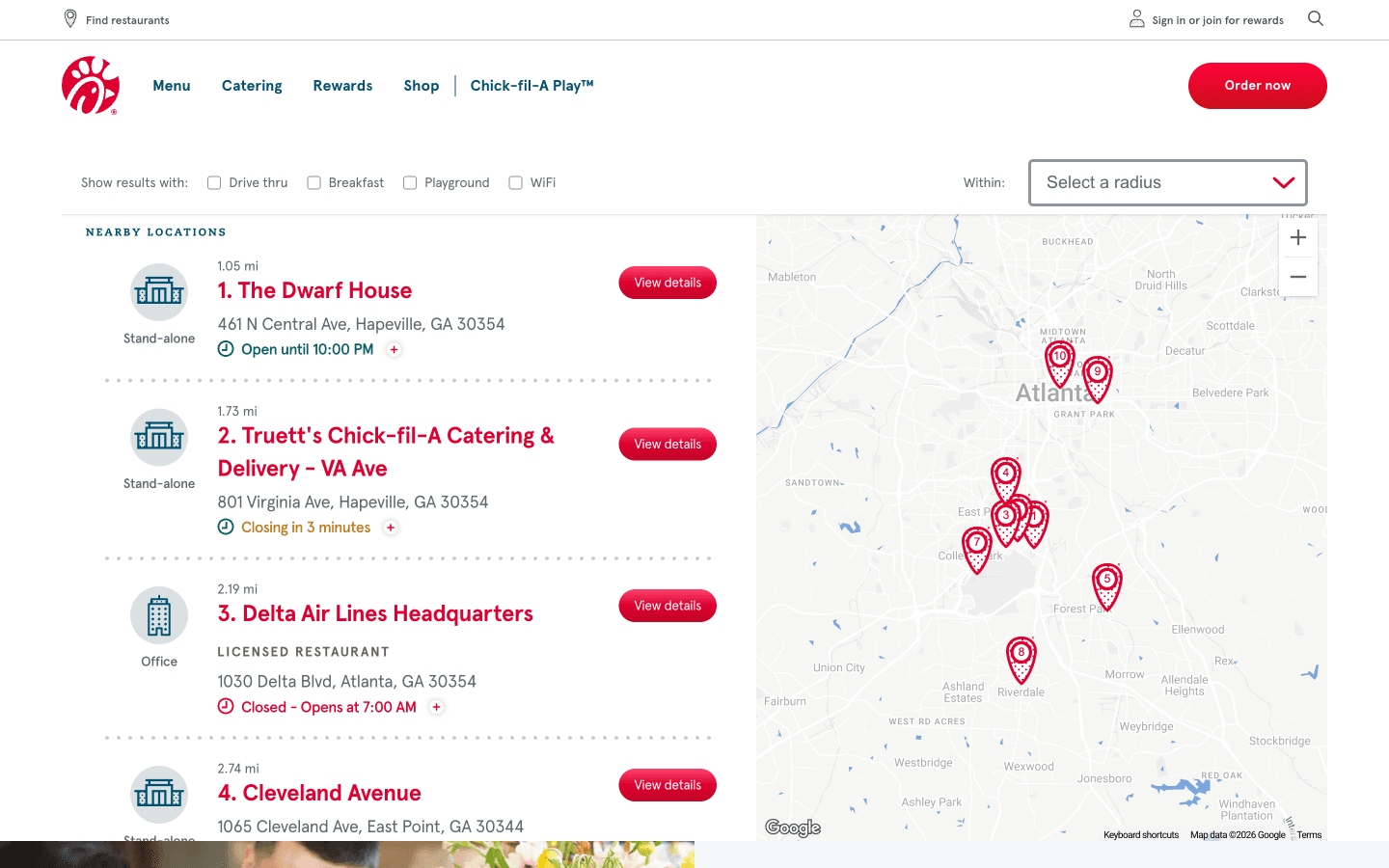
25. Chick-fil-A. Auto-detects location. Sidebar with "Nearest Locations" sorted by distance, each showing hours, status (open/closed), and "Get Directions" links. Filters for drive-through, playground, and WiFi. The red map pins and clean white sidebar match the brand. Could improve: map view dominates the right side but pins are small -- larger branded pins would improve scannability.
What the Best Store Locators Have in Common
Prominent search. The best store locator designs put the search bar above the fold with clear placeholder text. Auto-suggest and geolocation buttons are standard.
Brand-consistent design. Every visual element -- map style, pin color, typography, card layout -- matches the brand. A desaturated map with custom pins feels intentional. A default Google Maps embed with red pins feels generic.
Smart filters. Filters that reflect real customer decisions: store type, services, amenities, product categories. The best designs surface these without hiding them behind a "Filter" button.
Mobile optimization. Geolocation is one tap. Directions are one tap after that. Scrolling through a long list on a phone to find the search bar is a design failure.
Clear CTAs. Every location card includes at least one direct action: "Get Directions," "Call Store," or "View Store Details." These are the conversion points of the page.
How to Apply These Patterns to Your Shopify Store
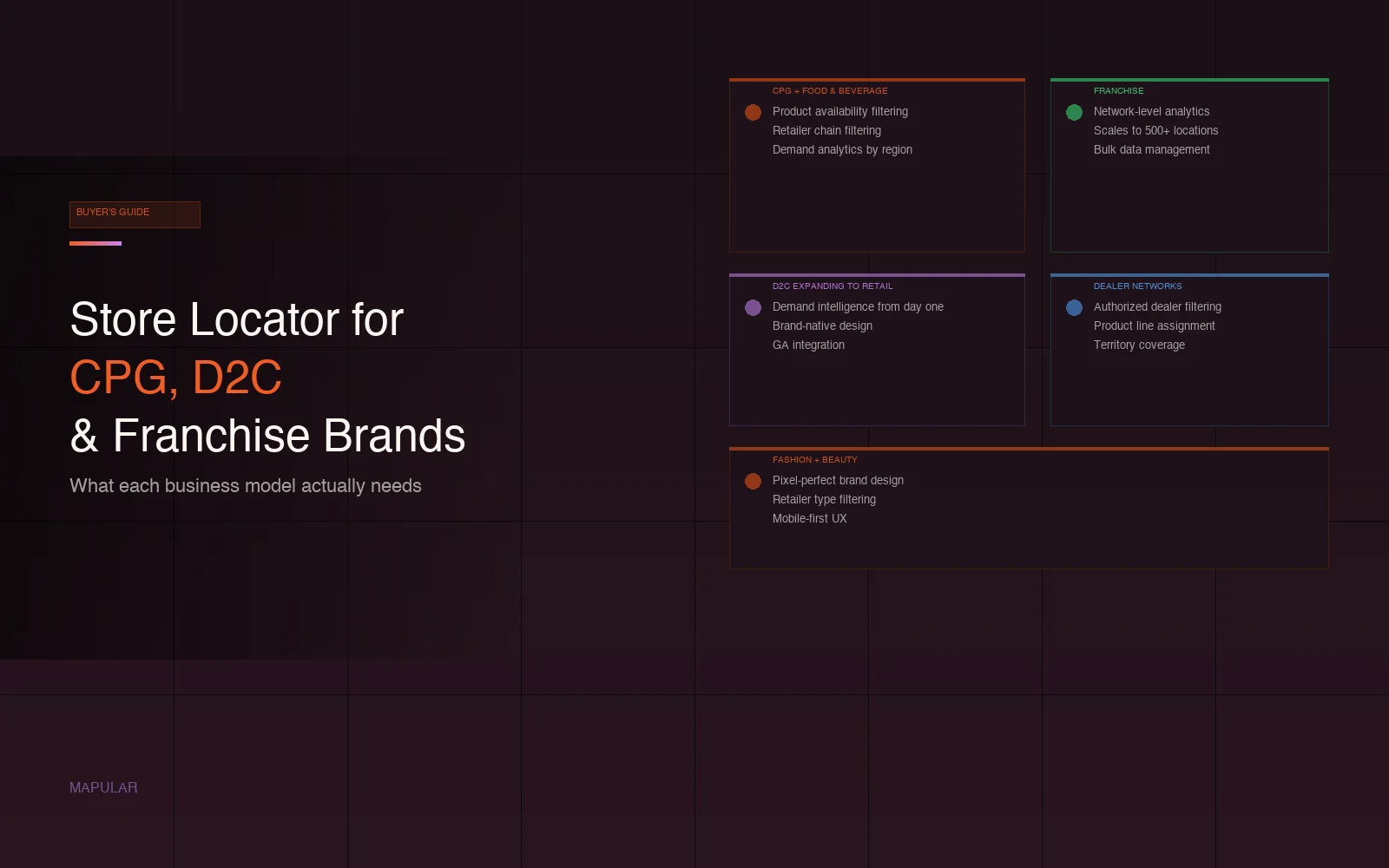
You do not need to build a custom store locator from scratch. The design patterns fall into four main categories -- sidebar-plus-map, full-width map, card grid, and "where to buy" -- and Mapular's store locator for Shopify supports all of them as built-in layout modes.
Layout modes. Choose the layout that matches your brand's store count and personality. Sidebar list + map for large networks. Full-width map for geographic coverage. Card grid for curated, editorial-style pages. "Where to Buy" for CPG brands selling through retailers.
Brand customization. Control colors, fonts, map styles (light, dark, terrain, satellite), pin icons, and card layouts. No CSS hacks, no developer required.
Filters and geolocation. Smart filters by product category, service, or store type come built in. Geolocation is one tap. Auto-suggest is standard.
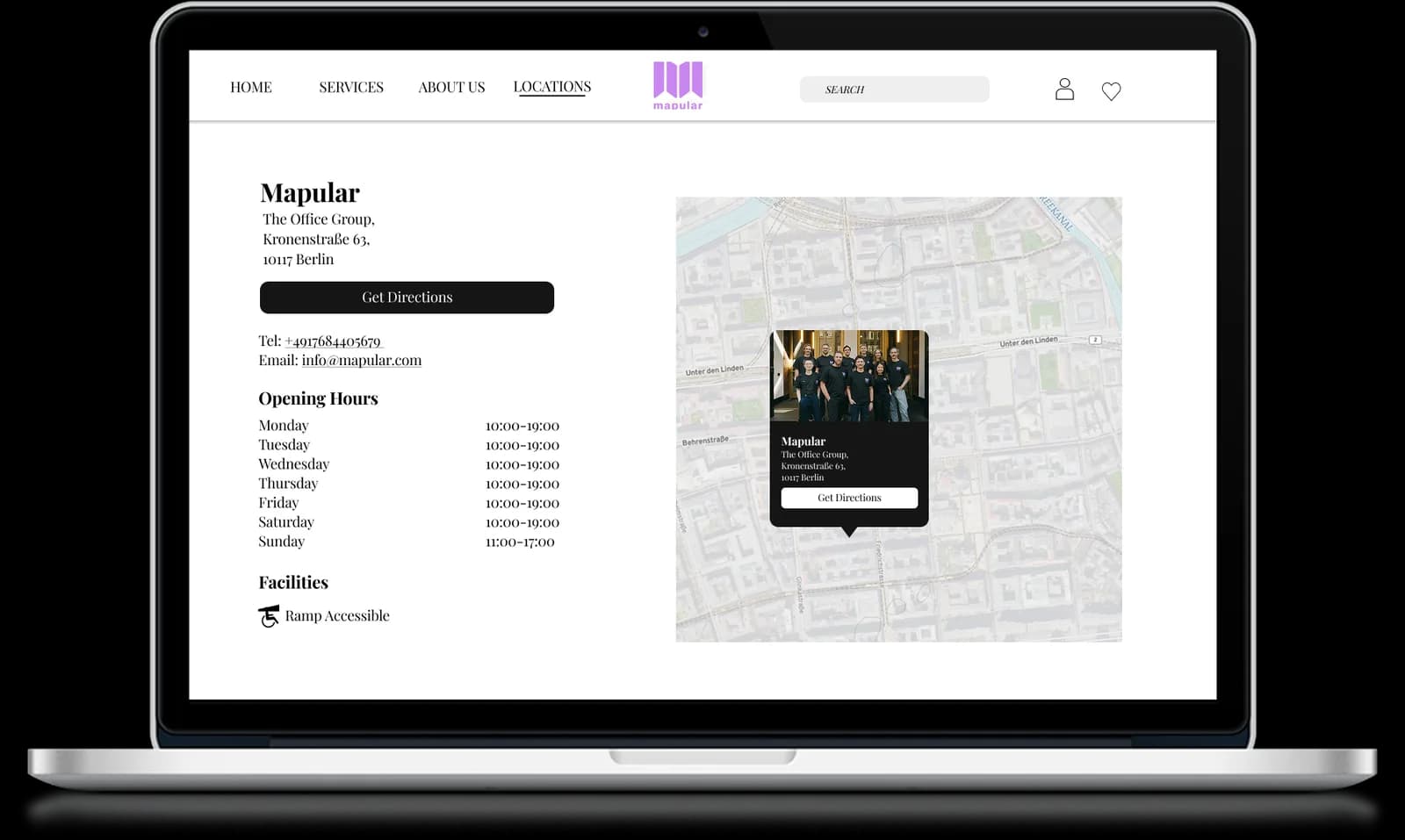
Individual store pages. IKEA and Patagonia both use individual store pages for local SEO. Mapular generates these automatically for every location, with structured data that search engines can index. Read more about why individual store pages matter.
If you're evaluating which Shopify store locator app gives you the most design control, see our comparison of the cleanest store locator tools.
For a full comparison of Shopify store locator options, see our guide to the best store locator apps for Shopify.
Next Steps
The difference between a forgettable store locator and one that converts comes down to design decisions: layout, search prominence, brand consistency, filters, and mobile behavior. The 25 store locator examples in this post represent the current standard. Your locator should meet it.
Not sure how your own locator measures up? Our free store locator grader scores it against 15 of these best practices in about two minutes and shows you what to fix first.
Match any of these styles with Mapular's layout modes and full brand control. Try it free on Shopify.