The Document Archive
How the per-case document archive works, what files are stored, how to upload additional documents, and how to retrieve past correspondence.
This guide explains how to use the Documents (document archive) to store, preview, and manage files related to accident reports.
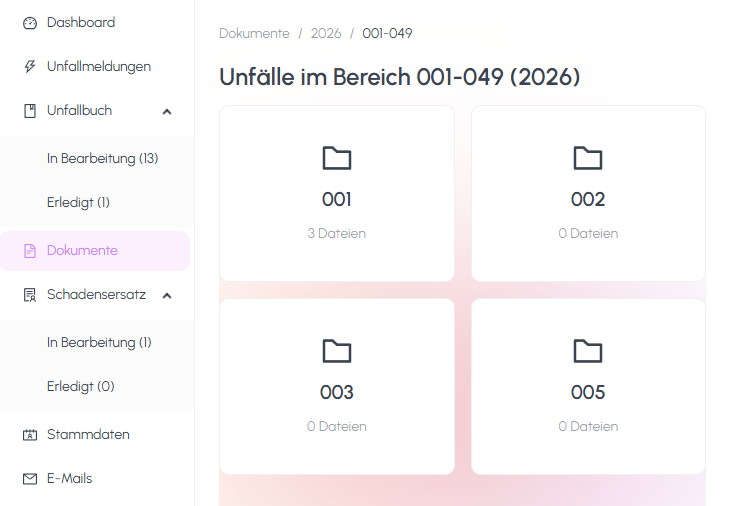
Understanding the folder structure
The archive is organised hierarchically to keep documents easy to find:
Year (e.g., 2026)
  └── Range (e.g., 0001–0100)
        └── Report folder (one per accident report)
              └── Uploaded files
- Year: the calendar year of the accident report.
- Range: a grouping of report numbers (for example, files 0001–0100), used to keep folders at a manageable size.
- Report folder: the folder dedicated to a single accident report, where all of its attachments live.
Navigate by clicking down through the breadcrumb: from Year to Range to the individual Report folder.
Uploading files
Inside a report folder, you can upload files that belong to the case:
- Open the target report folder.
- Click the upload area or drag files directly into it.
- Supported formats include:
- PDFs: reports, insurance letters, signed forms.
- Images: JPG, PNG (photos, scans).
- ZIP archives: for bulk uploads of many files at once.
- The maximum upload size is up to 250 MB per file, which allows large scans or photo archives.
Previewing files directly in the browser
- Click a file to open a preview panel.
- PDFs and images render inline so you can inspect them without leaving the page.
- ZIP files are listed with their entries so you can see what was uploaded.
- For unsupported preview formats, use the download option.
Downloading and deleting files
Each file in the archive offers the following actions:
- Download: click the download icon to save the file locally.
- Delete: click the delete icon and confirm in the dialog. Deleted files are removed from the archive permanently.
Use these actions carefully, as documents in the archive may serve as evidence for insurance claims and legal purposes.
Still need help?
Get in touch with the SmartDrive AI team
Or email us at support-smartdriveai@mapular.com