Managing Master Data
How to maintain drivers, vehicles, opponents, and other master data used across all accident reports, including per-vehicle daily rate settings.
This guide describes how to maintain master data, the reference data used across accident reports and claims.
Overview of tabs
The Master Data section is organised into tabs, each covering a specific type of reference data:
- Insurance Companies: liability and comprehensive insurers used in claims.
- Health Insurance Funds: statutory health insurance funds for injured persons.
- Employers' Liability Associations: occupational accident insurance associations.
- Workshops: repair workshops used for vehicle repairs.
- Appraisers: expert appraisers for damage assessments.
- Drivers: drivers assignable to accident reports.
- Vehicles: vehicles in your fleet.
- Signatures: email signatures used in outgoing correspondence.
Click a tab to switch to the corresponding master data list.
Adding, editing, and deleting contact entries
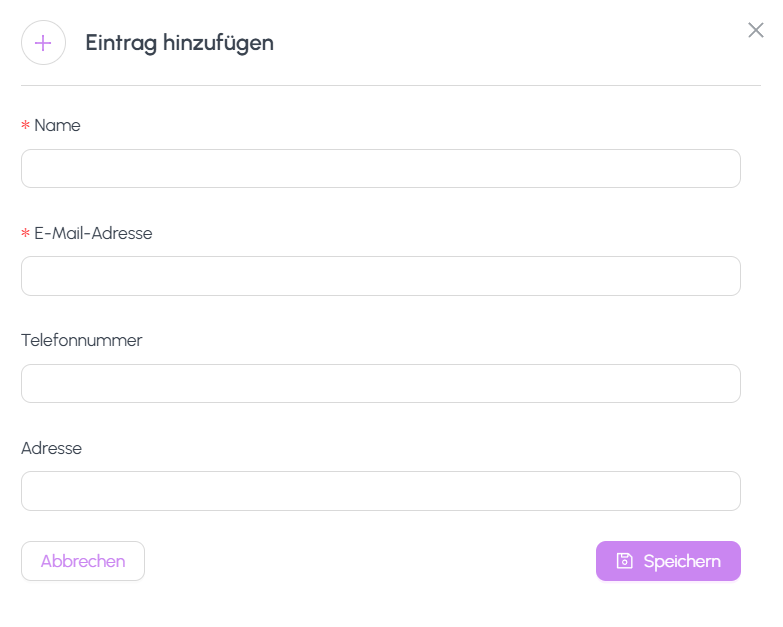
Most master data tabs (insurance, health insurance, associations, workshops, appraisers) behave the same way:
Adding an entry
- Open the appropriate tab.
- Click Add New (or the equivalent "add" button).
- Fill in the contact details: name, address, phone, email, etc.
- Click Save.
Editing an entry
- Find the entry in the list (use search/filter if needed).
- Click the edit icon next to the entry.
- Update the fields and click Save.
Deleting an entry
- Click the delete icon next to the entry.
- Confirm the deletion in the dialog.
- If the entry is in use by existing reports, the system may prevent deletion or warn you.
Managing driver records
The Drivers tab contains all drivers that can be assigned to accident reports:
- Add a new driver with name, personal details, and associated contact information.
- Edit driver data whenever master information changes.
- Delete drivers that are no longer part of the fleet.
Driver entries created during accident reporting are also visible here and can be edited centrally.
Managing vehicle records manually
The Vehicles tab lets you manage vehicles individually:
- Click Add New to create a single vehicle entry.
- Specify attributes such as license plate, internal number, type, and insurance data.
- Edit or retire vehicles individually via the list view.
For bulk management, use the CSV upload described in the Vehicle CSV Upload & Management guide.
Still need help?
Get in touch with the SmartDrive AI team
Or email us at support-smartdriveai@mapular.com