Processing Claims
Guide to processing claims in the Accident Book, tracking loss-of-use costs, linking parties, and moving a case toward resolution.
This guide explains how to process damage claims using the two-panel editor.
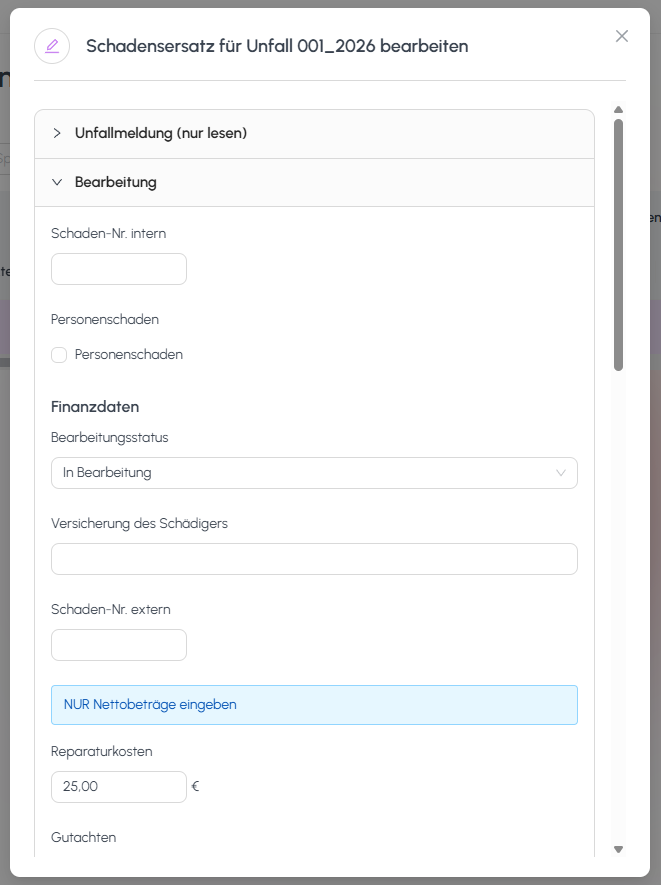
Understanding the two-panel structure
When you open a claim for processing, the editor shows two side-by-side panels:
- Accident Report (left panel): the original accident report. This panel is read-only and preserves the data exactly as it was submitted.
- Editing (right panel): the editable version. All changes are made here; the original remains untouched for reference and audit.
This side-by-side layout lets you reference the original data while entering or correcting processing information.
Editing claim details
In the Editing panel, you can edit the following claim fields:
- Claim No.: the claim/damage number assigned by the insurer or the internal system.
- Processing Status: the current processing status of the claim.
- Insurance of the Party at Fault: the liability insurance of the party at fault.
Entering financial data
The financial section captures all monetary aspects of the claim:
- Repair Costs: repair costs.
- Appraisal: expert appraisal costs.
- Loss-of-use: compensation for loss of use (usually calculated via daily rate × days).
- Flat-rate Fee: flat-rate processing fee.
- Other Costs: any other costs not covered by the fields above.
All amounts are entered in EUR and contribute to the total claim value.
Tracking payments and remaining balance
- Enter incoming payments in the Incoming Payments section. Each payment can be recorded with a date and amount.
- The Remaining Balance is calculated automatically as:
Total claim − Sum of payments received = Remaining Balance - When the Remaining Balance reaches zero, the claim is fully settled.
Adding timestamped notes
Use the notes area to document the claim's progress:
- Click Add Note (or the equivalent note input).
- Enter the note text.
- Save. The note is stored with an automatic timestamp and your user name.
Notes are shown chronologically and cannot be edited afterwards, providing a reliable audit trail.
Still need help?
Get in touch with the SmartDrive AI team
Or email us at support-smartdriveai@mapular.com