Step 3: Damages & Property Damages
Describe what happened in your own words, draw a simple sketch of the scene, and document any damage to property beyond vehicles.
Step 3 captures the story of what happened: a written description, a hand-drawn sketch, and any damage to property beyond the vehicles.
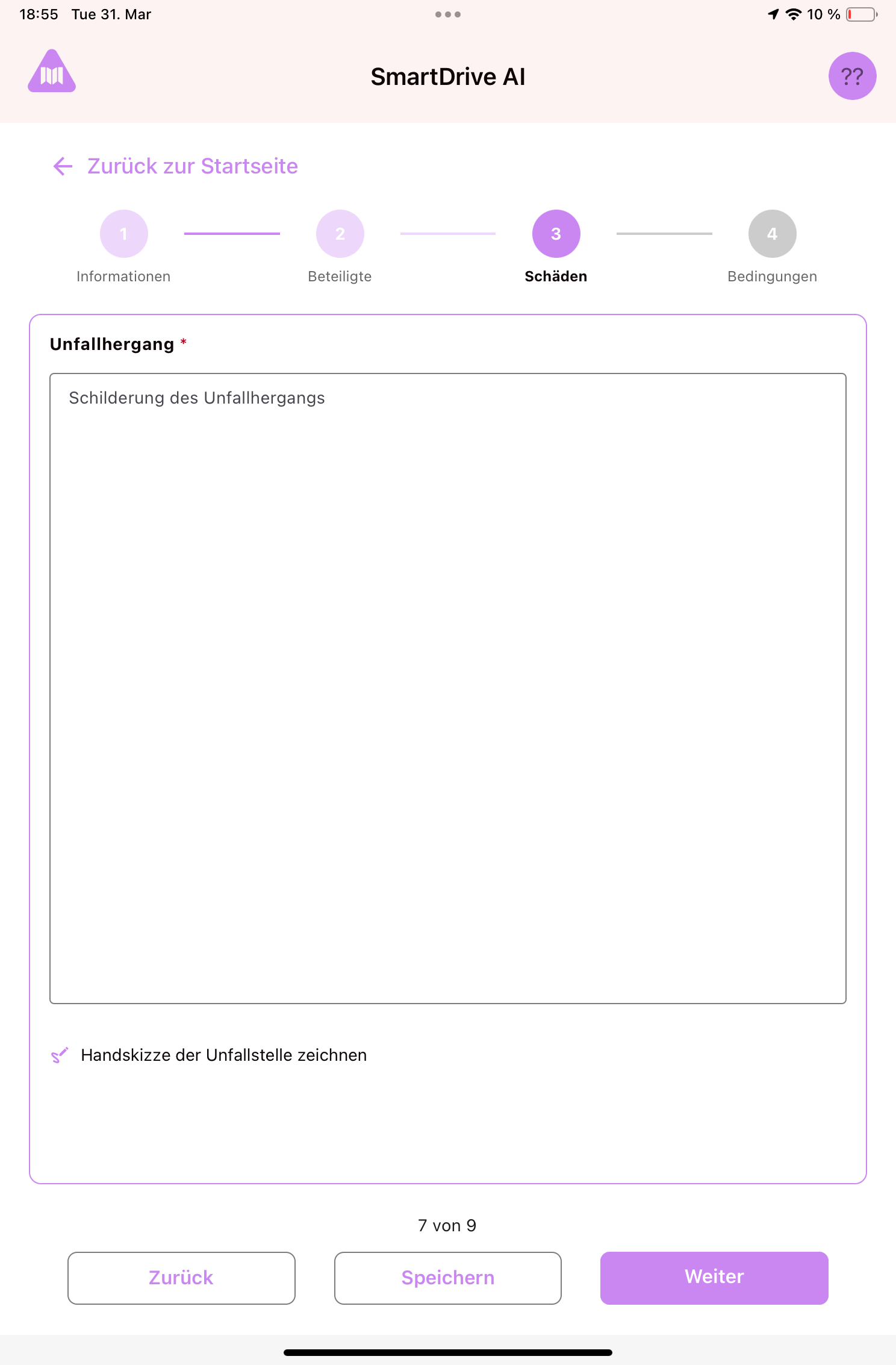
Accident description
- In the text area, describe what happened in your own words. Write clearly and include key details: what direction were you driving, what did the other party do, how did the collision occur.
- This is a required field, so be as specific as you can.
Accident sketch
- Tap the drawing button to open a sketch canvas.
- Use your finger to draw how the accident happened. Show the positions of the vehicles, the direction of travel, road layout, traffic signs, etc. Think of it like a simple bird's-eye view of the scene.
- If you make a mistake, tap undo to remove the last stroke, or clear to start over.
- When satisfied, tap save to keep the drawing. You'll see a preview.
- If you need to redo the drawing later, you can delete the saved version and draw again.
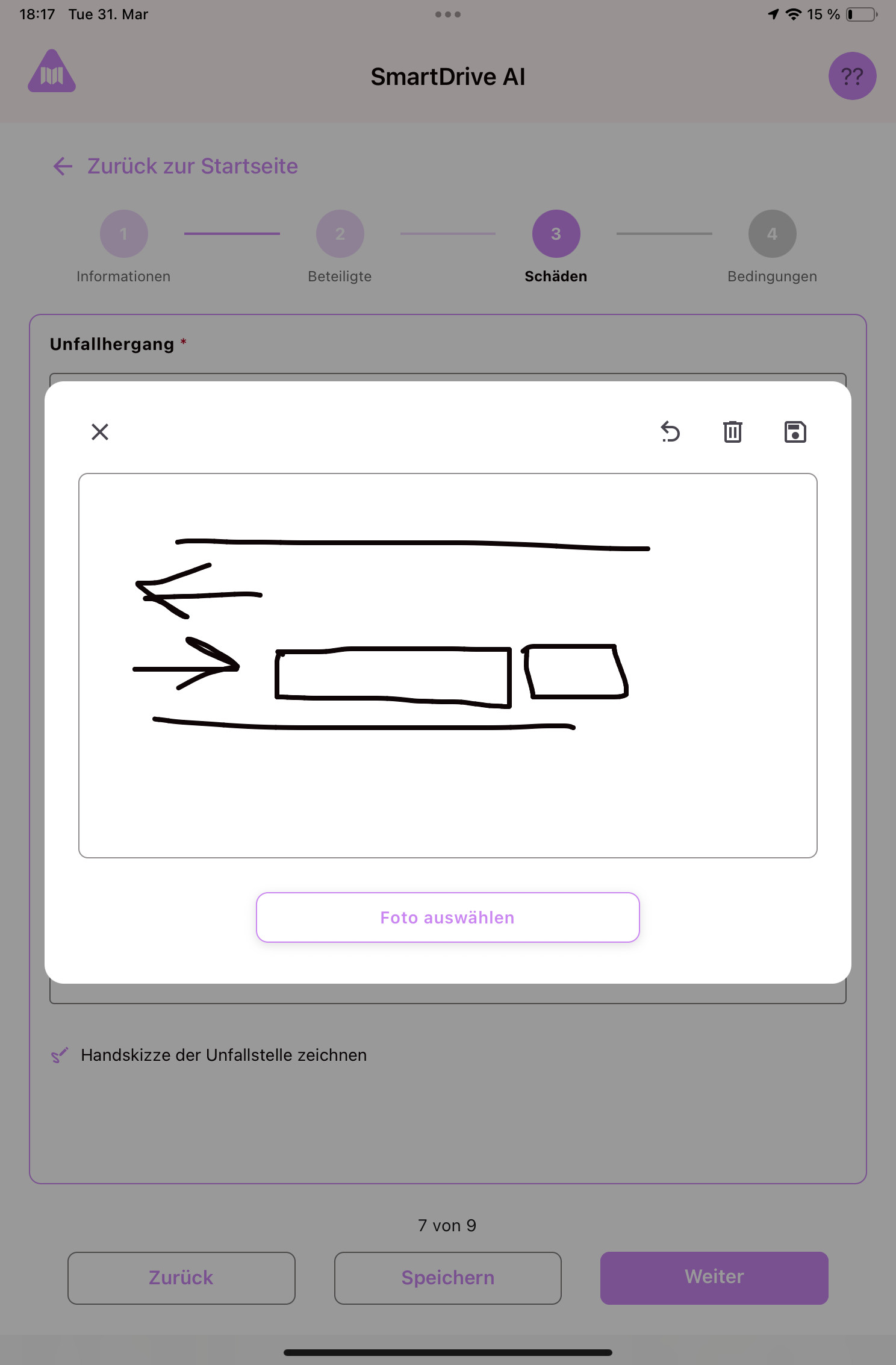
Tip: The sketch doesn't need to be artistic. A simple diagram with arrows showing vehicle positions and movement is enough. This helps the claims team understand what happened at a glance.
Property damages
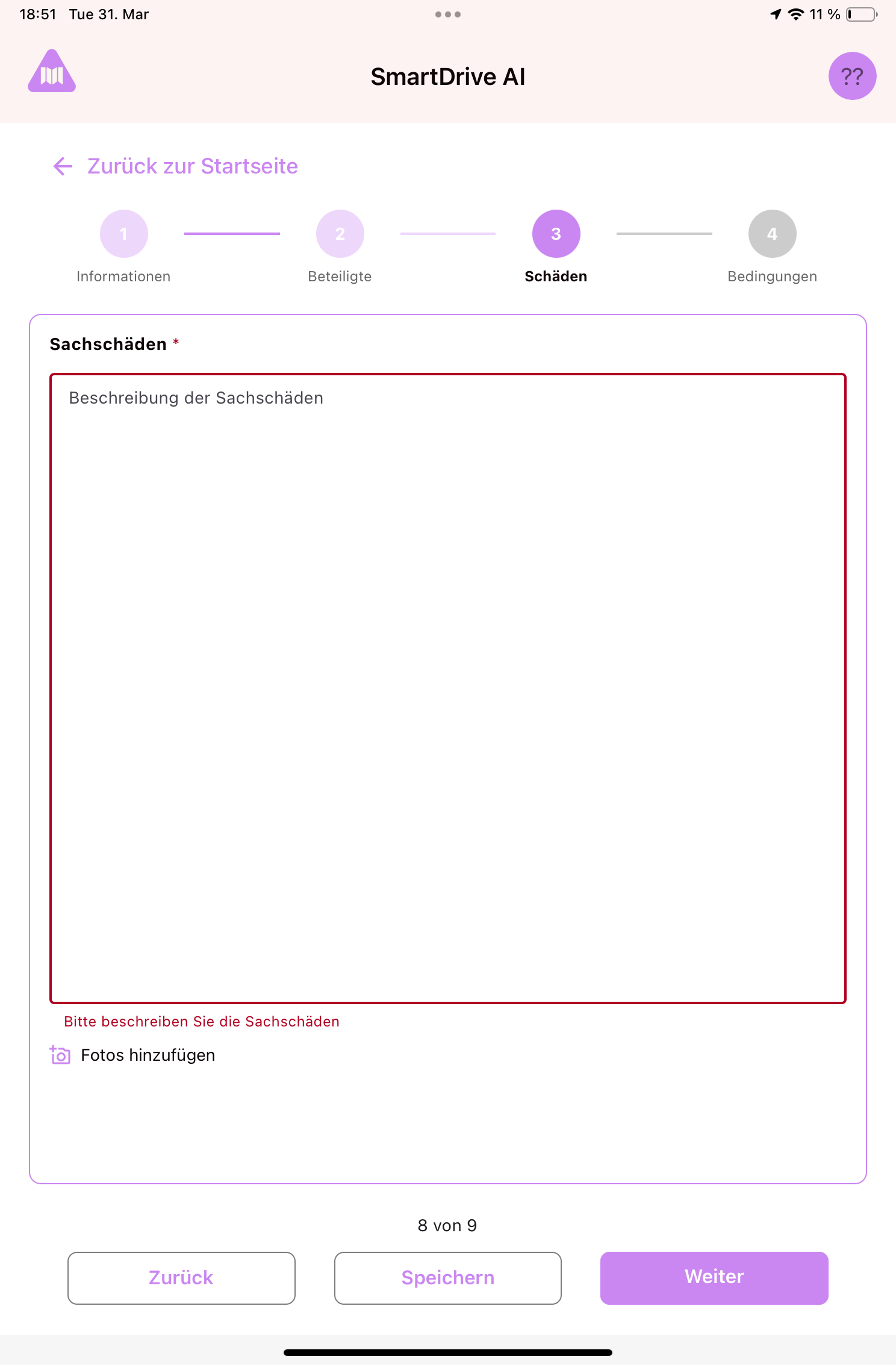
Sometimes an accident also damages things like fences, traffic signs, lampposts, or buildings.
- Describe any property damage in the text field: what was damaged and where.
- Tap the camera icon to photograph the property damage, just like the vehicle photos. You can add multiple photos.
- If there was no property damage, you can leave this section empty and proceed.
Still need help?
Get in touch with the SmartDrive AI team
Or email us at support-smartdriveai@mapular.com