Merging Duplicate Reports
How to detect and merge duplicate accident reports, pick the fields to keep from each side, and resolve the merged record.
This guide explains how to combine two duplicate accident reports into a single record using the Merge feature.
When duplicates occur
Duplicates commonly appear when:
- The driver submits a report from the mobile app, and
- A manager independently enters a report for the same incident through the web app.
Instead of deleting one, you can merge both into a single, consolidated report that preserves the best data from each.
Selecting exactly two reports
- Go to the Accident Reports list.
- Use the checkboxes to select exactly two reports.
- The Merge button becomes active only when two reports are selected. Selecting fewer or more than two will keep the button disabled.
- Click Merge to open the merge view.
Side-by-side comparison
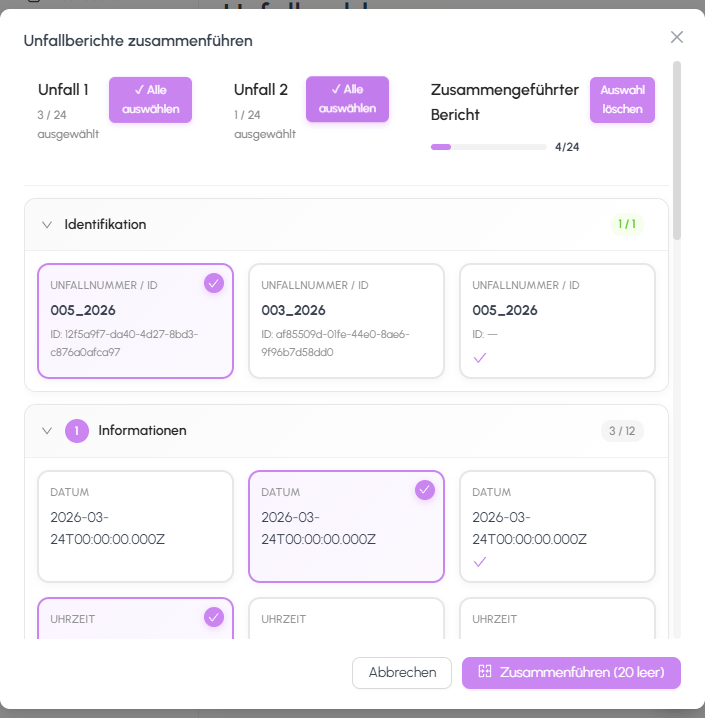
The merge view displays both reports side by side:
- Each field is shown with the value from Report A and the value from Report B.
- For every field, choose which value to keep by clicking the corresponding option.
- Where only one side has data, that side is preselected automatically.
- Review every section (master data, opponents, witnesses, injured persons, photos, and sketches) to make sure the merged version is complete.
What happens to the duplicate after merging
Once you confirm the merge:
- The selected values are combined into a single merged report.
- The merged report keeps its full history and is used for all further processing.
- The duplicate report is removed from the active list (archived/soft-deleted) so it no longer clutters your workflow but remains available for audit purposes.
Merging is a one-time operation. Double-check your choices before confirming, as the source records can no longer be edited independently afterwards.
Still need help?
Get in touch with the SmartDrive AI team
Or email us at support-smartdriveai@mapular.com