Fahrzeuge per CSV hochladen
Erforderliches CSV-Format, unterstützte Spalten, Datumsformate und wie der Status In Betrieb steuert, ob ein Fahrzeug aktiv oder ausgemustert ist.
Diese Anleitung beschreibt, wie Sie Ihren Fuhrpark per CSV-Upload in großen Mengen verwalten.
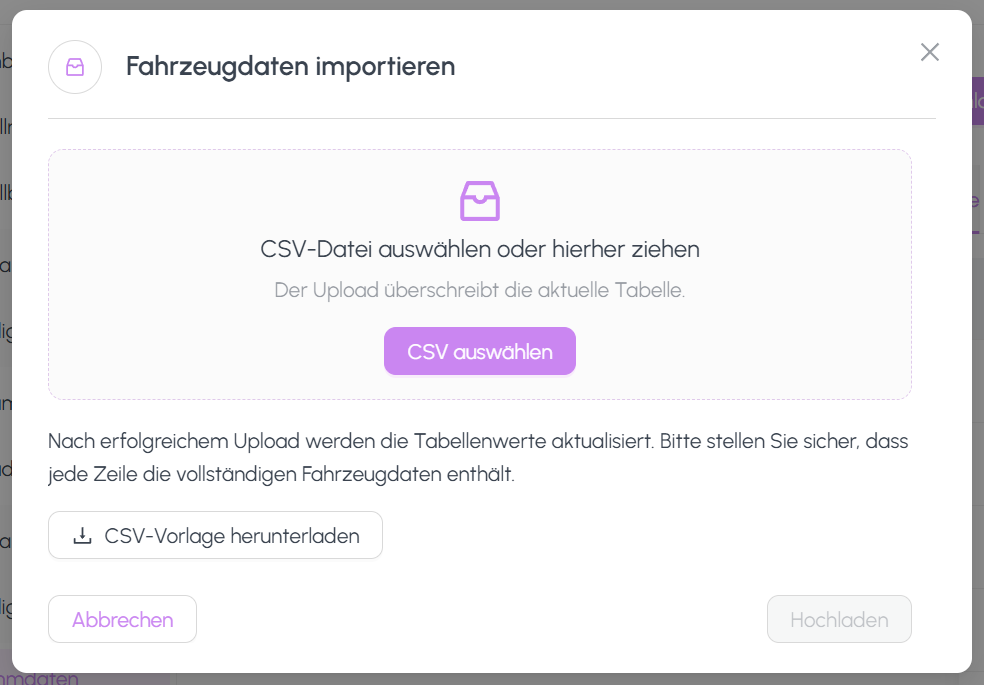
CSV-Vorlage herunterladen
- Öffnen Sie Stammdaten > Fahrzeuge.
- Klicken Sie auf CSV-Vorlage herunterladen, um die Vorlage zu laden.
- Öffnen Sie die Vorlage in Excel, LibreOffice Calc oder einem anderen Tabellenprogramm, das CSV unterstützt.
Die Verwendung der Vorlage stellt sicher, dass Spaltenüberschriften, Reihenfolge und Kodierung für den Upload korrekt sind.
Erforderliche Spalten
Beim Anlegen der CSV müssen Sie mindestens eine der folgenden Spalten befüllen, die für den Abgleich verwendet wird:
- Nr.: die interne Fahrzeugnummer, oder
- Kennzeichen: das amtliche Kennzeichen.
Stimmt die Nr. oder das Kennzeichen einer Zeile mit einem bestehenden Fahrzeug überein, wird dieses Fahrzeug aktualisiert. Andernfalls wird ein neuer Fahrzeugdatensatz angelegt.
Weitere Spalten der Vorlage entsprechen den Feldern des Fahrzeugdatensatzes (Fahrzeugart, Status, Versicherung usw.). Behalten Sie die Spaltenüberschriften exakt wie in der Vorlage bei.
So werden bestehende Fahrzeuge aktualisiert und neue angelegt
Logik beim Upload:
- Treffer gefunden (anhand Nr. oder Kennzeichen): Der bestehende Datensatz wird mit den neuen Werten aus der CSV aktualisiert.
- Kein Treffer gefunden: Aus der CSV-Zeile wird ein neuer Fahrzeugdatensatz angelegt.
- Bestehendes Fahrzeug nicht in der CSV: Der Status In Betrieb wird auf "falsch" gesetzt. Das Fahrzeug wird automatisch als stillgelegt markiert (siehe nächster Abschnitt).
Status "In Betrieb" verstehen
Jedes Fahrzeug verfügt über das Kennzeichen In Betrieb:
- In Betrieb = ja: Das Fahrzeug gehört aktuell zum Fuhrpark.
- In Betrieb = nein: Das Fahrzeug wurde aus dem Fuhrpark entfernt, bleibt aber für historische Meldungen erhalten.
Nicht stillgelegte Fahrzeuge sind bei neuen Unfallmeldungen weiterhin auswählbar.
Fahrzeuge außerhalb der CSV werden automatisch stillgelegt
Beim Hochladen einer CSV:
- Jedes Fahrzeug im System, dessen Nr. oder Kennzeichen in der hochgeladenen CSV nicht enthalten ist, erhält automatisch In Betrieb = nein.
- Auf diese Weise bleibt der Fuhrpark synchron zur CSV, die als "Single Source of Truth" dient.
- Stillgelegte Fahrzeuge werden nicht gelöscht. Ihre Historie bleibt verfügbar und bestehende Meldungen funktionieren weiterhin.
Wenn ein Fahrzeug aktiv bleiben soll, stellen Sie sicher, dass es in jeder CSV enthalten ist.
Felder, die manuell gepflegt werden müssen
Einige Felder sind bewusst nicht Teil des CSV-Uploads und müssen manuell in der Fahrzeugdetailansicht gepflegt werden:
- Nutzungsausfall Tagessatz: Tagessatz für die Nutzungsausfallentschädigung.
- VK SB: Vollkasko-Selbstbeteiligung.
- TK SB: Teilkasko-Selbstbeteiligung.
Prüfen Sie nach einem CSV-Upload neu angelegte Fahrzeuge und tragen Sie diese Werte nach, damit bei der Schadenabwicklung die korrekten Beträge verwendet werden.
Noch Fragen?
Kontaktieren Sie das SmartDrive AI Team
Oder schreiben Sie uns an support-smartdriveai@mapular.com