Catchment Areas
What a catchment area is, how to configure one, and how to interpret the results for site selection.
A catchment area defines the population or data that is realistically accessible from a given location. In site selection, it answers the question: who can actually reach this store?
Types of catchment analysis
The platform supports two methods:
| Method | How it works | Best for |
|---|---|---|
| Distance-based | Aggregates values within a radius (500m, 1km, 2km) | Walking-distance retail, convenience formats |
| Isochrone (travel time) | Aggregates values within a travel-time polygon | Drive-time retail, service areas |
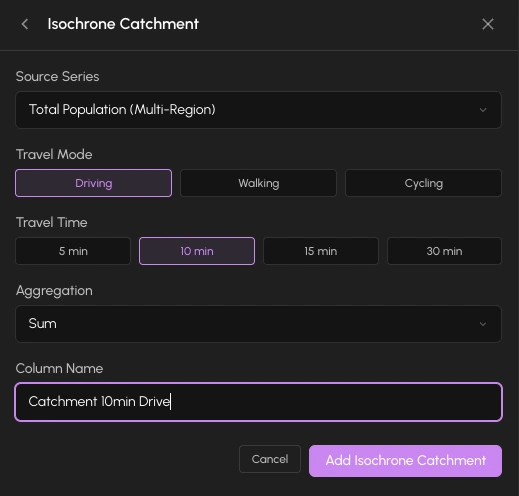
For travel-time isochrones, you can choose driving, walking, or cycling as the travel mode.
For convenience retail formats with small basket sizes, walking distance is more relevant than drive time. The relevant catchment is usually the immediate settlement: the village or neighborhood itself. People do not get in their car to buy a few items they forgot.
How to add a catchment column
- 1Add a source series to your Mapbook first (e.g., Population from Germany Demographics).
- 2Click + Add column and go to the Transform tab.
- 3Select Catchment.
- 4Choose your source series (which data to aggregate).
- 5Select the catchment method: Distance or Isochrone.
- 6Configure the radius or travel time and mode.
- 7Choose the aggregation (Sum, Average, Min, Max).
- 8Click Compute. The system calculates values for all cells in the current viewport.
Catchment computation runs on demand, not automatically. After panning or zooming, click Compute again to recalculate for the new viewport. The column shows a staleness indicator when recalculation is needed.
Reading catchment results
Once computed, each hex cell shows the aggregated value for all cells within its catchment. For example:
- A cell with a 1km distance catchment on Population shows the total population within 1 kilometer of that cell's center.
- A cell with a 10-minute walking isochrone on Population shows the population reachable within 10 minutes on foot.
The catchment polygon appears on the map when you hover over a cell. With multiple cells selected, the overlapping catchment areas are shown together, letting you compare the reach of different locations.
Proximity analysis
In addition to catchments, the platform supports proximity analysis: finding the k-nearest neighbors of each cell and computing aggregates. Useful for questions like "what is the population within the 5 nearest cells?"
Access it from the Transform tab in the action catalog, the same place as catchment.
Practical tips
- Distance preset: Near (500m): Good for village-level convenience retail where the catchment is essentially the settlement itself.
- Distance preset: Medium (1km): Good for urban neighborhood retail.
- Distance preset: Far (2km): Good for larger-format retail where customers travel further.
- Driving isochrone (10 min): Standard for supermarkets and larger retail where customers drive.
- Walking isochrone (5-10 min): Use for pedestrian-oriented formats.