Share a Mapbook
How to control who can see your Mapbook: access levels, share links, and PDF export.
You can share your analysis with teammates or external stakeholders in several ways: by setting the access level, generating a share link, or exporting a PDF report.
Access levels
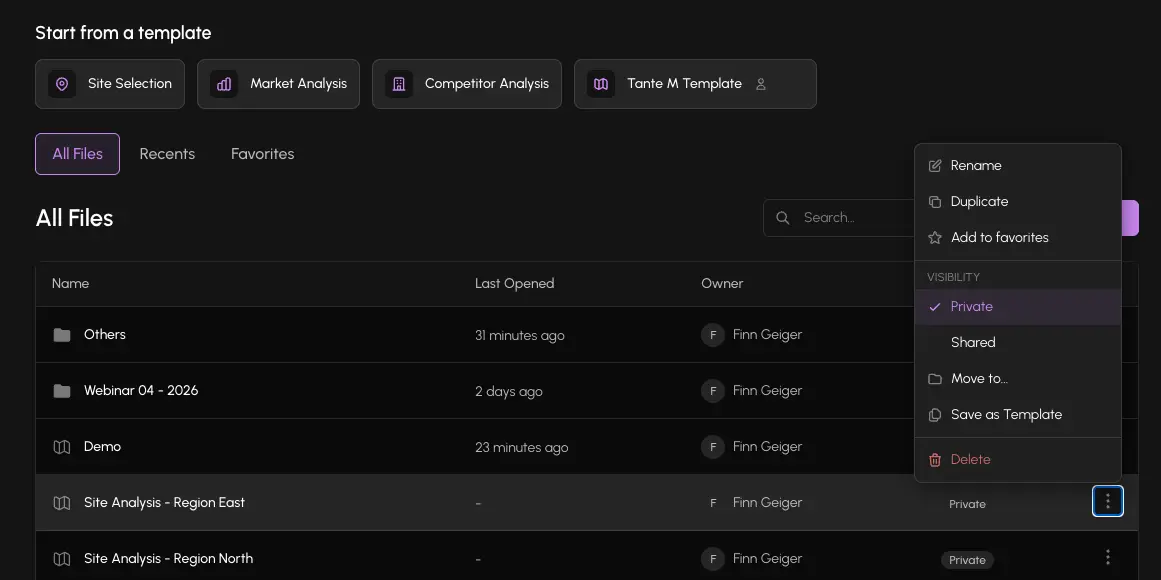
Every Mapbook has one of three access levels:
| Level | Who can view | Who can edit |
|---|---|---|
| Private | Owner only | Owner only |
| Shared | All members of your organization | Owner only |
| Public | Anyone with the link | Owner only |
The access level applies to the live Mapbook, not to a snapshot. If you set a Mapbook to Shared, your teammates see it update in real time as you work.
Public links make your Mapbook visible to anyone who has the URL. Use Shared for internal collaboration. Only set a Mapbook to Public when you explicitly want external parties to view it.
Change the access level
- 1Open the Mapbook.
- 2Click the ... menu in the header or use the access badge in the header.
- 3Select the new access level: Private, Shared, or Public.
- 4The change takes effect immediately.
Share links
Share links let you send a read-only view of your Mapbook to anyone, including people outside your organization. Share links are time-limited.
Generate a share link
- 1Open the Mapbook.
- 2Click the Share button in the header.
- 3Click Generate link.
- 4Copy the link and send it to the recipient.
- 5From the Share panel, you can view all active links, copy them, or delete them to revoke access.
Recipients see the Mapbook in read-only mode with identical rendering to the editor view. Edit controls are hidden for shared link viewers.
Share links are independent of the Mapbook's access level. You can generate a share link for a Private Mapbook without making it Public.
PDF export
You can export a site report as a PDF. The PDF includes:
- Viewport statistics
- Range bar comparisons
- Gauge card grids
- Cell close-up and catchment area maps
- AI-generated summaries (in English or German)
To export, click Export PDF from the Mapbook menu.
Excel export
You can export the current table data (with active filters applied) as an Excel file. Click Export Excel from the Mapbook menu or the table toolbar.