Navigate the Interface
A walkthrough of the two main views, the sidebar, and the navigation controls in a Mapbook.
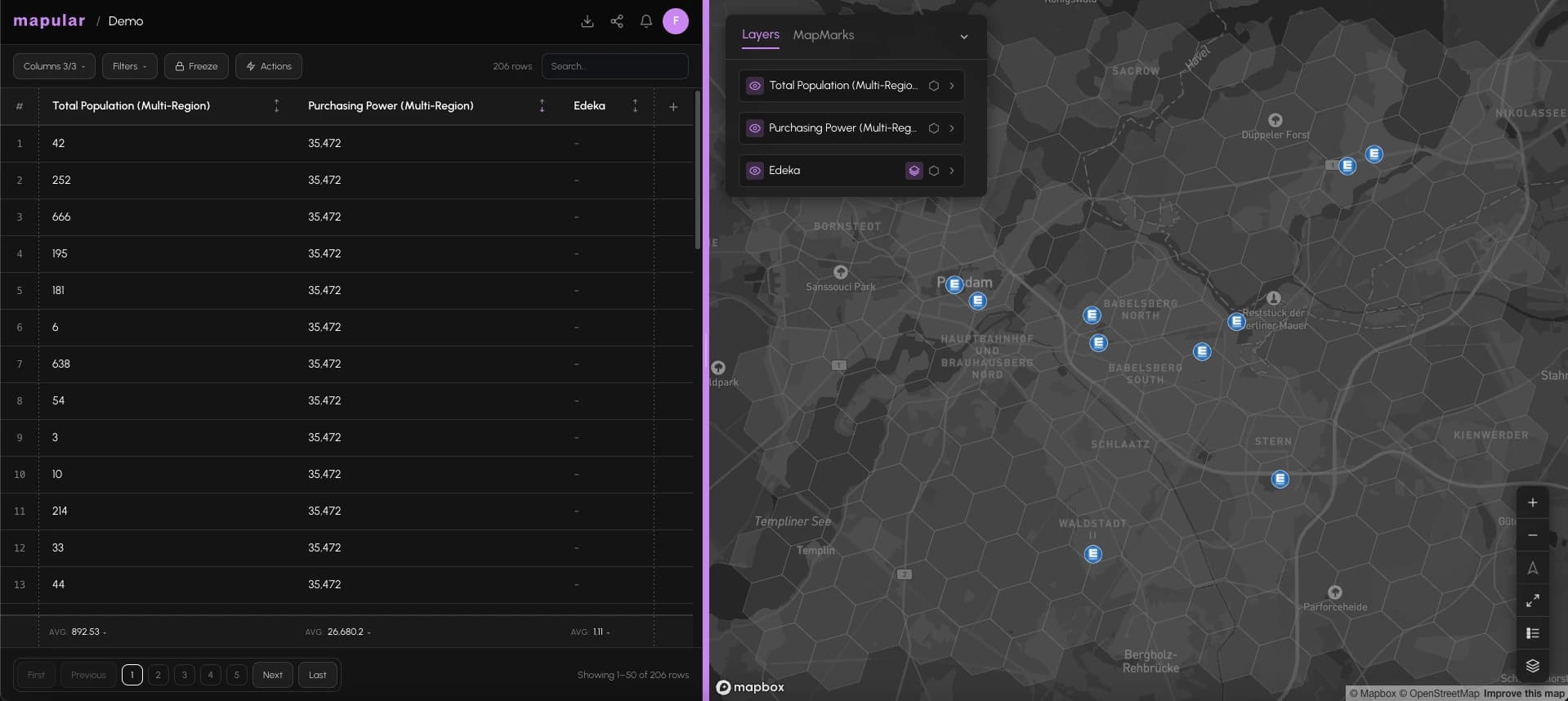
When you open a Mapbook, the screen splits into two panes: the map on the right and the table on the left. You can resize either pane by dragging the divider between them.
Map view
The map shows your data as a hexagonal grid. Each hex cell represents a geographic area. The color of the cell encodes the data value for that area.
Key controls in the map view:
- Basemap selector: Switch between Streets, Satellite, Light, Dark, or a custom Mapbox style URL.
- 3D toggle: Switch from flat color encoding to 3D extruded hexagons. Taller cells have higher values.
- Search bar: Type any address or place name to fly the map to that location.
- Map Marks: Save up to 5 named viewport bookmarks so you can jump back to an area in one click.
- Legend: Auto-generated color scale in the bottom right. Updates when you rename a series.
- Zoom controls: Zoom in and out to change the H3 resolution. The grid automatically becomes finer as you zoom in.
Table view
The table shows the same data as the map, but as rows and columns.
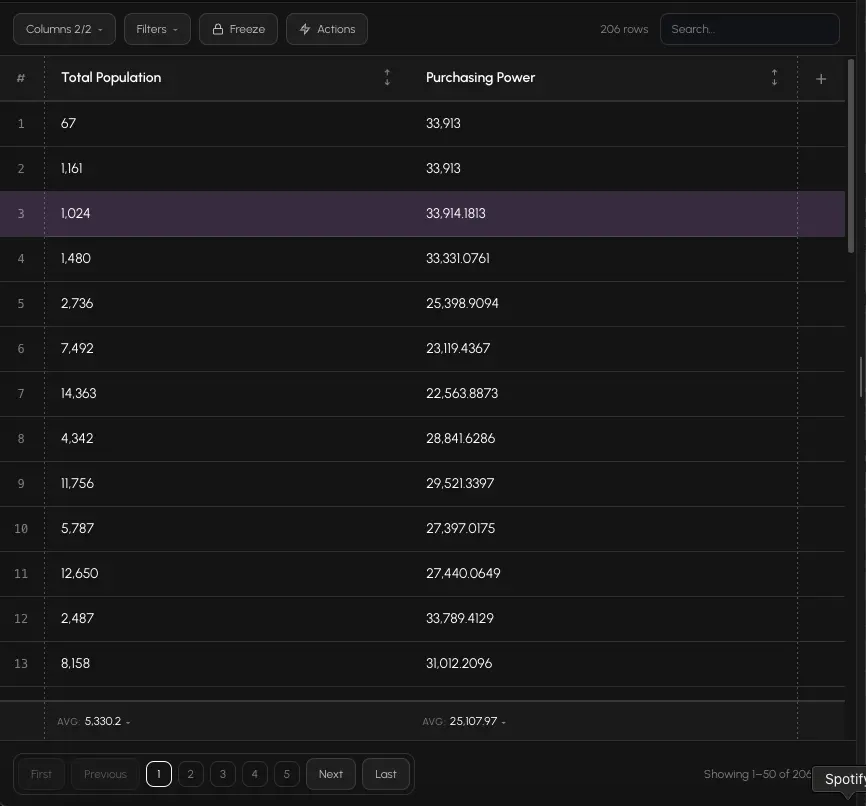
You can:
- Sort any column by clicking the column header.
- Filter columns by numeric conditions using the filter controls.
- Search across all visible values using the search icon in the table toolbar.
- Select rows by clicking. Multi-select with Shift+click. Selected rows are highlighted on the map.
The first column always shows the row index. The table shows only the cells currently visible in the map viewport.
The sidebar
The sidebar (left edge of the map) lists all the series in your Mapbook. Each series corresponds to a column in the table and a visualization layer on the map.
From the sidebar you can:
- Add a series using the + button at the top
- Reorder series by dragging
- Open series settings to rename, change colors, or configure the layer
- Toggle visibility to show or hide a layer on the map
Breadcrumb navigation
The header shows the name of the current Mapbook. Click the Mapular logo to return to the homepage (the Mapbook list).
- 1Open the homepage by clicking the logo in the top left.
- 2Click any Mapbook in the list to open it.
- 3Once inside a Mapbook, use the header breadcrumb to go back.
- 4Use the divider between map and table to adjust how much space each view gets.
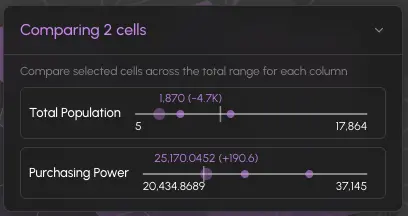
- 5Click any hex on the map to open the Cell Details panel, which shows all values for that cell.