Filtern und Tabellenansicht
Wie Sie die Tabelle zum Sortieren, Filtern und Suchen Ihrer Daten nutzen und wie Karte und Tabelle synchron bleiben.
Die Tabellenansicht ist der Ort, an dem Sie mit Ihren Daten als Zahlen arbeiten, nicht nur als Farben auf der Karte. Sie können nach beliebigen Spalten sortieren, nach Bedingungen filtern und über alle Werte suchen. Karte und Tabelle bleiben stets synchron.
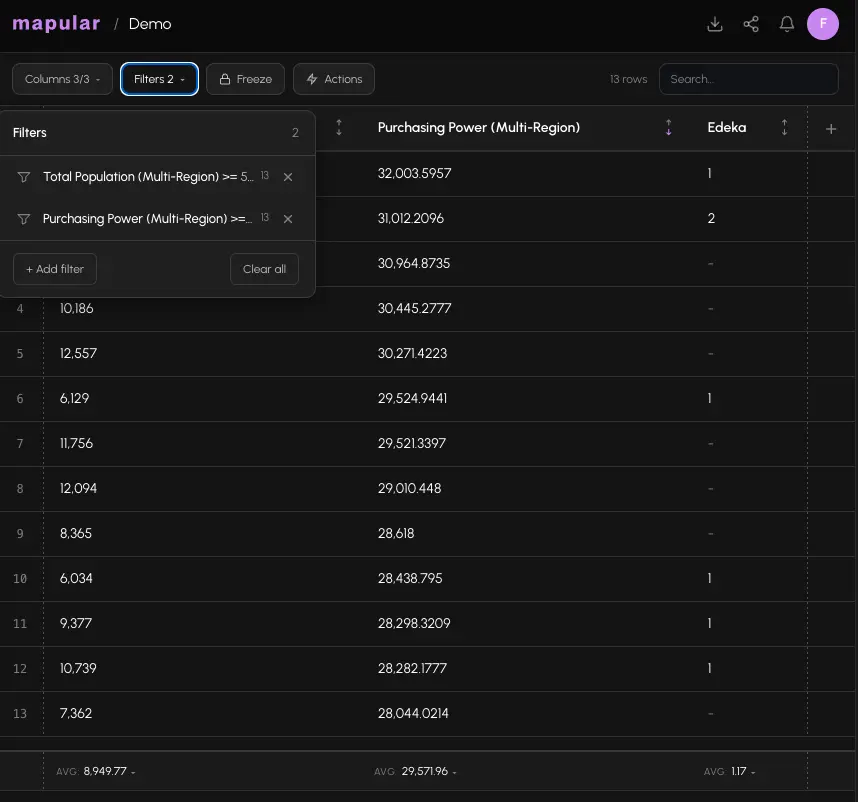
Sortieren
Klicken Sie auf einen Spaltenheader, um zu sortieren. Einmal anklicken für aufsteigend, erneut für absteigend. Die aktive Sortierspalte zeigt einen Pfeilindikator.
Sortierung funktioniert numerisch bei Zahlenspalten und alphabetisch bei Text. Sortieren setzt die Paginierung auf Seite 1 zurück.
Filtern
Sie können jede numerische Spalte nach Bedingung filtern:
| Bedingung | Beispiel |
|---|---|
| Größer oder gleich (>=) | Bevölkerung >= 500 |
| Kleiner oder gleich (<=) | Wettbewerber <= 2 |
| Gleich (=) | Kaufkraftindex = 100 |
| Ungleich (!=) | Anzahl != 0 |
| Zwischen | Bevölkerung zwischen 200 und 1000 |
Filter hinzufügen:
- 1Klicken Sie auf + Filter hinzufügen in der Tabellen-Symbolleiste.
- 2Wählen Sie die Spalte, nach der Sie filtern möchten.
- 3Wählen Sie die Bedingung aus dem Dropdown.
- 4Geben Sie den Wert ein und drücken Sie Enter (oder klicken Sie außerhalb, um zu schließen).
Aktive Filter erscheinen als Pills über der Tabelle. Klicken Sie auf eine Pill, um sie zu bearbeiten. Klicken Sie das × einer Pill, um sie zu entfernen.
Filter bleiben gespeichert, wenn Sie das Mapbook speichern. Beim nächsten Öffnen werden Ihre Filter wiederhergestellt.
Suchen
Das Suchfeld filtert Zeilen nach Übereinstimmung mit einem beliebigen sichtbaren Wert, ohne Unterscheidung von Groß- und Kleinschreibung. Klicken Sie auf das Suchsymbol in der Symbolleiste, um das Suchfeld aufzuklappen.
Die Suche ist flüchtig: Sie wird nicht mit dem Mapbook gespeichert.
Paginierung
Die Tabelle zeigt 50 Zeilen pro Seite. Nutzen Sie Zurück und Weiter zur Navigation. Die Seiteninformation zeigt, wie viele Zeilen dem aktuellen Filter entsprechen (z.B. "Zeige 1-50 von 243 Zeilen"). Das Hinzufügen oder Entfernen eines Filters setzt auf Seite 1 zurück.
Synchronisierte Auswahl
Karten- und Tabellenauswahl bleiben in beide Richtungen synchron:
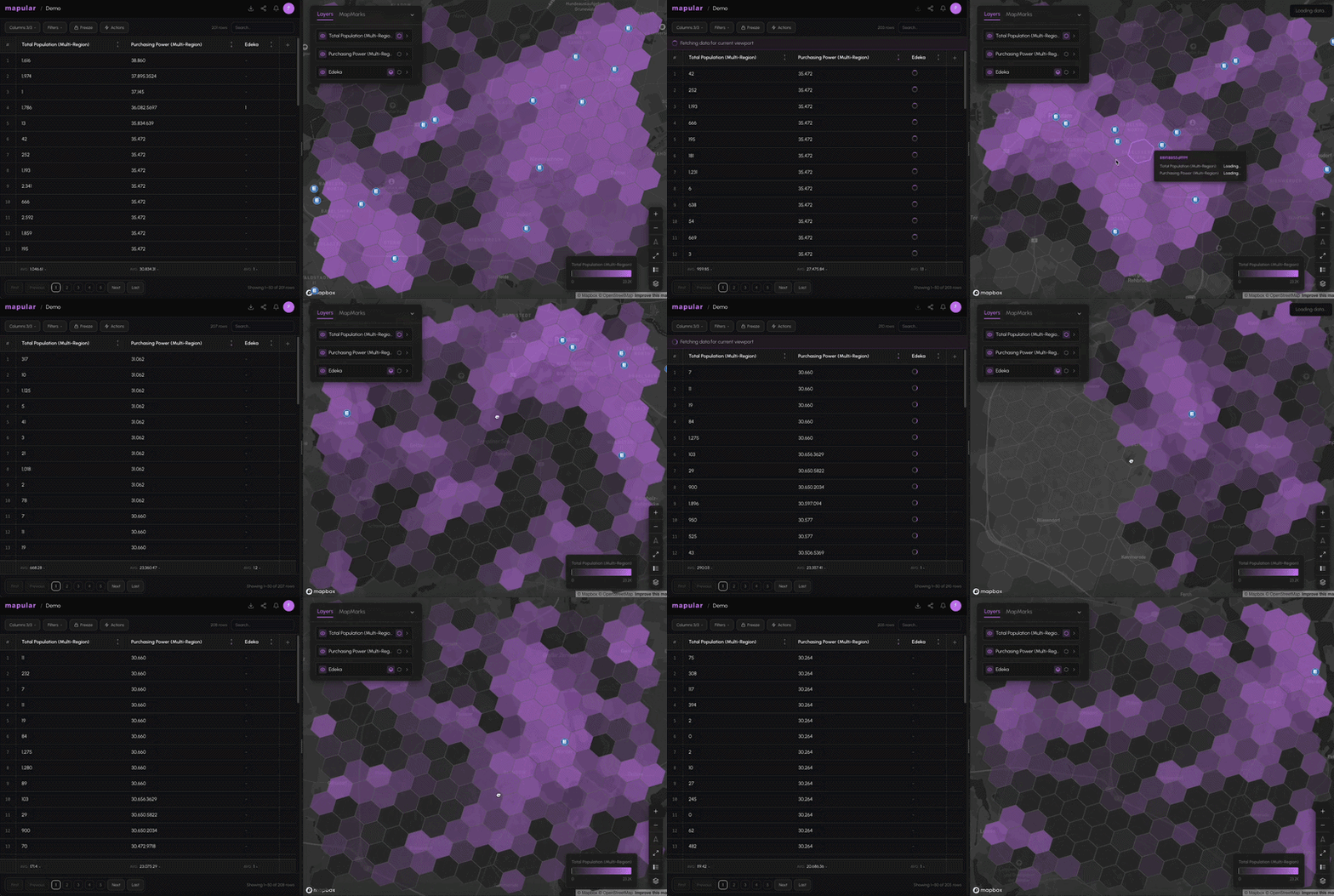
- Tabellenzeile anklicken: Auswahl der Zeile. Die Karte hebt das passende Hexfeld hervor.
- Hexfeld auf der Karte anklicken: Auswahl der Zelle. Die Tabelle scrollt und paginiert zu dieser Zeile.
- Shift+Klick in beiden Ansichten, um zur Auswahl hinzuzufügen, ohne sie zu löschen.
- Strg+C / Cmd+C kopiert ausgewählte Zeilen als tabulatorgetrennte Werte mit Headern.
Spaltenverwaltung
Rechtsklick (oder Klick) auf einen Spaltenheader öffnet das Spaltenmenü:
- Umbenennen der Spalte
- Sortieren aufsteigend oder absteigend
- Filtern (öffnet den Filtereditor für diese Spalte)
- Anheften / Einfrieren der Spalte, damit sie beim horizontalen Scrollen sichtbar bleibt
- Ausblenden der Spalte, ohne die Daten zu entfernen
- Entfernen der Spalte aus dem Mapbook
Sie können die Spaltensichtbarkeit auch über das Dropdown Spalten in der Symbolleiste umschalten.
Zusammenfassungszeile
Eine fixierte Zusammenfassungszeile am unteren Rand der Tabelle zeigt spaltenweise Statistiken: Anzahl, Summe, Durchschnitt, Min und Max. Klicken Sie auf den Zusammenfassungswert, um durch die Aggregationstypen zu wechseln.