Map Appearance
How to customize the map: color ramps, 3D mode, basemaps, the legend, and saved viewport bookmarks.
Each series in a Mapbook has visual settings you can adjust. You can also change the background map, toggle 3D mode, and save viewport bookmarks.
Color ramps
Each data series has a color ramp that maps low values to one color and high values to another.
- 1Click the layer name in the sidebar to open its settings.
- 2Under Color, choose a preset ramp or define a custom start and end color.
- 3The map updates immediately.
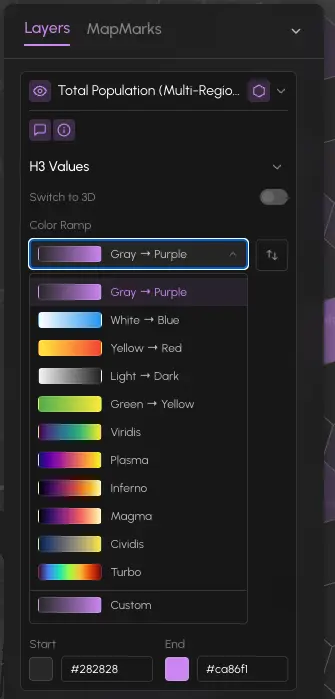
The color ramp applies to the hex grid. Each cell is colored based on where its value falls in the range from minimum to maximum.
3D mode
The 3D toggle in the map toolbar switches from flat color-only cells to 3D extruded hexagons. In 3D mode, taller cells have higher values, giving you a second visual dimension on top of color.
Click the 3D button in the top-right of the map controls to toggle. You can orbit the 3D view by holding the right mouse button while dragging.
Basemaps
You can switch the background map style at any time:
| Style | Description |
|---|---|
| Streets | Labeled street map |
| Satellite | Aerial imagery |
| Light | Minimal light theme |
| Dark | Minimal dark theme |
| Custom URL | Any Mapbox style URL |
Open the basemap selector from the map controls (bottom-left) to switch styles. To use a custom style, paste a Mapbox style URL into the custom field.
Map legend
The legend in the bottom-right of the map shows the color scale and value range for the active layer. It updates automatically when you rename a series.
Toggle the legend on or off using the Legend button in the map controls.
MapMarks
MapMarks are named viewport bookmarks. Save up to 5 bookmarks so you can jump back to a region without panning and zooming manually.
- 1Navigate the map to the view you want to save.
- 2Click the MapMarks tab in the map configuration panel.
- 3Click + Add mark and give it a name.
- 4To return to a saved view, click the mark name.
MapMarks are saved with the Mapbook. They persist across sessions and are visible to teammates on Shared Mapbooks.
Collapsible layer controls
Layer settings are organized into collapsible sub-sections: H3 Grid (color, height, opacity) and Points (shape, size, color). Click a section header to expand or collapse it, keeping the panel compact when you only need one area.
Unified search
The search bar in the map toolbar accepts any address, city, or place name. Mapbox geocoding flies the map to the matched location and pins the geocoded cell until you dismiss it.