Templates and Duplicating Mapbooks
How to save a Mapbook as a template for reuse, and how to duplicate an existing Mapbook to start a new analysis quickly.
Once you've configured a Mapbook with the right layers, filters, and settings, you don't have to set it up again for every new location. You can save it as a template or duplicate it.
Templates
A template is a saved Mapbook configuration you can reuse. It captures the series, column settings, and display configuration, so you can run the same analysis on a new area without rebuilding from scratch.
Common use case: Set up your standard location evaluation Mapbook once (population + purchasing power + grocery competitors + catchment). Save it as a template. Every time a new location lead comes in, load the template and navigate to that area.
Save a Mapbook as a template
- 1Open the Mapbook you want to save.
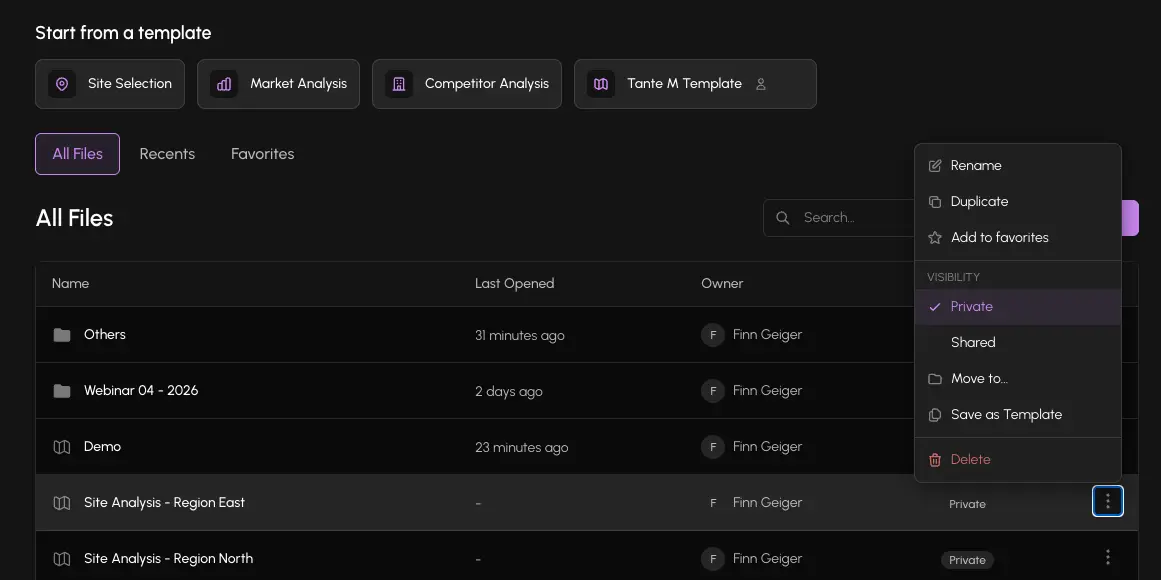
- 2Click the ... menu in the header.
- 3Select Save as template.
- 4Name the template and choose visibility: Private (only you) or Shared (your organization).
- 5Confirm. The template is now available from the action catalog.
Load a template
- 1From the homepage, click + New Mapbook.
- 2In the new Mapbook, click + Add column.
- 3Go to the Load tab and scroll to Templates.
- 4Select the template you want to apply.
- 5The Mapbook loads with all saved layers and settings.
Templates with Shared visibility are available to everyone in your organization. Use shared templates to standardize how your team evaluates locations.
Duplicating a Mapbook
Duplication creates an identical copy of an existing Mapbook, with the same layers, configuration, and access level. Use it when you want to:
- Start a new analysis from a baseline you've already built
- Experiment with changes without touching the original
- Create a region-specific copy from a template Mapbook
How to duplicate
- 1From the homepage, hover over the Mapbook you want to copy.
- 2Click the ... actions menu on the right side of the row.
- 3Select Duplicate.
- 4The platform creates a copy named "Mapbook name (Copy)" and opens it.
- 5Rename it by clicking the title.
Duplication is also a quick way to share a configured Mapbook with a colleague without giving them edit access. Duplicate it, set the copy to Shared, and they can load it without affecting your original.