POI Layer
How to add a points of interest layer, navigate the category tree, search for brands, and configure display options.
The POI layer lets you display points of interest on the map alongside your other data. Use it to visualize competitors, catchment sources, or any other location-based category.
POI data covers 50+ main categories across 10 countries, sourced from different databases.
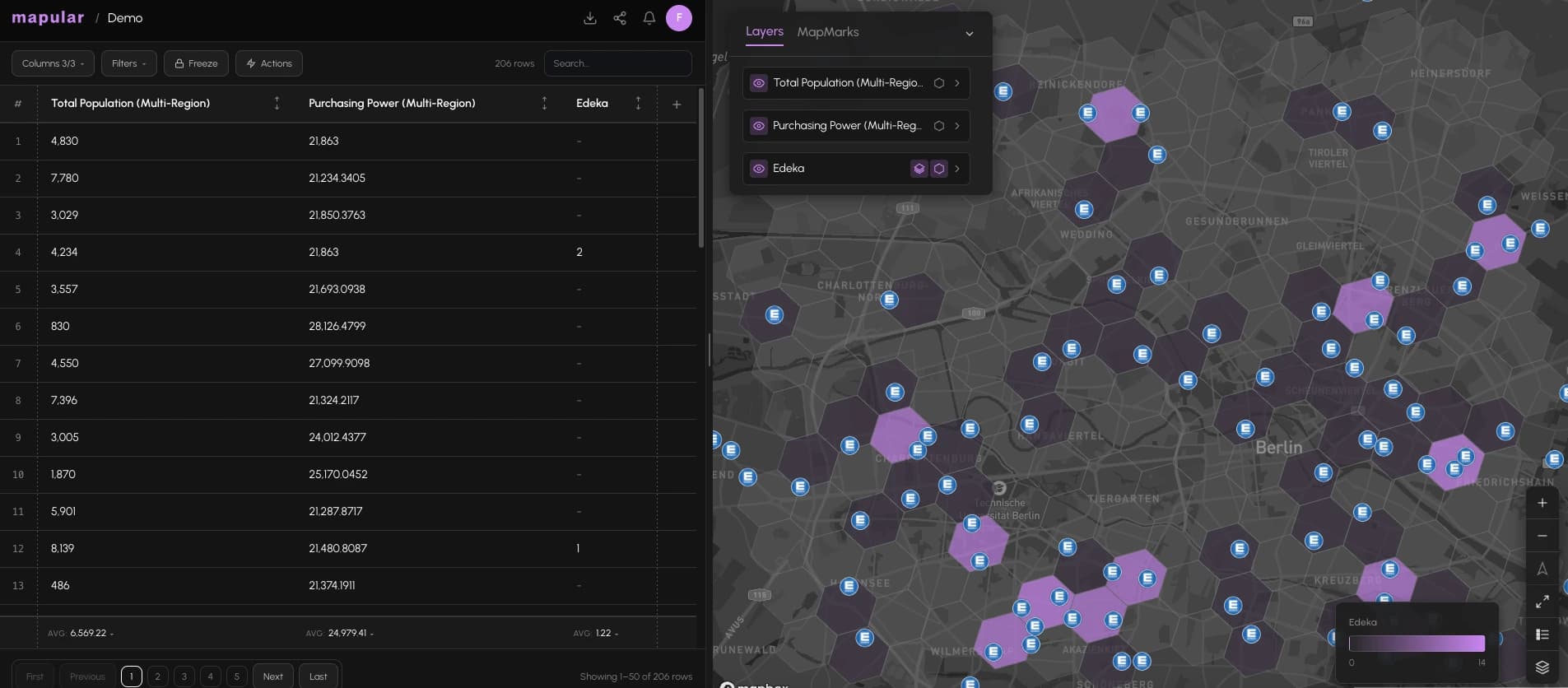
Add a POI layer
- 1Open a Mapbook and click + Add column.
- 2Go to the Load tab.
- 3Under Mapular Catalog, select the POI dataset for the country you want (e.g., Germany POI).
- 4The category tree opens. You must select at least one category before you can add the layer.
- 5Navigate to the category you want, or use the search to find it.
- 6Click Add.
POI data is only fetched once you zoom in past a certain level. A yellow warning badge appears on the layer if you are zoomed out too far for data to load.
The category tree
The tree has three levels: primary, secondary, and tertiary. For example: Retail (primary) → Food & Grocery (secondary) → Supermarket (tertiary).
When you type in the search field:
- If your query matches a category, the tree filters to show matching branches.
- If no category matches, the search shows brand suggestions instead (e.g., typing "Aldi" returns the Aldi brand as a filter suggestion).
Select individual leaf nodes, or select a parent category to include everything below it.
Negation filters
You can exclude specific brands or values from your query using negation filters.
- 1In the POI configuration panel, find the filter pills.
- 2Click a filter pill to edit it.
- 3Switch the condition from contains to not contains, or from equals to not equals.
- 4The layer now excludes items matching that condition.
This is useful when you want to show all supermarkets except your own brand.
Display options
Overlay mode
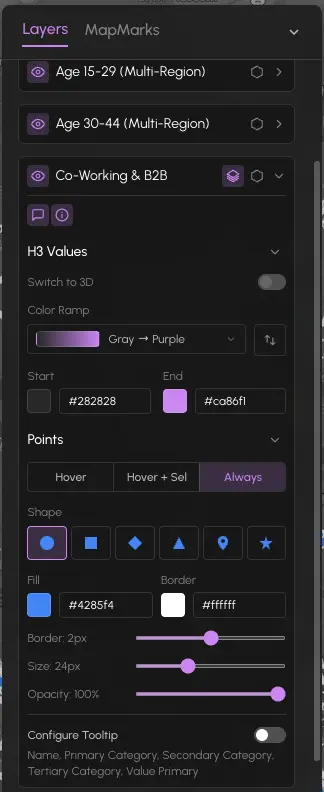
Control when the POI points are visible on top of the hex grid:
| Mode | When points appear |
|---|---|
| On hover | Only when you hover over a hex cell |
| Hover and selection | When hovering, and for selected cells |
| Always | Always visible, regardless of interaction |
Tooltip columns
You can choose which columns appear in the POI tooltip (up to 5). By default the tooltip shows the tertiary category and the OSM value. Open the layer settings to customize the checklist.
Brand icons
When a point matches a known brand, the map displays the brand's logo automatically. For generic categories, a category icon appears instead (restaurant, hotel, bank, etc.).
Point styling
You can customize how individual POI points look:
- Shape: circle, square, diamond, triangle, pin, or star
- Fill color and border color
- Size: 12 to 48 px
- Opacity: 0 to 100%
Open the layer settings and expand the Points section to access these controls.
Multi-region POI
If your analysis spans multiple countries, you can add a unified multi-region POI series. The series pulls POI data from all selected countries and displays them together in a single layer.