Your First Location Analysis
Step-by-step: open a Mapbook, add a population layer and a POI layer, and read your first location analysis.
This guide walks you through a complete location analysis from scratch. By the end, you'll have a map showing population density and grocery competitor density for any area, with both views linked in real time.
What you'll build
A Mapbook with two layers:
- Population from Germany Demographics
- Grocery competitors from the POI layer (supermarkets, discounters)
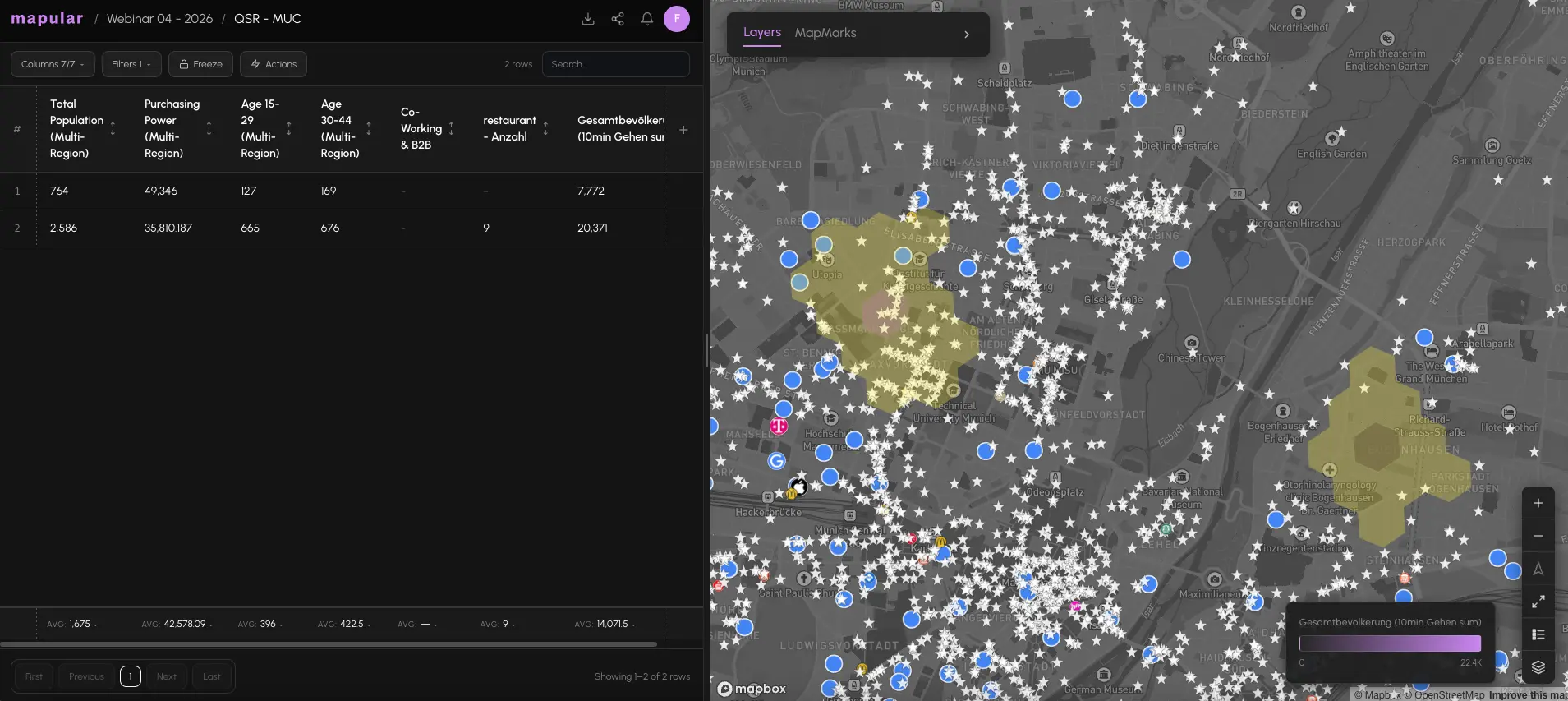
Step-by-step walkthrough
- 1From the homepage, click + New Mapbook to create a fresh workspace.
- 2Click + Add column to open the action catalog.
- 3Under Mapular Catalog, select Germany Demographics and add the Population series. Click Add.
- 4The map fills with hex cells colored by population. The legend in the bottom right shows the color scale.
- 5Click + Add column again and go to the Load tab.
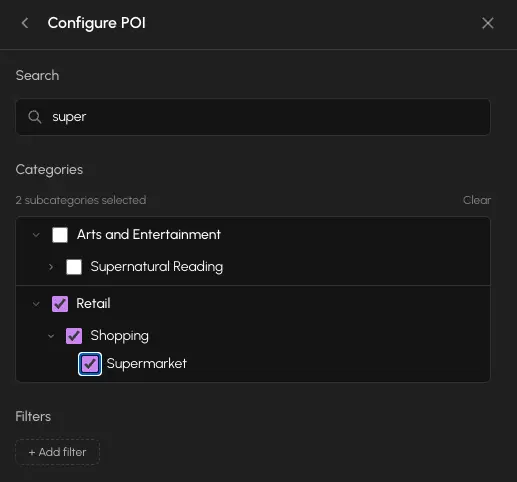
- 6Under Mapular Catalog, select Germany POI and open the category tree.
- 7Navigate to the Retail category and select Supermarkets and Discounters (or use the search to find them by name).
- 8Click Add. The POI layer appears as a count per hex cell in the table, and as individual pins on the map.
- 9Pan and zoom the map to the area you want to analyze.
Reading the map
Once both layers are active:
- Hex cell color: encodes the population value for that cell. Darker or brighter cells have more people.
- Points on the map: individual competitor locations. Dense clusters mean high competition.
- Hex cell with high population and few competitor pins: a potential white spot.
Hover over any hex to see a tooltip with all values. Click a hex to open the Cell Details panel, which shows a breakdown of all series for that specific cell.
Syncing map and table
The table and map stay in sync automatically:
- Hover a row in the table to highlight the matching hex on the map.
- Click a row to select it. The map zooms and highlights that cell.
- Shift+click multiple rows to compare several cells at once. Their catchment areas overlap on the map.
- Click a hex on the map to scroll the table to that row.
Sort the table by Population descending, then scan down the list for cells with low competitor counts. That combination identifies high-potential, low-competition areas in seconds.
Filtering to your area
Use Viewport Filtering to limit the table to only what's visible on the map. As you pan and zoom, the table updates to show only the cells in the current view.
This is useful when you want to analyze a specific city or district without scrolling through thousands of rows.