Eigene Daten hochladen
Wie Sie eine CSV-Datei hochladen, Spalten konfigurieren und Ihre eigenen Standortdaten in eine Kartenschicht umwandeln.
Sie können eigene Standortdaten in jedes Mapbook einbringen, indem Sie eine CSV-Datei hochladen. Die Plattform geocodiert Adressen automatisch, ordnet Ihre Daten H3-Zellen zu und macht sie als Series verfügbar.
Laden Sie Ihr bestehendes Filialnetz oder Ihre Lead-Liste hoch, um weiße Flecken auf der Karte zu visualisieren: Gebiete mit Nachfrage, aber ohne Abdeckung.
CSV-Datei vorbereiten
Ihre Datei benötigt mindestens eine Spalte, die den Standort jeder Zeile identifiziert. Unterstützte Geolokalisierungsmethoden:
| Methode | Erforderliche Spalten | Hinweis |
|---|---|---|
| Koordinaten | lat / latitude und lon / lng / longitude | Schnellste Methode, kein Geocoding nötig |
| H3-Index | Beliebige Spalte mit h3, h3_index o.ä. | Direkte Zellzuordnung |
| Vollständige Adresse | address, full_address oder location | Geocoding via OpenCage |
| Adressteile | Beliebige Kombination aus Straße, Stadt, Postleitzahl, Land | Geocoding via OpenCage |
Die Plattform erkennt Spaltennamen, die diesen Mustern entsprechen, automatisch, sodass Sie in der Regel nichts umbenennen müssen.
Zeilenlimits:
- Bis zu 100.000 Zeilen bei Koordinaten oder H3-Index
- Bis zu 10.000 Zeilen beim Geocoding aus Adressen
Dateigrößenlimit: 15 MB pro Datei.
So laden Sie hoch
- 1Öffnen Sie ein Mapbook und klicken Sie auf + Spalte hinzufügen.
- 2Gehen Sie zum Tab Laden im Aktionskatalog.
- 3Klicken Sie auf CSV hochladen.
- 4Ziehen Sie Ihre Datei per Drag-and-Drop, oder klicken Sie zum Durchsuchen.
- 5Die Plattform erkennt das Trennzeichen automatisch (Komma, Semikolon, Tab oder Pipe).
- 6Prüfen Sie die Datenvorschau mit den ersten 5 Zeilen.
- 7Bestätigen oder passen Sie die Spaltentypen an (Integer, Float, Datum, Text).
- 8Markieren Sie geografische Spalten; die Plattform wählt wahrscheinliche Geo-Spalten vor.
- 9Benennen Sie Ihren Datensatz und wählen Sie die Sichtbarkeit (Privat oder Geteilt mit Ihrer Organisation).
- 10Klicken Sie auf Hochladen. Die Verarbeitung läuft synchron. Sie erhalten eine Bestätigung, wenn der Datensatz bereit ist.
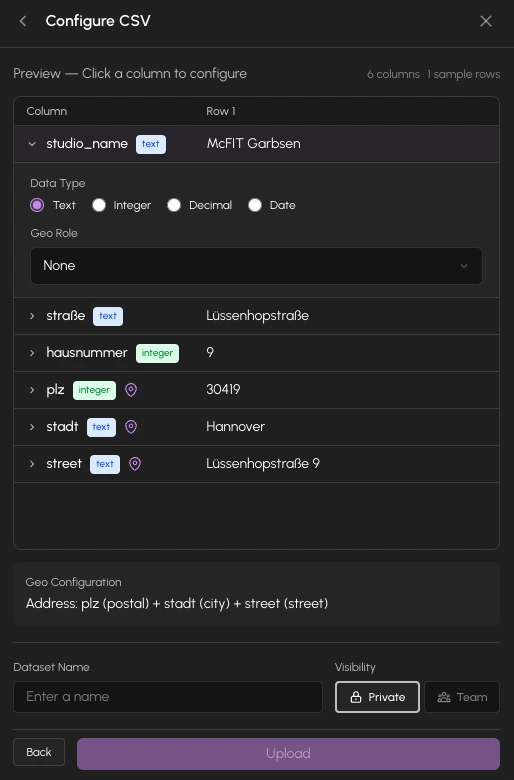
Spaltentypen
Die Plattform leitet Spaltentypen aus Ihren Daten ab:
| Typ | Beispiele |
|---|---|
| Integer | 42, -100, 1234567 |
| Float | 3,14, 1.234,56 (europäische Notation unterstützt) |
| Datum | 2025-01-24, 24.01.2025, 24. Jan. 2025 |
| Text | Alles andere |
Sie können jeden automatisch erkannten Typ überschreiben, indem Sie auf den Spaltenheader in der Vorschau klicken.
Eine Series aus Ihrem Datensatz hinzufügen
Nach dem Hochladen erscheint Ihr Datensatz im Aktionskatalog unter Meine Datensätze. Mit Ihrer Organisation geteilte Datensätze erscheinen unter Organisations-Katalog.
Wenn Sie eine Series aus Ihrem Datensatz hinzufügen, konfigurieren Sie:
- Welche Spalte visualisiert werden soll
- Aggregation: wie Werte pro H3-Zelle kombiniert werden (Summe, Durchschnitt, Min, Max, Anzahl oder Eindeutige Anzahl)
Sie können mehrere Series aus demselben Datensatz mit unterschiedlichen Aggregationen oder Filtern hinzufügen.
Hochgeladene Datensätze sind über Mapbooks hinweg wiederverwendbar. Einmal hochladen, zu jedem Mapbook hinzufügen.
Punktschicht
Zusätzlich zur H3-Hex-Visualisierung können Ihre hochgeladenen Daten als einzelne Punkte auf der Karte angezeigt werden. Aktivieren Sie die Option Punkte anzeigen in den Schichteinstellungen, um die Rohstandorte neben dem aggregierten Hex-Raster anzuzeigen.
Sie können die Punkte nach Form (Kreis, Quadrat, Raute, Dreieck, Pin oder Stern), Füllfarbe, Rahmenfarbe, Größe und Deckkraft gestalten.